
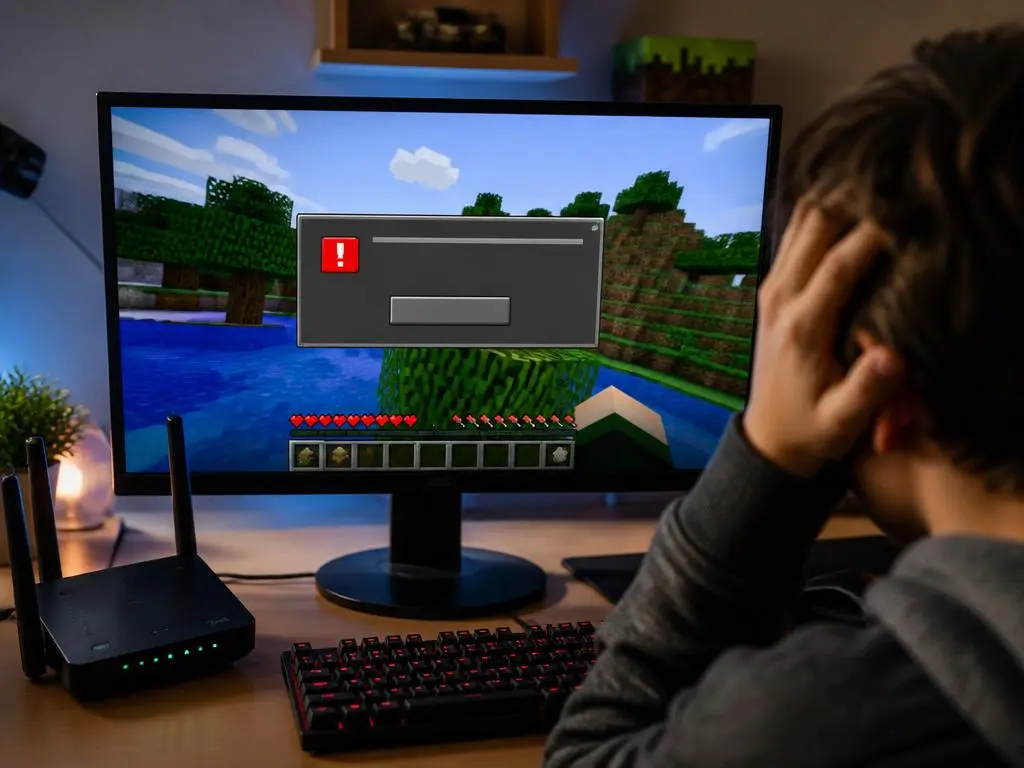
Playing online should be an exciting journey, but nothing ruins a multiplayer session faster than sudden disconnects. Gamers frequently encounter the frustrating minecraft internal exception java net socketexception connection reset when trying to build or explore. This network communication failure abruptly terminates your connection to remote servers.
Fortunately, diagnosing this pesky socket disconnect error does not require professional IT experience. By addressing underlying network issues and game settings, you can stabilize your online session. Read on to discover how to easily secure a flawless multiplayer experience and keep your game running smoothly.
Solving the minecraft java connection reset error on your PC
Multiplayer gaming relies on a continuous stream of data packages traveling between your home computer and the host. When this flow is suddenly interrupted, the platform drops the session immediately. This specific problem indicates that the remote machine or your local system closed the pathway without proper warning.
Many factors contribute to these sudden drops, ranging from restrictive security software to outdated game launcher variables. Identifying the root cause requires systematic troubleshooting of your operating system settings. By isolating each potential bottleneck, you can determine why your operating system abruptly terminates the active socket link.
Sometimes, the issue lies entirely with how your system handles Java applications. Because the game relies heavily on this runtime environment, any misconfiguration can result in immediate termination. Ensuring that your local setup is fully optimized is the first crucial step toward resolving these persistent online interruptions.
How to prevent persistent socket errors in minecraft
Firewalls are designed to protect your system from malicious online traffic, but they can sometimes be overly aggressive. They might flag legitimate game data as suspicious and block the communication pathway entirely. To resolve this, you must ensure that your firewall settings explicitly allow the game through.
Creating an exclusion for the Java executable within your security software often prevents sudden disconnects. This action tells your operating system that the game traffic is completely safe to transmit. Once the rule is active, data packets can flow freely without being blocked by protective security protocols.
💡 Firewall Quick Fix
Always verify that both ‘javaw.exe’ and the official game launcher are fully whitelisted in your Windows Defender Firewall. This simple adjustment solves over half of all sudden connection resets instantly.
Antivirus software can also interfere with your connection by scanning game files in real-time. This continuous monitoring causes latency spikes that can trigger a socket termination. Temporarily disabling your antivirus or adding the game folder to its exclusion list can quickly confirm if it is the culprit.
Virtual Private Networks, or VPNs, are another common source of unexpected multiplayer connection drops. While they provide excellent privacy, they often introduce instability and high latency to your active gaming session. Disconnecting your VPN before launching the game might immediately restore a stable and reliable socket link.
Optimizing network settings for smooth online play
Your local internet configuration plays a vital role in keeping your multiplayer session active. Network adapters require regular driver updates to function correctly with modern online multiplayer platforms. An outdated driver can cause packet loss, which the game interprets as a total connection loss.
Upgrading your network card drivers via the device manager is a straightforward process. Manufacturers frequently release patches to fix known bugs and improve overall stability. Keeping your hardware drivers updated ensures that your system can handle the high data demands of modern online worlds.
Sometimes, local optimization requires looking at how service providers index your traffic. Just as a physical business needs to improve its discoverability online, your local computer needs clear pathways to interact with remote servers. To understand this concept of online visibility, explore why your business is invisible in modern search results.
Flushing your system DNS cache is another excellent method to clear corrupt network pathways. Over time, your operating system stores outdated routing information that can lead to direct server disconnects. Running a simple command in the command prompt clears this data and forces a fresh connection attempt.
🛠️ Essential Command Prompt Steps
- Open the Start menu and type cmd as administrator.
- Type ipconfig /release and hit Enter to drop current IP.
- Type ipconfig /flushdns to clear old cache files.
- Type ipconfig /renew to establish a fresh IP.
Resetting your socket catalog via the netsh winsock reset command is highly recommended. This action restores the default configuration of your computer’s internet socket interface. Many users report that this single step completely resolves their persistent disconnect errors during online multiplayer sessions.
Is your local network causing server disconnects?
Your home router might be struggling to maintain a stable connection to external servers. High traffic from other household devices can easily saturate your bandwidth, causing packet loss. If your router cannot handle the heavy load, it may reset the socket connection to prevent crashing.
To rule out hardware issues, try restarting your modem and router. Unplug them from the power source, wait at least thirty seconds, and then plug them back in. This cycle clears internal memory cache and establishes a clean link with your internet service provider.
« A wired Ethernet connection eliminates over 90% of local wireless packet loss, serving as the single most effective hardware fix for multiplayer gaming drops. »
Using a wired Ethernet connection is always superior to playing over wireless networks. Wi-Fi signals are highly susceptible to physical obstructions, interference, and unexpected signal drops. A physical cable ensures a steady, uninterrupted flow of data packets directly to your network card.
Quality of Service, or QoS, settings on your router can also prioritize gaming traffic. By configuring these parameters, you ensure that gaming packets receive priority over background downloads. This prevents sudden spikes in latency that often lead to socket reset exceptions.
Java configuration tweaks for stable gaming sessions
Since the game runs on Java, configuring its runtime variables can yield massive stability gains. Outdated runtime installations often contain bugs that lead to memory leaks and connection drops. Upgrading to the latest stable edition of the runtime software is highly recommended.
Allocating more memory to the game launcher can prevent the platform from running out of resources. When the game client suffers from memory starvation, it cannot process incoming server packets fast enough. This lag causes the host to drop the connection due to inactivity.
Adjusting the JVM arguments in your launcher profile is a straightforward technical fix. By default, the launcher allocates a minimal amount of RAM, which is often insufficient for modded play. Increasing this allocation allows the runtime environment to process large datasets without stalling.
Optimizing these technical parameters is quite similar to adjusting search visibility for businesses. Just as local companies must fine-tune their online platforms, players must optimize their gaming configurations. To master these optimization concepts, you can study how to master seo for local business growth.
Sometimes, a simple reinstallation of the Java runtime environment is necessary. Corrupted system files can silently prevent network sockets from maintaining their active states. Replacing these files guarantees that your computer can parse internet packets without triggering a minecraft internal exception java net socketexception connection reset during your sessions.
Advanced router settings to bypass connection drops
If local adjustments fail, you may need to look at advanced router settings. Port forwarding is a technique that directs specific incoming game traffic straight to your computer. By opening the correct ports, you bypass potential security blocks within your local home router.
Minecraft primarily uses port 25565 for its default multiplayer hosting services. Setting up a forwarding rule for this port on your router can stabilize your connection significantly. It ensures that the incoming packets from remote servers reach your PC without any delay.
Configuring these advanced settings can seem daunting, but it is essential for seamless connectivity. This level of technical optimization is comparable to structuring digital fundraising platforms for maximum efficiency. Learn more about structural improvements by reading how to optimize your charity website for better performance.
Disabling Universal Plug and Play, or UPnP, on your router might also resolve conflict issues. While UPnP allows devices to connect automatically, it can sometimes create unstable port assignments. Manually configuring your connections provides a much more robust and permanent solution for gaming.
Server side considerations for community hosts
If you are hosting a server, the issue might stem from server-side configurations. Low server render distance settings can put immense strain on connected clients. Reducing the view distance in the server properties file can alleviate network strain for all active players.
High server-side tick rates or heavy mod integration can also trigger connection drops. When a server struggles to process game ticks, it fails to send heartbeat packets to clients. This lag causes player clients to assume the connection has been lost, resulting in socket resets.
| Connection Level | Common Cause | Recommended Action |
|---|---|---|
| Client-Side | Firewall blocks or DNS cache lag | Flush DNS and whitelist Java |
| Server-Side | High render distance, tick lag | Reduce view distance to 8-10 |
Hosting a successful community server requires continuous optimization and outreach effort. Just as online fundraisers must maximize search visibility to attract donors, servers must optimize their performance to retain players. To understand digital maximization strategies, check out how to boost online donations through search optimization.
Upgrading server hardware or switching to a dedicated hosting provider can solve persistent problems. Shared hosting plans often suffer from resource limitations that affect overall network output. A dedicated host guarantees stable bandwidth and minimizes unexpected socket disconnects for your community.
Troubleshooting software conflicts and modifications
Modifications and third-party plugins are a major appeal of modern gameplay, but they introduce instability. Conflicting mods can send malformed packets that the server cannot interpret correctly. This protocol error forces the server to instantly shut down the connection to prevent data corruption and persistent multiplayer disconnects.
Running a clean, unmodded version of the game is an excellent diagnostic step. If the vanilla game connects without any issues, you know a specific mod is causing the crash. Ensuring a stable java environment is essential before reintroducing custom mods one by one.
Furthermore, third-party software like custom overlays, screen recorders, or network boosters can interfere with your connection. These applications often inject code into the active game process, causing unexpected stability issues. Disabling background software ensures that your optimized network adapter works without any external software interference.
Diagnostic tools to pinpoint network failures
When standard troubleshooting fails, using diagnostic tools can help pinpoint the exact point of failure. Running a traceroute command to your favorite server reveals where packet loss occurs. This tool shows every hop your data takes across the internet to reach its destination.
If the traceroute reveals high latency or packet loss at a specific hop, the issue lies with an intermediate server. In this case, your local setup and the target server are completely fine. The problem rests with a regional routing node, which usually resolves itself within a few hours.
Ping tests are another valuable diagnostic method to measure overall network jitter and connection speed. A high jitter rate indicates that packets are arriving at irregular intervals, which often triggers socket resets. Identifying these patterns helps you determine if your internet provider is experiencing routing issues.
🔑 Quick Solution Checklist
- Whitelist Java in your system’s firewall and antivirus.
- Flush your DNS cache and reset Winsock using the Command Prompt.
- Use a wired Ethernet connection instead of unstable Wi-Fi.
- Ensure your Java runtime environment is completely up to date.
Final steps for maintaining long term stability
Maintaining a reliable gaming connection requires continuous care of your operating system. Regularly clearing temporary files and cache prevents system clutter from affecting your network adapters. A clean operating system processes data packages much faster and reduces the likelihood of sudden multiplayer disconnections.
Keeping your router firmware updated is another vital step that many players overlook. Manufacturers release firmware updates to address security vulnerabilities and optimize packet routing. These updates ensure that your router can handle modern gaming traffic, ensuring a reliable server connection.
Engaging with your server’s administration team can also provide valuable insight into persistent network errors. They can check server logs to see if your disconnects coincide with specific server-side events. Working together with the host helps isolate whether the problem is individual or affects the entire community.
By systematically applying these fixes, you can eliminate annoying disconnects and enjoy uninterrupted sessions. From simple DNS flushes to advanced router port configurations, each step brings you closer to a stable connection. Equip your system with these network optimizations and dive back into your online worlds with absolute confidence.
