
Receiving an alert stating that an encrypted connection to your email server is not available can be incredibly disruptive to your daily productivity. This technical hurdle often arises when your email client attempts to secure communications via SSL or TLS, but fails to establish a verified path to your provider. Understanding the root cause is the first step toward restoring your workflow. Whether you are using a desktop client or a mobile device, these synchronization issues typically point toward configuration mismatches, outdated security protocols, or network restrictions preventing proper authentication with the remote host.
While this error message can seem daunting, it is frequently caused by simple settings that require a quick adjustment. Many users encounter this during initial setup or after a system update that resets their security preferences. By systematically checking your port numbers, server authentication requirements, and encryption methods, you can often bypass the error entirely. In this guide, we will explore the underlying reasons for this common connectivity issue and provide actionable solutions to ensure your messages remain secure. We will also examine how to maintain reliable digital communications for long-term operational success.
Understanding why your email security protocol fails
The primary reason you see this notification is that your email software requires a secure channel, but the server at the other end is either rejecting the request or providing an invalid security certificate. Modern email providers prioritize data protection, meaning they mandate specific ports and encryption standards like TLS 1.2 or higher. When your configuration defaults to older settings, the server will block the connection to protect your credentials. This mismatch creates a communication deadlock that prevents your inbox from updating properly or sending outgoing correspondence efficiently.
Another common factor involves local firewalls or antivirus software that intercepts outgoing traffic to scan for threats. Sometimes, this deep packet inspection causes the handshake between your client and the server to timeout or appear unverified. If your security software does not trust the encryption source, it will report an error. To troubleshoot this, temporarily disable your security suite to verify if the obstruction is local. If the email starts syncing immediately, you know the firewall rules need adjustment to whitelist your specific mail server addresses.
💡 Quick troubleshooting checklist
Before diving into deep configuration changes, ensure these three basics are correct on your workstation:
- Confirm your incoming and outgoing server names match your provider specifications.
- Check that you are using the correct ports, such as 993 for IMAP or 465 for SMTP.
- Verify your system clock is accurate, as invalid time settings break SSL handshake verification.
Manual configuration vs automatic account setup
Many users rely on automatic account discovery features, which are convenient but not always perfect. If your email host has recently updated their security policies, your client might still be holding onto cached settings that are now considered obsolete. Switching to a manual configuration allows you to dictate exactly which security layer is used. By selecting encrypted connection types manually, you can force the client to accept the current security standard, effectively bypassing the automated failure that caused the error to trigger in the first place.
Furthermore, outdated software versions on your local machine often lack support for modern ciphers. If you are using legacy email software that has reached its end of life, it may never successfully negotiate a connection to contemporary servers. Updating your software ensures you have access to the latest security libraries. You should also consider reading up on how to manage digital resource updates to keep your environment current and compliant with modern safety requirements for all your professional web-based services.
⚠️ Security warning
Never choose the option to ignore security warnings or bypass encryption permanently. Doing so puts your personal information at high risk of interception by malicious actors. Always resolve the root cause of the missing encryption rather than disabling the protective measures that keep your sensitive data safe during transmission.
Common port and authentication settings to verify
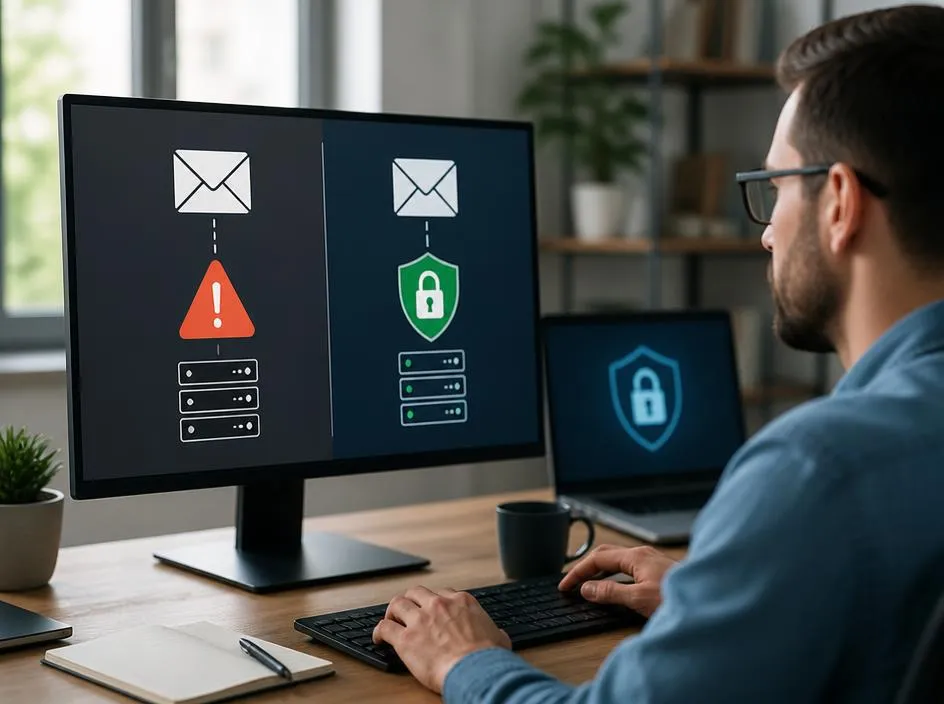
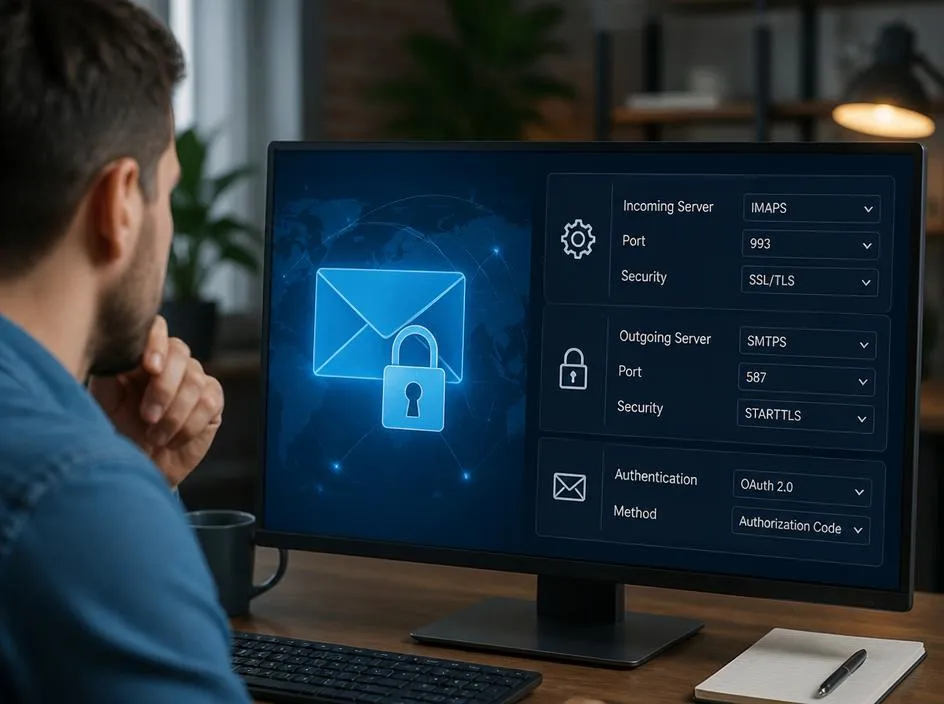
The configuration of your ports acts as the gatekeeper for your email traffic. Most modern setups require SSL or TLS, but they are very specific about the numbers used. For example, using port 25 for outgoing mail is rarely supported today because it is prone to spam issues; instead, providers prefer 587 or 465. Ensuring these numbers align perfectly with your provider’s current documentation is critical. If even one digit is off, the server connection will remain inaccessible regardless of how many times you restart the software application.
Authentication methods also play a significant role in successful handshakes. Some servers require OAuth2 authentication, which involves logging in through a web-based prompt rather than just entering a password in a text field. If your client is set to standard password authentication but the server demands a modern token-based approach, you will see a constant connectivity error. Updating your authentication type within the account settings menu usually resolves this conflict instantly, allowing the server to recognize your device without compromising your account’s integrity.
✅ Pro tip for administrators
If you are managing email for multiple users, ensure all staff members are using the same server strings. Consistent configurations reduce the help desk tickets related to connectivity, allowing your team to focus on growth. If you are ever curious about deeper platform capabilities, explore user-focused knowledge bases to gather more insights into your service provider’s specific features and supported protocols.
Addressing server-side outages and provider issues
Sometimes the issue is not on your end at all. Your email provider might be experiencing a temporary outage with their mail gateway, or they may have recently changed their security certificates. If you have verified all your settings and the error persists, check the official status page of your host. A connectivity failure during a server maintenance window is common and typically resolves itself once the provider completes their internal updates. Patience is often the best strategy if you have already confirmed your own local configuration is perfectly aligned.
You can also test the server’s reachability by using a simple command-line tool like telnet or openssl. By attempting to connect to the port manually, you can see the raw response from the server. If the server returns a connection refused or a timeout message immediately, the problem is definitively on their side. Understanding these technical nuances empowers you to spend less time guessing and more time resolving the actual problem, ensuring your email service remains a robust tool for your business needs.
Key takeaways for success
- Always prioritize encrypted channels for all incoming and outgoing mail.
- Ensure your software and OS are fully patched to support the latest TLS ciphers.
- Check status pages before performing complex manual reconfigurations.
- Use OAuth2 whenever your email provider offers it as an option.
Best practices for long term email stability
Maintaining a stable connection requires proactive management. Periodically review your account settings to ensure they still meet the recommended guidelines provided by your host. Many providers send out notifications when they plan to deprecate old security protocols; keeping an eye on these communications can save you from sudden service interruptions. Furthermore, using a reputable email provider that offers clear documentation and support helps you navigate these issues when they arise, ensuring that your network infrastructure stays resilient against the evolving landscape of online digital security threats.
Finally, encourage your team to document their own settings, as this helps when onboarding new hardware or software. A consistent approach to configuration management across all devices prevents the fragmentation that leads to error messages. By following these structured guidelines, you transform a potentially stressful technical problem into a routine maintenance task. With your settings verified and your protocols updated, you can continue to enjoy seamless email synchronization across all your professional devices, keeping your communications both efficient and secure for the foreseeable future.
