

Facing a situation where an encrypted connection to your email server is not available can disrupt your professional workflow and communication. This specific technical obstacle often stems from outdated security protocols or misconfigured client settings that prevent secure synchronization. Understanding why these errors occur is the first step toward restoring your digital access efficiently. By addressing the root cause, you ensure that your private information remains protected while you maintain seamless connectivity with your colleagues, partners, and clients throughout the busy workday or during critical project phases.
Modern digital ecosystems require robust protection to handle sensitive data effectively. When your mail client struggles to establish a secure handshake, it often suggests that either the server settings are misaligned or your local software requires an update. Identifying whether this is an isolated incident or a broader network issue helps in applying the correct fix. This guide explores technical methods to resolve these persistent connection warnings, allowing you to regain full functionality without compromising the integrity of your incoming and outgoing messages across your various professional platforms.
💡 Quick Verification Steps
Before diving into advanced settings, check your internet connection status. Ensure that your VPN is not blocking the specific ports required for secure mail transfer. Sometimes, a simple restart of the email client or your computer clears the temporary cache causing the handshake failure, which might resolve the issue immediately.
Adjusting your secure server configuration
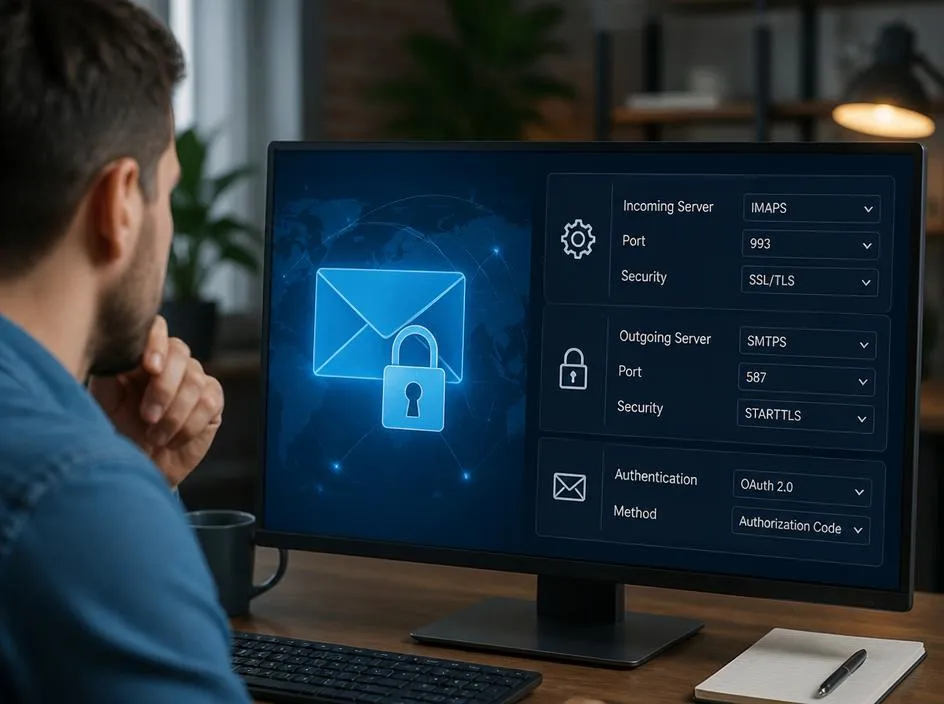
Many users encounter errors because their email client uses default ports that no longer support modern encryption standards. You should navigate to the manual account settings menu to verify that the incoming and outgoing server ports are correctly configured for SSL or TLS protocols. Most providers now mandate specific port numbers for encrypted communication channels.
If you are struggling with modern digital infrastructure, consider looking into connectivity solutions for business to improve your overall setup. Ensuring that your software uses the latest authentication methods prevents most security alerts. Regularly auditing these configurations helps maintain stability and protects your inbox from potential unauthorized access attempts during standard daily operations.
⚠️ Identifying Port Mismatches
- Check if the incoming server uses IMAP on port 993 for secure syncing.
- Verify the outgoing server utilizes SMTP on port 465 or 587 with SSL enabled.
- Review the authentication method to ensure it matches the current server requirements.
- Confirm that your certificate settings are not set to ignore warnings permanently.
Updating client software and security certificates
Outdated email clients frequently fail to recognize newer encryption certificates issued by mail providers. If your software version is several years old, it might lack the updated libraries required to perform a secure handshake. Updating your mail application to the latest version usually imports the necessary security protocols to fix the error.
If you find yourself frequently reading documentation to solve these issues, you might benefit from learning how to effectively navigate content updates on support platforms. Keeping your environment current is the most reliable way to prevent connectivity drops. A proactive approach to software management saves valuable time and ensures that your email service operates smoothly and securely without unexpected interruptions or complex manual reconfigurations.
✅ Best Practices for Connectivity
Always maintain a backup of your local email files before modifying advanced account settings. If the encryption error persists, try removing the account from your device and re-adding it using the automatic setup wizard provided by your host. This often forces the client to download the most recent, secure server configuration automatically.
Common causes for connection failure
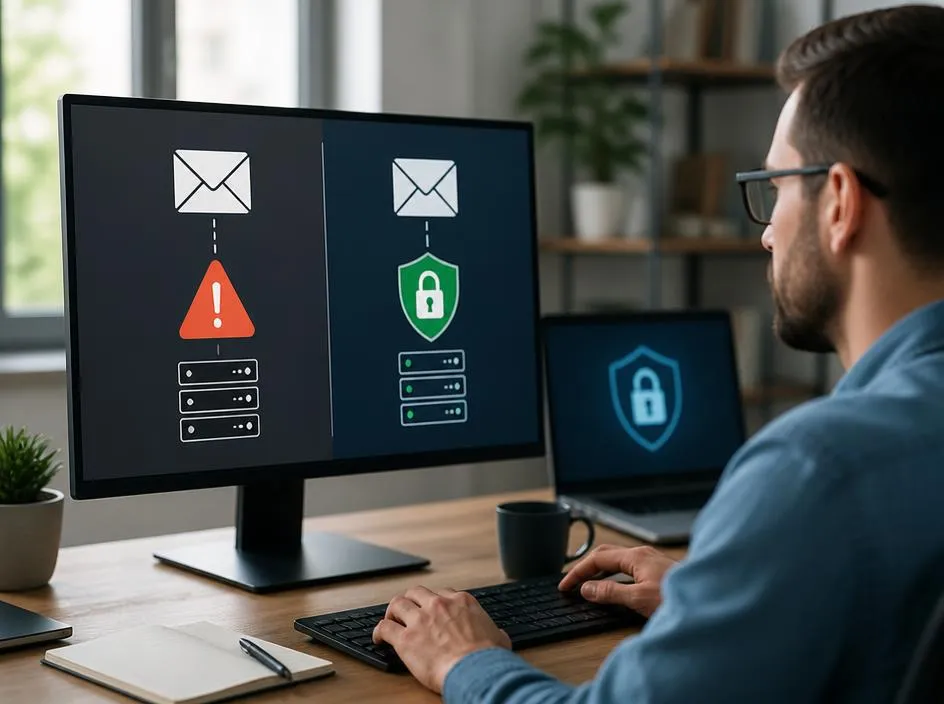
Various factors can trigger a failure when an encrypted connection is requested by your software. Often, antivirus software or firewalls installed on your local machine interfere with the SSL negotiation process. These security tools may scan outgoing traffic, which the mail client perceives as a non-secure interception, leading to a prompt about availability.
If you are searching for resources regarding specialized platforms, it is helpful to know where to look. For example, users often ask about whether a blog for users exists to provide specific troubleshooting tips. Connecting with these resources can offer deeper insights into the specific server behaviors that might be causing your unique connection errors, allowing you to tailor your technical adjustments precisely for your current provider’s environment.
📋 Summary of Solutions
| Action Item | Result |
|---|---|
| Port verification | Ensures protocol compatibility |
| Software update | Adds modern security support |
| Disable firewall | Rules out packet inspection |
When to contact your service provider
Sometimes, the issue resides entirely on the server-side, meaning your local configuration is perfectly fine. If you have exhausted all troubleshooting steps including checking ports and updating software, the provider might be experiencing a temporary outage or a certificate expiration. Contacting their support desk is the most logical final step to resolve this.
Maintaining a stable mail connection requires constant vigilance regarding your network environment. By keeping track of server notifications and potential downtime, you can differentiate between local configuration errors and external service problems. This understanding reduces stress and helps you manage your communication infrastructure with greater confidence, regardless of the specific technical challenges that may arise during your daily work routine.
💡 Troubleshooting Tips
If you cannot fix the issue alone, provide your email provider with the exact error code appearing on your screen. This information is crucial for their technicians to pinpoint if the security certificate has expired on their end. Furthermore, clarify whether you are using a custom domain, as DNS propagation issues can occasionally masquerade as encryption errors in many modern email client applications.
