
Losing access to your personal computer can be an incredibly frustrating experience for any user. When you forget your login credentials, the process to bypass a windows 7 password often feels overwhelming and technically complex for the average person. However, built-in system tools and secondary administrative accounts provide effective pathways to recover your session without losing precious data. By understanding the underlying architecture of your operating system, you can regain control of your hardware quickly. This guide explores secure methodologies to restore access, ensuring you follow ethical practices while navigating the recovery steps effectively today.
Whether you are dealing with a local account or a domain user profile, recovery is usually possible through specific command line interventions. Many users believe that a lost password means a total system wipe, but that is rarely the case if you have the right tools available. It is important to approach these techniques with patience to avoid corrupting system files or triggering security protocols. Before attempting any modification, ensure you have a verified backup of your files to protect against unexpected errors during the process. Let us delve into these reliable methods for recovery.
💡 Quick security tip
Always verify the ownership of the device before performing any maintenance or recovery tasks. Attempting to access accounts without authorization may violate local laws or organizational policies. Use these methods strictly on machines that belong to you for legitimate troubleshooting purposes.
Utilizing the accessibility features for access
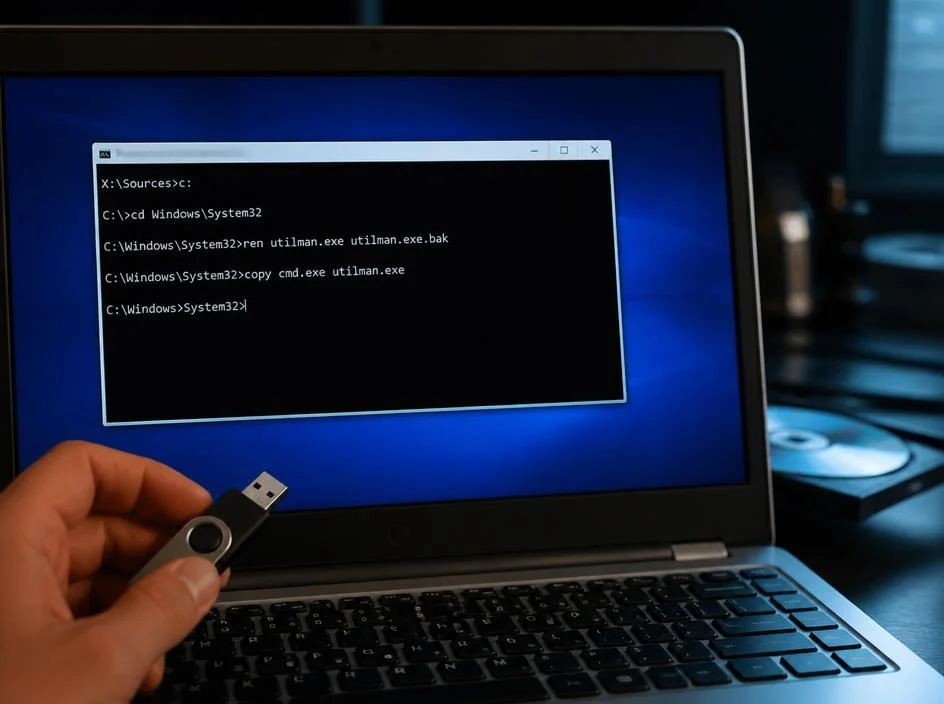
One of the most popular ways to regain entry is by leveraging the sticky keys feature during the boot sequence. By renaming the accessibility tool executable, you can force the system to launch a command prompt instead of the standard sign-in interface. This technique requires an installation disk or a recovery USB drive to boot into the command console first. Once the files are successfully swapped, you can issue commands to reset your credentials without needing the original password. This workaround remains a cornerstone of basic Windows administration and recovery procedures for legacy hardware.
To execute this, you must navigate to the system directory where the accessibility tools are located. Once you have identified the appropriate file, replacing it with the command prompt binary allows for administrative escalation directly from the login screen. It is fascinating how these simple security bypass methods remain functional even after many years of software updates. Many experts suggest documenting every step you take during this transition to ensure you can revert the file changes back to their original state once you have successfully logged into your user profile again.
⚠️ Important warnings
- Always use original Microsoft installation media for recovery tasks.
- Avoid modifying system files unless you have a recent data backup.
- Ensure your hardware is stable before starting the command prompt.
- Consider partnering with a digital agency for complex recovery if you feel unsure about command line operations.
The role of recovery disks and external media
A password reset disk is perhaps the most official method provided by Microsoft for users facing lockout issues. If you took the time to create this disk when you first set up your machine, the recovery process becomes incredibly straightforward and risk-free. You simply insert the disk at the sign-in screen, follow the wizard prompts, and establish a new credential set for your local account. This method preserves your personal files and settings perfectly, as it interacts directly with the built-in account manager rather than bypassing security protocols through system file modifications.
For those who did not create a recovery disk, third-party utilities are frequently utilized to achieve the same result. These tools, often based on Linux environments, scan the SAM database on your hard drive to clear existing password hashes. While these utilities are powerful, they require a higher level of caution during execution. You must ensure that the software is downloaded from a trusted source to avoid potential malware infections that could compromise your computer permanently. Reliability is key when managing sensitive system data, and using reputable tools is essential for maintaining your computer’s health.
✅ Best practices for long-term security
To prevent future issues, keep a physical copy of your password in a secure location or use a reliable password manager. Regularly check for maximizing savings through electric car novated lease fbt be programs or other financial benefits that help you maintain your technology budget, which allows you to upgrade your hardware to modern standards before security issues become insurmountable.
Manual cmd interventions for administrative accounts
If you have access to another administrative account on the same machine, the reset process is simple. You can navigate to the computer management console and update any user profile directly. This is the safest way to modify passwords because you are working within the official Windows interface. If you are locked out of all accounts, you may need to boot into safe mode to access the built-in administrator account that is often hidden by default. Enabling this account can grant you the elevated privileges needed to fix your primary profile easily.
Sometimes, business users might find that learning what is a digital agency helps them organize their technical support needs more efficiently. When you have a solid support structure, managing local machine issues becomes a secondary concern. Professional guidance can offer insights into why certain security measures exist and how to maintain compliance while ensuring you can always reach your data when necessary. If you are struggling with a domain-joined device, contact your organization’s IT department immediately, as they have specific policies and tools for handling account lockouts without damaging the network integrity.
📋 Summary of recovery methods
- Using a pre-made password reset disk.
- Booting into safe mode for admin access.
- Replacing system files to trigger a command prompt.
- Applying understanding electric car novated lease fbt benefits today concepts to your financial planning.
Maintaining system integrity after recovery
Once you have regained access to your computer, it is vital to finalize the security configuration. Do not leave the system files in their modified state, as this could leave your machine vulnerable to unauthorized users later. Revert any changes you made to the utility executables immediately. Furthermore, consider setting up a new administrative account as a backup, ensuring that you will always have a secondary entry point if you forget your primary credentials in the future. Consistent maintenance and proactive planning are the best ways to ensure your data remains accessible and secure at all times.
Finally, keep your operating system updated with the latest service packs provided by the manufacturer. While Windows 7 is an older platform, many stability and security patches were released to protect users from known vulnerabilities. Using an outdated operating system increases the risk of being locked out or compromised by malicious software. If your hardware supports it, migrating to a modern operating system is the ultimate solution to ensure both convenience and safety. Always prioritize your digital security by practicing good password hygiene and utilizing standard recovery features rather than risky workarounds whenever possible.
