
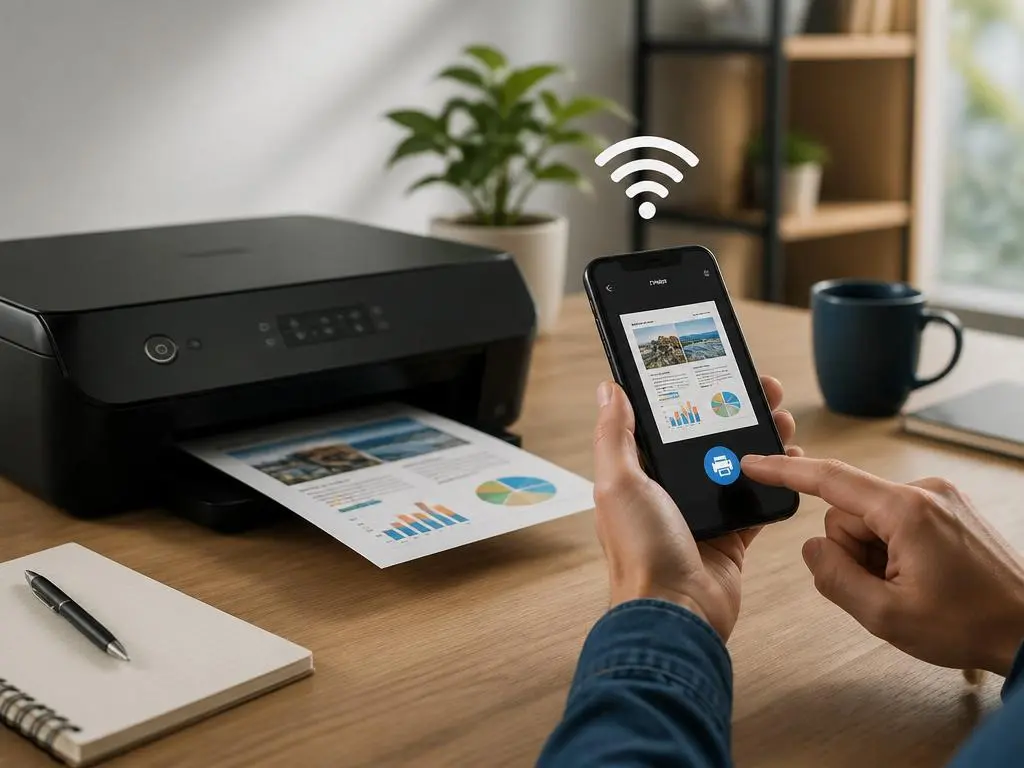
Modern mobile devices have transformed our productivity, making physical documentation seamless. Learning how to connect a printer to your phone is essential for managing your workflow efficiently on the go. Whether you utilize an Android device or iOS, establishing this link allows you to generate documents instantly from any location.
However, configuring this link is not always easy because connection errors frequently disrupt your progress. This troubleshooting guide will help you understand every step required to pair these devices securely. We will explore simple solutions to bypass network errors and elevate your daily printing experience.
Why mobile printing is essential for modern productivity
In our fast-paced digital era, we rely heavily on mobile devices to handle critical business operations, personal correspondence, and creative workflows. Having immediate access to physical documents from a handheld device bridges the gap between digital convenience and tangible archives, ensuring seamless daily productivity without the constant need for desktop computer configurations.
Transitioning to mobile systems eliminates the tedious step of transferring files to a computer before executing a print job. By establishing a direct link, you can easily handle invoices, contracts, and shipping labels immediately. This approach keeps your workflows agile, allowing you to maximize output during active business hours.
🔑 Key Takeaways for Mobile Printing
- Verify both devices are on the exact same wireless frequency band.
- Enable default print services in your mobile system configuration settings.
- Utilize localized peer-to-peer options when external internet is unavailable.
How to connect a printer to your phone using wireless systems
Utilizing local networks remains the most efficient strategy for establishing a reliable link between your devices. To understand how to connect a printer to your phone, you must first ensure that both devices are operating on the same frequency band. Most modern routers offer dual-band options, which can sometimes create hidden connection barriers.
Start by accessing the network settings on your hardware control panel and entering your wireless credentials correctly. Once the hardware is online, your mobile device will be able to discover it automatically. This foundation is necessary for utilizing the native printing systems built into modern smartphone operating systems.
Setting up the wireless connection on Apple devices
Apple utilizes a proprietary technology called AirPrint, which simplifies the entire process of sending files to compatible hardware. You do not need to download additional software to begin using this system. Simply open the document or image you wish to print within your preferred iOS application to start.
Tap the sharing icon and scroll down until you locate the print option. Your phone will immediately scan the local network for compatible hardware. If your device supports this standard, it will appear in the list, allowing you to customize your preferences and print documents instantly.
Connecting your Android smartphone to local wireless networks
Android devices utilize the Default Print Service, which operates similarly to AirPrint but offers broader customization options. To initiate this, open your settings, navigate to connected devices, and select printing options. Ensure that the default service is toggled to active so your phone can begin scanning the room.
If your hardware is not discovered instantly, you may need to install the specific brand service plugin. Major manufacturers provide these small software extensions in the app store. Installing the correct plugin ensures that your phone understands the precise communication protocols of your physical hardware unit.
💡 Quick Configuration Tip: If your network router has isolated guest bands, your mobile device cannot see local printers. Always connect your smartphone to the primary home SSID network.
Can you link a printer without a wireless network?
Many users find themselves in environments without a stable local router or public internet connection. Fortunately, hardware manufacturers have developed alternative methods to ensure you can still output documents. Understanding these alternative methods expands your flexibility, making it easy to handle urgent tasks while traveling or during unexpected network blackouts.
These localized solutions establish direct point-to-point wireless pathways, bypassing the need for a central internet hub entirely. While they might require slightly different setup steps, they are highly reliable once configured. Let us explore the primary technologies that enable this independent connection across different operating environments.
Using local direct networks for seamless device pairing
Wi-Fi Direct is a powerful technology that allows two devices to establish a peer-to-peer connection without an intermediary router. The printer broadcasts its own secure network signal, which your phone can detect like a standard hotspot. This is incredibly useful in temporary work environments or remote office locations.
To utilize this feature, activate Wi-Fi Direct on your hardware’s control panel. Next, open your phone’s wireless network settings and connect to the signal broadcasted by your printer. You will need to enter the unique security passcode displayed on the hardware screen to establish this secure connection today.
Exploring Bluetooth connections for mobile devices
Bluetooth technology provides another convenient method for wireless communication, particularly for compact portable devices. While it generally operates at slower speeds than standard wireless networks, it is ideal for small documents and photos. Many modern portable labels and photo units rely exclusively on this low-energy transmission method.
Open your smartphone’s Bluetooth settings and search for available devices while keeping the printer in pairing mode. Once paired, you must open the dedicated manufacturer app to select and send your documents. This localized approach ensures that you can complete printing tasks effortlessly even when completely offline.
| Method | Connection Type | Ideal Use Case |
|---|---|---|
| Local Wi-Fi | Router Network | Standard home or office setups |
| Direct Setup | Peer-to-Peer Signal | Offline scenarios without a router |
| Bluetooth | Short-Range Wireless | Compact mobile photo or label printers |
Fixing common mobile connection and printing errors
Even with advanced modern technology, you may occasionally encounter frustrating connection issues or system freezes. These disruptions often occur during the handshake phase when your smartphone attempts to communicate with the hardware. Learning to address these issues systematically will save you significant time and prevent unnecessary physical restarts.
Sometimes, these system-level errors resemble a persistent system screen freeze during active data transmissions. When this happens, the communication pipeline becomes blocked, preventing your devices from successfully exchanging print data. Standardizing your hardware troubleshooting checklist will help you resolve these specific blockages efficiently and quickly.
⚠️ Warning: Never attempt to print highly sensitive files over unsecured public Wi-Fi networks. Malicious agents can capture local packet transmissions, exposing your confidential text databases.
Solving the issue of your smartphone not finding the printer
When your phone fails to discover your local hardware, the primary culprit is often a simple network mismatch. Ensure that your phone is not accidentally connected to a guest network or a cellular data band. Most home routers isolate guest networks, which completely blocks communication between local devices.
Additionally, you should verify that your hardware’s network discovery features are fully enabled in the system configuration. Some older models disable their wireless radios automatically after long periods of inactivity to conserve power. A quick power cycle of the printing unit often restores the active wireless signal instantly.
Managing IP address conflicts and local network resets
Router IP lease issues can also prevent successful pairing, as duplicate addresses disrupt local routing paths. To resolve this, assign a static IP address to your hardware via your router’s administrative dashboard. This ensures your mobile device always knows the exact network location of your printing hardware.
Alternatively, performing a full power cycle of your local router can clear temporary IP lease conflicts. Unplug your router for thirty seconds, allow it to reboot fully, and reconnect your devices immediately. This simple step frequently resolves deep-seated communication issues that diagnostic apps fail to detect.
Enhancing security when printing from mobile devices
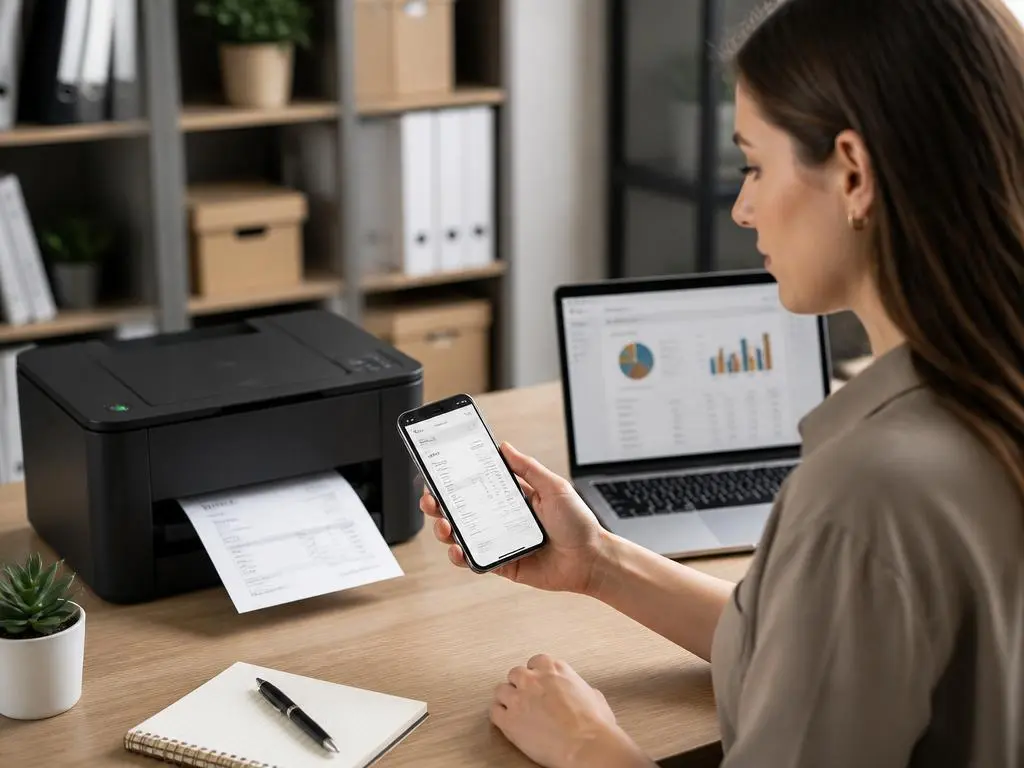
Mobile security is of paramount importance, especially when printing sensitive personal data or confidential business files. Sending documents over unsecured public networks exposes your information to potential interceptors on the same system. Therefore, you must take active steps to secure your wireless printing protocol from potential vulnerabilities.
Always ensure that your local wireless network is encrypted using modern protocols such as WPA3 or WPA2. Avoid using public hotspots to transmit confidential contracts or personal financial statements to portable units. If you must print on the go, utilize direct peer-to-peer options instead of public access networks.
Furthermore, keep your smartphone’s operating system and your printer’s firmware updated to the latest available versions. Manufacturers regularly release security patches that address critical vulnerabilities in remote printing protocols. Staying updated protects your private data and ensures optimal compatibility with modern application ecosystems in your home office.
Managing credentials securely prevents unauthorized users from accessing your physical hardware interfaces remotely. Many modern network models store temporary data packets containing sensitive print jobs in their onboard memory buffers. Clearing these cache records regularly ensures your documents remain completely confidential and protected from unauthorized access always.
Additionally, utilize enterprise-level security protocols if you are operating within a shared corporate environment. Implementing secure print release functions requires the physical presence of the user at the machine to authorize the final paper output. This practice minimizes the risk of leaving confidential prints unattended on public trays today.
« Simplifying the interface between our hand-held systems and paper document outputs remains a defining metric for evaluating workspace modernization and daily operational efficiency. »
What are the best apps for printing from your phone?
While native printing systems are convenient, dedicated software programs often provide advanced customization options and superior control. Selecting the right app can dramatically improve your daily workflow, allowing you to crop, adjust colors, and configure layouts. These tools turn your smartphone into a powerful digital workstation.
Many users utilize manufacturer-specific mobile printer applications developed by brands like HP, Canon, or Epson. These apps offer direct access to scanning utilities, ink levels, and document templates. They are highly optimized for their respective hardware lines, ensuring error-free operation throughout your entire workflow.
For users seeking intelligent automation or design layouts, modern mobile apps can analyze user preferences beautifully. Much like using ai design analysis to evaluate visual proportions, premium printing software optimizes margins and borders to fit your specific page sizes perfectly. This level of optimization ensures professional-looking layouts every single time.
For multi-brand office environments, universal print drivers like the Mopria Print Service provide a highly versatile solution. This standard allows you to print to virtually any modern machine without downloading individual manufacturer plugins. It acts as an incredible bridge, streamlining mixed-device configurations seamlessly across your business.
Cloud-based printing services offer another layer of versatility by allowing you to send jobs to your machine from outside the building. This is particularly useful for remote workers who need to prepare physical documents for colleagues back in the main office. These services route your files securely through encrypted online servers.
How to print different media types from a mobile device
Different document formats require unique handling during the transmission phase to avoid formatting and layout distortions. PDF documents are generally the easiest to handle, as they lock formatting and fonts in place before transmission. This ensures that what you see on your mobile screen matches the final page layout perfectly.
Spreadsheets can present unexpected layout challenges when printed from mobile platforms due to their large scale. Before sending a sheet, adjust the scaling options within your mobile document editor to fit all columns on a single page. This prevents your data from being split awkwardly across multiple sheets of paper.
For photographic prints, adjusting the aspect ratio on your device prior to sending the job prevents unwanted border clipping. Standard mobile screens capture images in distinct aspect ratios that might not align with traditional photo paper sizes. Utilizing a dedicated cropping tool ensures your visual content fits the page boundaries cleanly.
Finally, double-sided printing is a highly ecological option that is easily configured through advanced mobile print menus. Simply enable the duplex option before confirming your final print order to save paper and reduce environmental waste. This simple practice ensures high-quality results while keeping your office operations eco-friendly today.
Advanced optimization tips for high-quality mobile prints
Achieving gallery-quality physical prints from mobile files requires fine-tuning your resolution and layout settings. Many mobile devices compress files automatically to save storage space, which can result in pixelated physical prints. Always ensure you are sending the original, uncompressed file directly to your hardware for processing.
If you are printing detailed graphic layouts or rich photographic images, color calibration is also essential. This matches the tones on your mobile screen with the physical output. It is highly beneficial when capturing high-quality photos with professional equipment and transferring them directly to print from your smartphone.
In addition, pay close attention to the paper type settings selected within your mobile application interface. Selecting glossy photo paper instead of plain copy paper changes how the hardware distributes ink. This simple adjustment prevents smudging and ensures rich, deep color rendering across different media types today.
Finally, make sure to clean your hardware’s internal mechanisms regularly via its diagnostic menu. Over time, dust and microscopic paper particles can clog printheads, causing noticeable streaks on your documents. Consistent maintenance, combined with correct network configuration settings, guarantees flawless operation for all your mobile printing tasks always.
To keep your equipment performing optimally, always execute a test print after making major setting changes. This allows you to verify alignment and density without wasting valuable paper. With a properly configured mobile setup, you can enjoy fast, reliable physical output for years to come without issues.
Whether you are handling fast-paced office documents or preserving beautiful memories, mastering these connections is incredibly rewarding. The integration of mobile convenience with professional hardware opens up endless possibilities. Take the time to troubleshoot hardware connection issues today to establish an effortless, high-performing, and clean workspace.
