

Modern remote teams frequently rely on video conferencing software to maintain productivity during virtual meetings. Once a session concludes, the ability to download zoom recording files becomes vital for archiving important discussions or sharing insights with team members who could not attend. Understanding the administrative workflow behind these assets ensures that your organizational data remains accessible and well-organized for future retrieval needs. Whether you are a host or a participant with specific permissions, mastering the built-in management tools allows for a seamless transition from live collaboration to permanent storage within your private digital ecosystem.
Accessing these files efficiently helps maintain a clear record of project milestones and creative brainstorming sessions. Many professionals struggle with locating where files are saved after a session ends, leading to wasted time during critical project cycles. By establishing a consistent process for handling your media, you ensure that your team remains aligned and informed. Throughout this guide, we explore the best practices for managing your video archives. We will also touch upon how effective data management supports optimizing your infrastructure while maintaining high security standards for all sensitive internal business communications.
Understanding cloud storage and local options
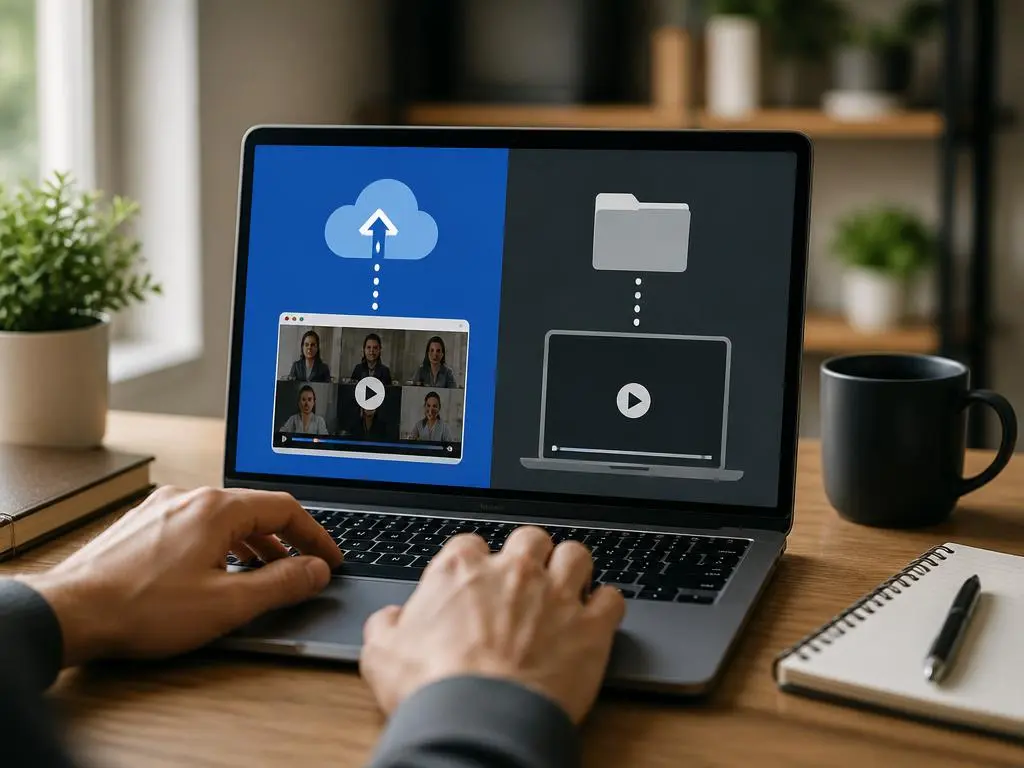
There are two primary methods for capturing your meetings: storing them in the cloud or saving them directly to your computer. Cloud-based storage is incredibly convenient because it provides a generated link that can be shared instantly. When you need to download zoom recording from a cloud link, you simply navigate to your web portal. From there, the interface allows you to select the specific session, view the video, and save the MP4 file locally to your own drive, which helps in preventing any potential data loss if the server is eventually cleared.
Conversely, local recordings are saved automatically to your designated folder as soon as the meeting ends. This method is often preferred by those who require immediate control over their files without relying on internet bandwidth to process the data. It is important to remember that local files do not generate an automatic shareable URL. If you choose this path, you must manually upload the resulting files to a secure cloud platform if you intend to share the content with your remote colleagues later on during the work week.
How to navigate the account portal for file retrieval
To begin the retrieval process, you must first log in to your account through a standard web browser. Navigate directly to the management dashboard and select the tab labeled Recordings. This section displays all your past meetings, including those currently stored in the cloud. You will see a list of timestamps, meeting IDs, and file sizes. Clicking on the desired session reveals specific playback settings and the option to grab the source file. This structured approach is essential for any professional looking to keep their digital assets perfectly organized and easy to find.
💡 Pro tip: Checking your recording permissions
Before attempting to save any files, ensure that you possess the necessary host or co-host privileges for the specific meeting in question. Often, participants may find they lack the required access level to export files directly. If you find yourself in this situation, reach out to your team administrator to request that they provide you with an artificial intelligence infrastructure bridge for better file permissions management. Always verify that your account settings allow for cloud downloads before initiating the transfer to ensure a smooth, error-free experience during your busy workday.
Managing file formats and video quality settings
When you prepare to save your footage, consider the file format and overall quality. The platform typically outputs high-definition MP4 files, which are compatible with almost every modern media player. Occasionally, you may notice that the video includes audio transcripts or chat logs as separate files. Downloading these components alongside the video is a great practice for future reference, as it provides a comprehensive video capture archive for your team. Keeping these text files stored together with your video footage allows for much faster searching when you need to recall specific details from long, complex sessions.
Best practices for secure long-term storage
Once you have moved your files to your local environment, prioritize security and backup. Storing important recordings on a single machine carries significant risk. Instead, utilize encrypted external drives or secure enterprise cloud solutions to protect your intellectual property. By maintaining an integrated collaboration framework, you ensure that everyone who needs access to the information can get it safely. Regular backups are the backbone of a robust document management strategy, preventing the unfortunate loss of valuable insights derived from your team meetings, client consultations, or strategic planning sessions held through virtual conferencing tools.
Addressing common issues during the download process
Sometimes, a download may fail or seem sluggish due to network instability or browser cache conflicts. If you encounter errors, try clearing your browser cookies or attempting the process in an incognito window. This usually resolves most issues related to session timeouts. Additionally, ensure that your device has sufficient storage space, as high-definition video files can be quite large. Monitoring your disk capacity regularly is a simple habit that prevents interruptions during the file export process, ensuring that your workflow remains uninterrupted and professional regardless of the meeting size or the duration of your saved content.
⚠️ Security and privacy warning
Always handle your saved files with care, especially if they contain proprietary business strategies or personal customer data. Never share direct links with unauthorized third parties. Using a password-protected link when sharing from the cloud is a great way to add an extra layer of defense. By strictly controlling who can view and save media files, you protect your organization from potential data leaks. Always follow your company internal policy regarding the handling of sensitive digital assets to maintain total compliance with industry standards and internal security regulations throughout the year.
Leveraging tools for automated meeting transcription
Modern platforms now offer sophisticated tools that go beyond simple video storage. Many users are now using automated transcription services to turn their meeting audio into searchable text documents. This significantly improves productivity, as you no longer need to watch an entire hour-long video to find a specific decision. When you manage video metadata effectively, you enable a much higher level of searchability within your own internal database. Integrating these transcripts into your project management software ensures that key action items are never forgotten and that everyone remains on the same page moving forward.
