
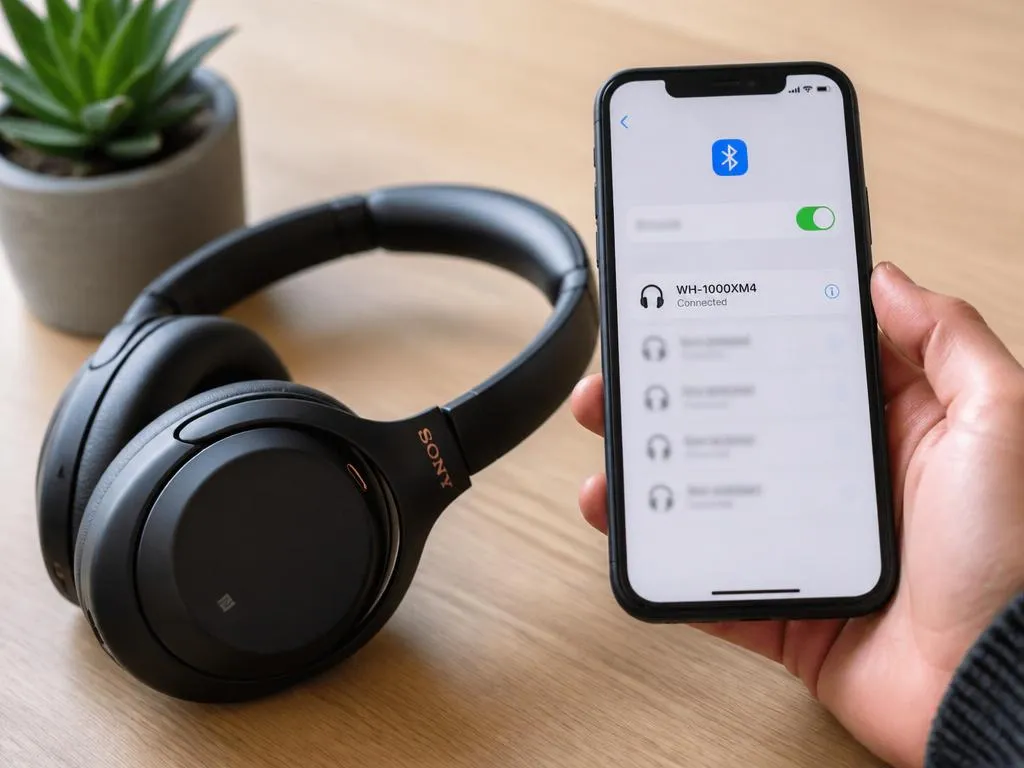
Learning how to correctly connect sony headphones to bluetooth technology is a fundamental skill for anyone seeking high-fidelity audio without the constraints of wires. Whether you are using noise-canceling over-ear models or compact wireless earbuds, the pairing process remains fairly consistent across the majority of the manufacturer’s lineup. Understanding the interaction between your playback device and your audio hardware ensures a stable and high-quality listening experience during daily commutes or while relaxing at home. By mastering these simple synchronization steps, you avoid common frustration and enjoy your favorite media immediately.
Most users encounter minor hurdles during the initial discovery phase, often due to existing device memory or active signals from nearby equipment. Navigating these settings requires patience and a clear sequence of actions, which we will detail throughout this guide. If your hardware seems unresponsive, it is vital to evaluate your connection stability techniques before assuming a defect. Consistent signal performance is the cornerstone of modern audio enjoyment. Follow the instructions below to establish a seamless link between your hardware and your preferred smartphone, laptop, or tablet interface.
💡 Quick Setup Checklist
- ✅ Ensure headphones are fully charged before pairing.
- ✅ Disable Bluetooth on other nearby devices to avoid interference.
- ✅ Put headphones into dedicated discovery or pairing mode.
- ✅ Select the device from the list in your phone settings.
Preparing your audio hardware for discovery
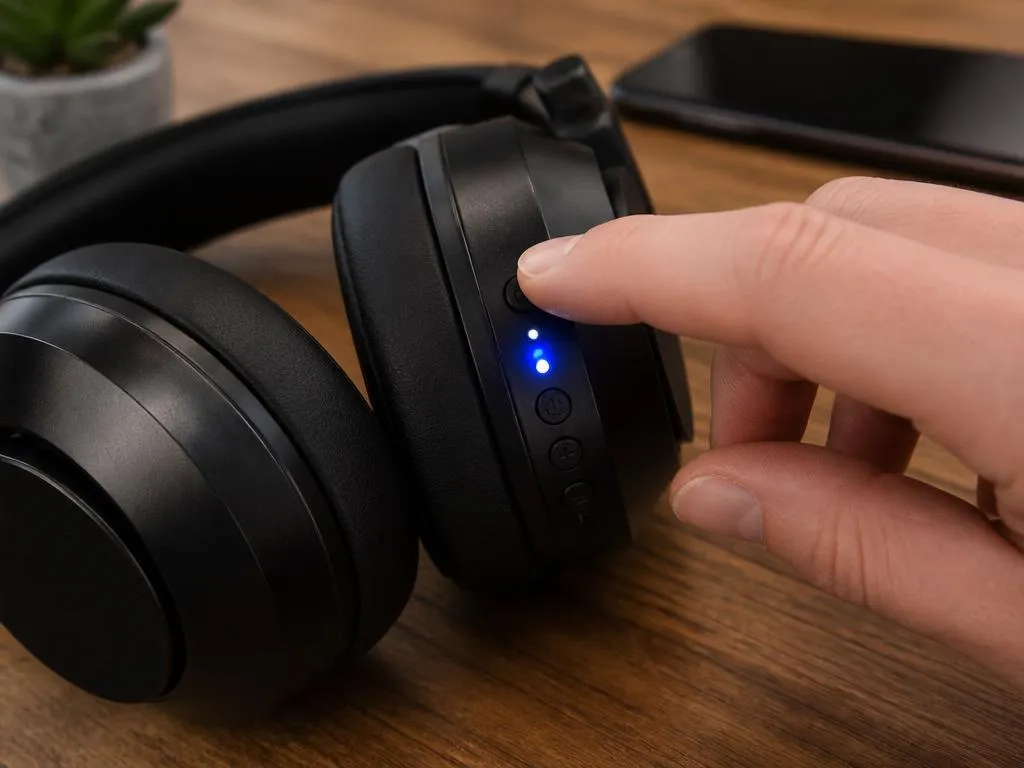
Before initiating the digital handshake, your hardware must signal that it is ready to communicate with a host device. For most models, this involves holding the power button or the dedicated pairing button while the device is turned off. You will typically see a flashing light, often alternating between blue and white, which indicates the unit is actively broadcasting its presence to scanners.
This state is known as pairing mode, a temporary window where your equipment becomes visible to computers or mobile phones. If you fail to trigger this sequence, the host device will simply remain unaware of your headphones. Always verify the specific light pattern indicated in your manual, as different series feature unique visual confirmation cues for users.
While exploring the digital landscape of connections, you might notice that some premium models possess multipoint capabilities. This allows the hardware to maintain links with two devices simultaneously, such as a laptop for work calls and a phone for music. Understanding this functionality is helpful when managing a dense ecosystem of personal gadgets in your home office.
Establishing the link on your smartphone
Once your headphones are in discovery mode, navigate to the connectivity settings on your mobile device. Enable the wireless function and wait for the scanner to refresh. Your headphone model name should appear in the list of available peripherals within a few seconds. Selecting this entry will finalize the handshake and establish the primary communication channel.
If the device fails to appear, consider turning the wireless radio on your phone off and back on again to clear the cache. Occasionally, software conflicts can arise, similar to how one might encounter a network socket exception when dealing with more complex data transfers. Refreshing the interface usually resolves these minor hiccups, allowing your equipment to be identified correctly by the operating system without further intervention or advanced troubleshooting.
After successful pairing, your phone will remember this link for future use. The next time you power on your audio gear, they should automatically seek out the last host device and reconnect. This automation provides a fluid transition from silence to sound, perfect for busy lifestyles where every second counts during your morning routine or transit.
⚠️ Troubleshooting Tips
If you encounter persistent errors, try performing a factory reset on your headphones by following the manufacturer’s specific button sequence. Keep in mind that software glitches during setup are rare but can happen, much like dealing with a socket connection error in other technical environments. Always check if your firmware is up-to-date via the official mobile application to ensure optimal performance and compatibility with newer operating systems and security protocols.
Managing audio quality and signal range
Once you connect sony headphones to bluetooth, you may want to optimize the codec settings for the best possible fidelity. Higher-end models support advanced codecs like LDAC, which provide superior bitrates compared to standard compression. Using the dedicated app, you can prioritize sound quality over connection stability, which is ideal if you are sitting close to your source device.
Distance plays a significant role in how your audio signals are received. While standard wireless protocols offer a decent range, walls and other physical obstructions can dampen the clarity or cause periodic drops. Maintaining a clear line of sight between the transmitter and your headphones is the best way to ensure an uninterrupted, high-fidelity audio experience throughout your session.
Interference from other 2.4GHz devices, such as routers or microwaves, can also affect the integrity of your wireless stream. If you experience stutters, try moving away from high-density wireless zones. By managing your environment and settings, you achieve a level of seamless wireless performance that makes these headphones a reliable companion for all your high-end listening needs during the day.
Advanced features for power users
Beyond simple pairing, modern Sony headphones include features like adaptive sound control, which modifies noise cancellation levels based on your surroundings. Activating these tools requires the companion software installed on your host device. These apps provide an intuitive interface to manage volume levels, equalizer presets, and even custom button assignments for your specific hardware needs.
Customization is a key benefit of choosing high-end audio gear. You can tweak the balanced sound profile to suit your personal preferences, whether you enjoy deep bass or crisp, clear highs. These adjustments are saved directly to the device firmware, meaning your sound preference will persist even if you switch between your tablet, smartphone, or laptop during the day.
Regular updates provided through the mobile app also patch vulnerabilities and improve overall latency. Taking a few moments to configure these settings allows you to get the absolute most out of your purchase. By integrating these advanced hardware features early on, you create a personalized audio ecosystem that adapts perfectly to your daily habits and environmental requirements, ensuring consistent satisfaction.
✅ Pro-Level Advice
Remember that a clean setup is the foundation of long-term reliability. Avoid leaving your device in pairing mode for extended periods to save battery life. If you find the connection is not behaving as expected, toggling the Bluetooth switch or restarting the host device is often enough to clear transient states and restore perfect functionality. Your patience with these initial steps will pay off with years of reliable, high-quality audio enjoyment and professional connectivity for every single task you perform.
Maintaining your equipment for longevity
Proper maintenance of your wireless peripherals extends their operational lifespan significantly. Keep the charging ports free from dust and debris, as a poor physical connection can prevent the internal battery from reaching full capacity. Regularly wiping down the ear cups and headband with a slightly damp cloth keeps them clean, comfortable, and looking brand new for many years of continued use.
Store your headphones in their provided case when not in use. This protects the delicate internal components from accidental impacts and prevents the headband from stretching unnecessarily. Avoiding extreme temperatures is also essential, as heat can degrade the battery chemistry and impact the wireless antenna performance, leading to shorter playback times and less reliable signal reception in future sessions.
By following these best practices, you protect your investment and ensure that the wireless handshake remains quick and reliable. A well-maintained device is not just about aesthetics; it is about ensuring the internal electronic components function exactly as the engineers intended. Enjoy the freedom that wireless technology provides, and take pride in knowing your audio equipment is handled with the care and precision it deserves for optimal performance.
