
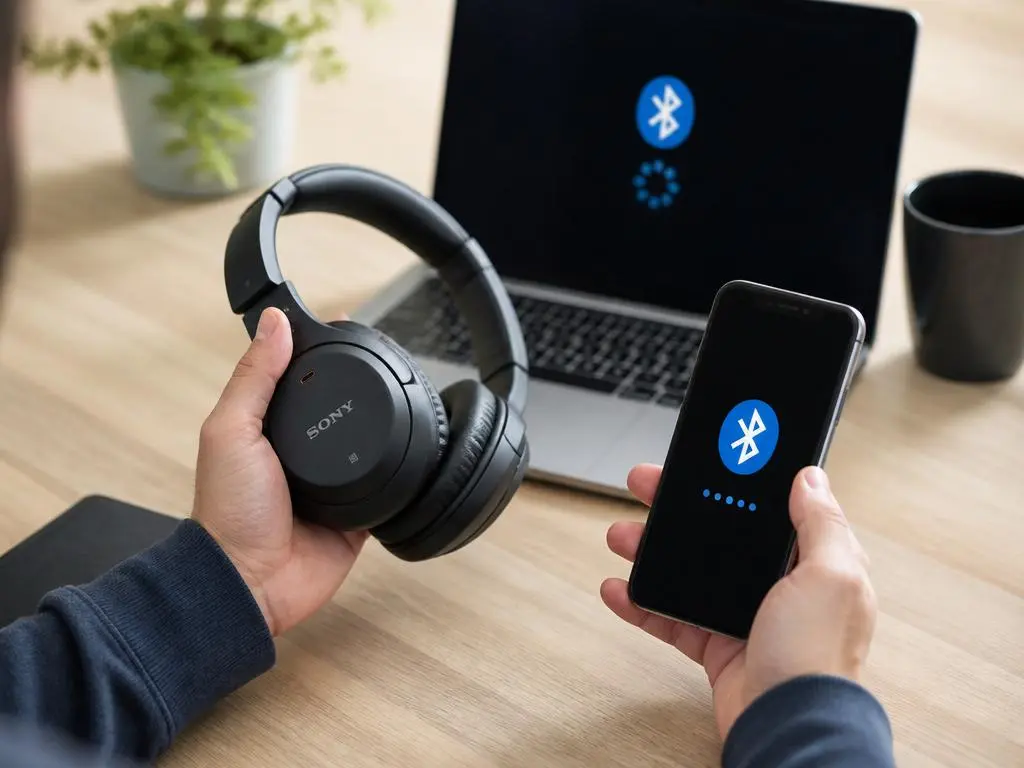
Are you struggling with your audio equipment failing to link up correctly? Understanding the common reasons why you cannot successfully connect sony headphones to bluetooth devices is essential for any modern listener. Often, these synchronization issues stem from simple cache glitches, outdated firmware, or interference from nearby electronics that disrupt the signal flow. By systematically evaluating your hardware and software environment, you can frequently resolve these persistent connectivity roadblocks without needing professional assistance. This guide explores the technical root causes behind pairing failures and provides actionable solutions to ensure your wireless listening experience remains consistently uninterrupted and high-quality.
When troubleshooting your gear, it is important to consider if the source device is actively seeking a new connection. Many users assume their audio peripherals are broadcasting a signal when they are actually locked into a previous profile. This leads to frustration when the devices simply refuse to acknowledge each other during the initial setup phase. By mastering the pairing protocols and resetting your device settings, you can eliminate most operational hurdles. Whether you are dealing with a new laptop or an aging smartphone, the following analysis will help you regain full control of your audio ecosystem effectively.
💡 Quick Diagnostics Checklist
- Check if the battery level is sufficient for pairing mode.
- Ensure your smartphone or PC bluetooth radio is toggled ON.
- Delete existing device profiles to start a fresh handshake.
- Verify the proximity between devices is under one meter.
Common factors causing wireless pairing failures
The primary reason users fail to connect sony headphones involves device congestion. Most modern wireless peripherals remember multiple previous hosts, which can cause them to auto-connect to a tablet or secondary phone instead of the device currently in your hand. Always disable the bluetooth functionality on your secondary electronics before attempting a new pairing sequence. This creates an isolated environment where the headphones can focus exclusively on finding the intended source, significantly increasing the likelihood of an immediate and stable wireless handshake.
External radio frequency interference also plays a significant role in connectivity stability. If your workspace is filled with active routers, microwave ovens, or other wireless peripherals, the signal integrity can degrade rapidly. This is a common issue when people attempt to fix connection errors in dense signal areas. Moving your setup to a less cluttered environment often resolves erratic behavior. By minimizing competing traffic, you provide a clear pathway for your audio data, ensuring that your listening sessions remain fluid throughout the day without sudden drops or audio stuttering.
⚠️ Proactive Maintenance Tips
If you have previously worked with analog cables, you might recall how tricky physical interfaces can be. For those interested in the evolution of hardware standards, reviewing a technical landscape overview of connectivity can provide a broader perspective on how digital protocols have replaced legacy wiring. Maintaining your digital connections requires as much attention as traditional hardware maintenance.
The role of firmware and software updates
Software compatibility is frequently overlooked when devices refuse to sync. Manufacturers release updates to refine how wireless protocols interact with evolving operating systems. If your headphones are running an older firmware version, they may struggle to communicate with a smartphone that recently received a major system upgrade. Using the dedicated mobile application provided by the manufacturer is the best way to verify if your device firmware is current and to apply any necessary patches for better performance.
Furthermore, checking the driver status on your computer is vital. Windows or macOS systems sometimes cache corrupted driver information, preventing successful recognition of your audio hardware. You can often clear these errors by removing the device from your OS settings and performing a clean reinstall. This refreshes the software handshake and often eliminates the persistent bugs that prevent a smooth user experience. Consistency in software environments is the bedrock of reliable, high-fidelity wireless audio playback for all users.
✅ Troubleshooting Steps
Always remember that persistent issues might not be limited to bluetooth. If you are experiencing socket exception problems, it is wise to investigate if your broader network configuration is the culprit. Sometimes, the issue is not with the hardware itself, but with how your OS manages internal data streams. If cables are still part of your workflow, ensure you have a repaired connector guide handy for legacy devices.
Advanced reset methods for persistent issues
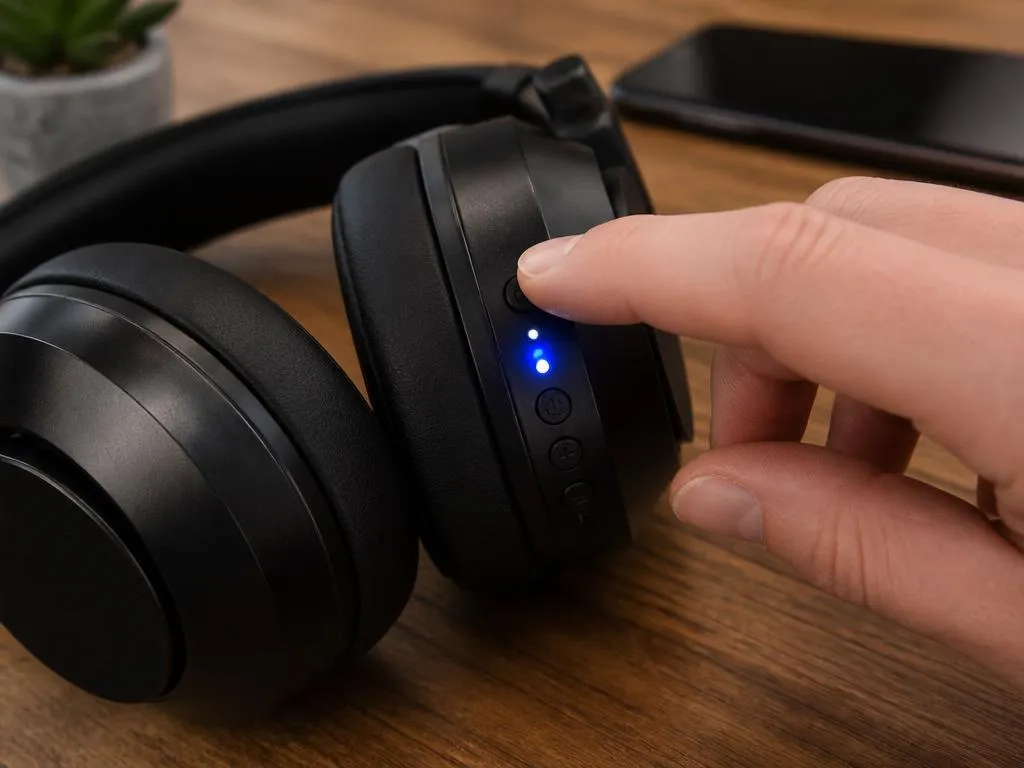
When standard pairing attempts yield no results, performing a factory reset on your headphones is the most effective nuclear option. This restores the hardware to its original out-of-the-box state, erasing any corrupted device profiles or conflicting settings that might have accumulated over time. Consult your user manual for the specific button combination required, as these sequences vary significantly between models. After resetting, ensure you also clear the pairing cache on your smartphone or PC before initiating the process again from scratch for a clean link.
If you still encounter issues after a reset, observe the LED patterns on the headphones. These lights are diagnostic indicators provided by the manufacturer to signal whether the device is in search mode or encountering a specific error. A blinking blue light usually indicates it is searching for a host, while a static color or different frequency might indicate a hardware fault. Interpreting these signals correctly allows you to narrow down the problem, saving you significant time and helping you determine if the unit requires professional service or replacement.
📊 Comparison of Reset Impacts
| Method | Outcome |
|---|---|
| Simple Restart | Resolves minor software hangs. |
| Factory Reset | Wipes all historical pairings. |
| Driver Refresh | Fixes OS communication conflicts. |
Optimizing your environment for better audio
Finally, consider the physical environment in which you use your equipment. Large metal objects, reinforced concrete walls, and even other bluetooth-enabled devices can create dead zones that interrupt the transmission of high-bitrate audio. To ensure a seamless listening experience, maintain a clear line of sight between the transmitter and receiver whenever possible. If you notice audio drops, simply repositioning your phone closer to the headset can alleviate the issue, proving that sometimes the solution is purely physical rather than digital, allowing for much better overall signal quality throughout your day.
Ultimately, keeping your gear updated and maintaining a clean pairing list will prevent most problems from occurring. Treat your wireless audio devices with the same care you would accord to a high-end sound system. By following these structured steps, you build a resilient setup that works correctly every single time you need it. Should you find that the connectivity remains elusive, investigating deeper into the hardware compatibility or contacting manufacturer support might be necessary to diagnose rare internal component failures that basic troubleshooting cannot resolve under normal operating conditions.
