
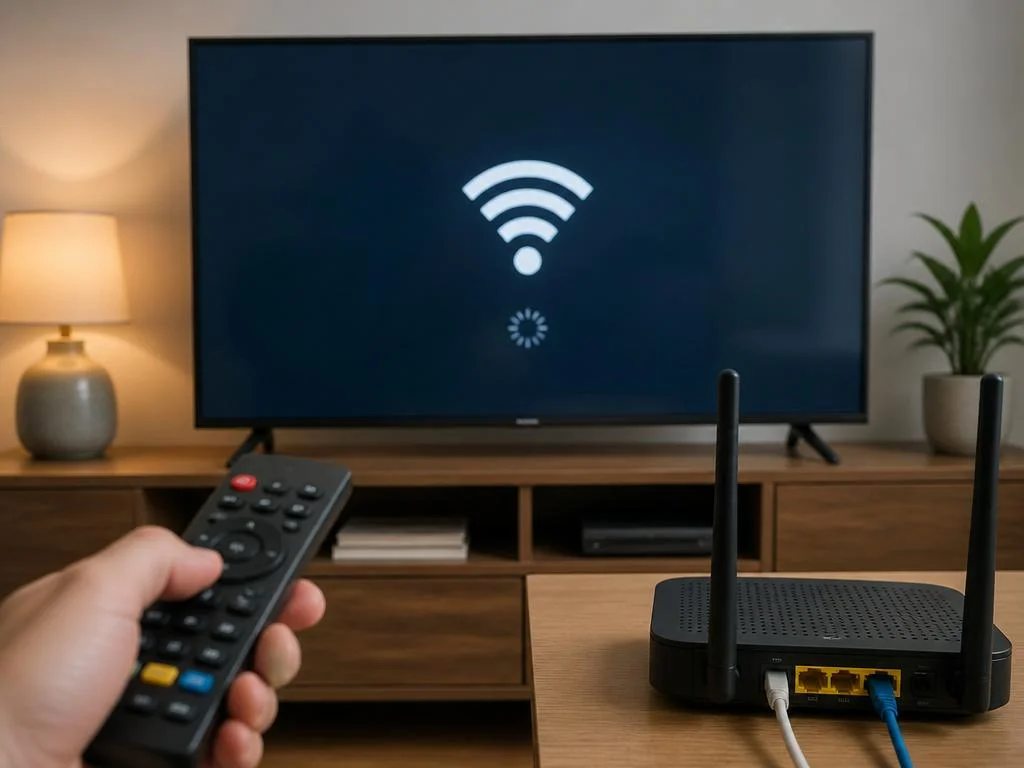
Facing a situation where your tcl google tv not connecting to wifi is incredibly frustrating when you simply want to stream your favorite online shows. This common smart television failing to establish a reliable wireless link issue often stems from minor system software glitches or temporary router IP address conflicts.
Fortunately, resolving this network connection issue does not require professional technical assistance in the vast majority of household cases. By systematically diagnosing your local home network configurations, you can easily restore your smart device back online. Read on to discover the exact step-by-step methods to permanently resolve this connectivity bug.
Why is your tcl google tv not connecting to wifi
Understanding the root cause of network issues is the first step toward finding a permanent solution. When your smart screen experiences these drops, the culprit is often a temporary glitch in the system memory. These small software anomalies can prevent the wireless receiver from communicating effectively with your home internet router.
Another common issue involves IP address conflicts within your local home network. When multiple devices compete for the same network address, your television might get kicked off the air. Recognizing whether the problem lies within the hardware components or the software system helps you target your troubleshooting efforts and solve these frustrating network connection issues much more effectively.
- Power cycle both your TV and router for a fresh system state.
- Manually verify date and time parameters in settings.
- Switch to a highly compatible 2.4 GHz frequency network.
Basic steps to restore your smart television connection
Before diving into complex system menus, you should always start with the simplest troubleshooting method available. Power cycling your television completely clears out any temporary bugs stored in its random access memory. To perform this, unplug the power cable from the wall outlet and wait for at least one full minute before plugging it back.
While waiting for the television to discharge, you should also reboot your home wireless router. Unplug the router from its power source for about thirty seconds to refresh the local network allocation table. Once both devices reboot, try reconnecting your screen to see if the wireless signal has been restored successfully.
Advanced configurations for your streaming system
Adjusting the date and time settings manually
Many users are surprised to learn that incorrect time parameters can prevent internet access. Secure web protocols require the television system clock to match the server clock perfectly. If there is a mismatch, the security certificates will fail, leading to a situation where your device shows a successful connection but fails to load content.
To adjust these parameters, navigate directly to your television system settings and locate the date options. Disable the automatic network time synchronization feature and input the current date and time manually. After saving these changes, restart your system and attempt to re-establish your local internet connection to see if it works.
Changing to a static IP address setup
Most home routers assign dynamic network addresses to household devices automatically. However, this process can sometimes fail, leaving your screen stuck in an infinite loop of obtaining an address. If your tcl google tv not connecting to wifi error persists after basic steps, configuring a static address assigns a permanent location for your screen.
Access the advanced network options under the connection tab of your smart system. Change the settings from dynamic allocation to manual and enter your desired system details. You will need to input a unique local address, the default gateway, and standard DNS servers like those provided by Google to ensure reliable web access.
Using a static IP addresses avoids DHCP lookup loops. We suggest utilizing Google DNS (8.8.8.8 and 8.8.4.4) for reliable name resolution.
Network band adjustments and router optimization
Splitting the dual-band Wi-Fi channels
Modern wireless routers usually broadcast on both the older 2.4 gigahertz and the newer 5 gigahertz frequencies simultaneously. While this dual-band approach is convenient, some television receivers struggle to switch between these bands smoothly. Splitting these frequencies into two distinct wireless names can prevent your screen from dropping its connection constantly.
Connect to your home router admin panel using a computer browser to modify these settings. Assign different names to each frequency band, such as adding a suffix to identify the faster frequency. Once saved, connect your television specifically to the 2.4 gigahertz band for better range, or 5 gigahertz for faster streaming.
Modifying security protocols on routers
Security standards protect your home network, but outdated hardware configurations can occasionally cause compatibility issues. Some televisions do not interact well with the newest security encryption protocols on default configurations. Adjusting your router settings to use a widely compatible format can immediately bridge this technological gap.
Log into your router configuration manager and look for the wireless security options. Ensure the security mode is configured to WPA2 standard, which offers both excellent security and wide compatibility. Avoid using obsolete security modes that might compromise your home data security while troubleshooting these television network issues.
If your TV struggles on 5GHz, configure your router to host two separate SSIDs (e.g., HomeNet_2G and HomeNet_5G) to manually control the connection band.
Troubleshooting system software and cache issues
Clearing the system network cache files
Over months of continuous usage, temporary data files accumulate within the operating system memory. This build-up can slow down operations and corrupt the files responsible for managing internet signals. Clearing this cache regularly is a highly recommended practice to keep your system performing at its absolute peak level.
Open the application settings on your dashboard and select system system applications. Locate the network manager or play services app to clear their individual cached data fields. Doing so will not delete any of your personal applications or custom settings, making this a completely safe and non-destructive troubleshooting step.
Performing a complete factory reset process
If all other software troubleshooting attempts have failed, a deep system wipe may be necessary. This process restores the operating software to its original factory state, erasing any corrupted system files. While performing a factory reset means you must configure your device from scratch, it almost always resolves deep-seated software connectivity issues.
A factory reset wipes all user data, signed-in profiles, and custom apps. Only perform this step as a final resort when other options are exhausted.
Navigate to the system management menu, locate the about section, and select the reset option. Confirm your choice to initiate the complete wipe process and wait for the system to restart. Once the process completes, follow the on-screen prompts to set up your system and test the internet connection once again.
Alternative connection methods to consider
While wireless connectivity is incredibly convenient, physical connections offer unmatched stability for high-definition streaming. If your router is located close to your television, running a physical ethernet cable is an excellent alternative. This completely bypasses wireless interference and provides a consistent, high-speed connection for your favorite media apps.
If a physical cable is not practical, you can test your television wireless receiver using a mobile hotspot. Turn on the personal hotspot feature on your smartphone and attempt to connect your screen to it. If this connection works perfectly, it indicates that your home router settings are the main cause of the issue.
- 🔗 Ethernet Cable – Offers the most stable, interference-free connection for streaming.
- 📱 Mobile Hotspot – Helps determine if the TV hardware or home router is at fault.
- 🌐 Powerline Adapters – Transmits network data through existing electrical wiring.
Digital management solutions for complex setups
Managing multiple digital configurations in a modern household requires structured planning. Just like choosing specialized support for database handling, users must learn how to select professional services for home networks. Finding resources such as how to document digitization services can teach you the value of organized digital frameworks.
Once your basic structural digital environment is organized, you can focus on more advanced streaming optimization strategies. Incorporating automated tasks can streamline your entertainment setup just like developers optimize trading systems. Understanding these concepts helps you in optimizing your trading strategy systems for better efficiency.
Maintaining a secure and reliable home network
Maintaining security while configuring your home network is essential to protect your personal data from external threats. A secure network environment ensures that all connected smart appliances remain safe from unauthorized access. You can discover more about maintaining digital safety by exploring how to secure digital assets successfully in modern environments.
Understanding the broader digital network landscape is equally important as technology continues to evolve rapidly. This knowledge helps you navigate potential security risks across all your web-enabled home devices. Get valuable tips on protecting your virtual perimeter by navigating the digital landscape securely.
Advanced diagnostic steps for persistent network errors
Troubleshooting hardware antenna issues on your screen
Sometimes the underlying cause is physical rather than digital. If your television is placed inside a dense entertainment cabinet, the internal wireless antenna might be shielded. Metallic objects, thick walls, and even large speakers can block the delicate signal from reaching the receiver, leading to frequent disconnections or extremely low speeds.
Try adjusting the physical position of your screen slightly to improve line-of-sight with your router and boost your wireless signal strength directly. If your router is too far away, consider installing a wireless signal repeater halfway between both devices. This simple physical modification can significantly boost reception and eliminate dropped connections without changing complex settings.
Start with soft power cycles. If the situation persists, check your time sync and configure IP address details manually before modifying router security schemes.
Disabling fast start option in settings
The fast start feature allows your screen to turn on almost instantly from standby mode. However, this feature sometimes prevents the operating system from fully restarting its network drivers. This can leave the wireless module in an unresponsive sleep state, causing the television to wake up with no internet access.
To disable this mode, go to your power and energy settings menu on the system dashboard. Toggle off the fast start option so the television performs a complete system boot every time you turn it on. While this adds a few seconds to the startup time, it ensures all network modules load correctly.
How to update system firmware via USB flash drive
When your television cannot connect to the internet, downloading a system update directly over the air is impossible. However, updating your firmware is crucial because outdated software often contains known connection bugs. You can bypass this limitation entirely by downloading the necessary update files using a computer and a USB drive.
Visit the official support page for your screen model on a separate computer to find the firmware downloads. Copy the downloaded update file directly to the root directory of a formatted USB flash drive. Insert the flash drive into your television port to initiate the offline update process manually.
Understanding the role of DNS servers in connectivity
Switching to public domain name systems
Sometimes your television connects to the router successfully but cannot translate web addresses into usable IP addresses. This issue is usually caused by outdated or slow DNS servers provided by your local internet service provider. Switching your DNS settings manually can bypass these bottlenecks and restore your instant access to streaming platforms.
You can modify your DNS settings directly inside the IP configuration screen of your television. Replace the default primary and secondary server addresses with reliable public options such as those hosted by Cloudflare. This simple change often results in faster loading times and more stable connections across all online applications.
Troubleshooting MAC address filtering and DHCP ranges
Checking router access control lists
Many secure routers employ MAC address filtering to prevent unauthorized external hardware from joining the local network. If this feature is active, your television will be blocked from connecting even if you enter the correct password. You must add your screen hardware address to the router approved list to grant it access.
Locate your television unique MAC address within the system status menu under the network information tab. Once you have copied this address, access your router configuration interface from any web browser. Add this specific code to your network access control list to allow seamless data transmission between devices.
Managing IPv6 compatibility issues on home networks
While the newer IPv6 protocol offers many advantages, it can occasionally cause communication errors with older smart screens. Some television network modules are designed primarily for IPv4 and can experience dropouts when forced to use newer protocols. Disabling IPv6 temporarily on your router can resolve these underlying communication issues.
Access the advanced network settings on your router and locate the internet protocol version settings. Toggle the IPv6 option off, forcing your local network to communicate solely through the standard IPv4 protocol. This ensures absolute compatibility across all smart systems and prevents unexplained network drops.
Final checklist for seamless streaming
To ensure your entertainment system remains connected, keep a mental checklist of your network configuration. Ensure your router firmware is kept up to date to prevent modern compatibility issues with newer smart screens. Regularly rebooting your equipment every few weeks keeps your local signals running quickly and without interruptions.
By following these diagnostic methods, you can easily overcome any connectivity obstacles that arise. Having a stable connection ensures you can stream your favorite shows in stunning high-definition without annoying buffering screens. Enjoy the reliable and fast performance of your fully optimized digital home entertainment setup.
