
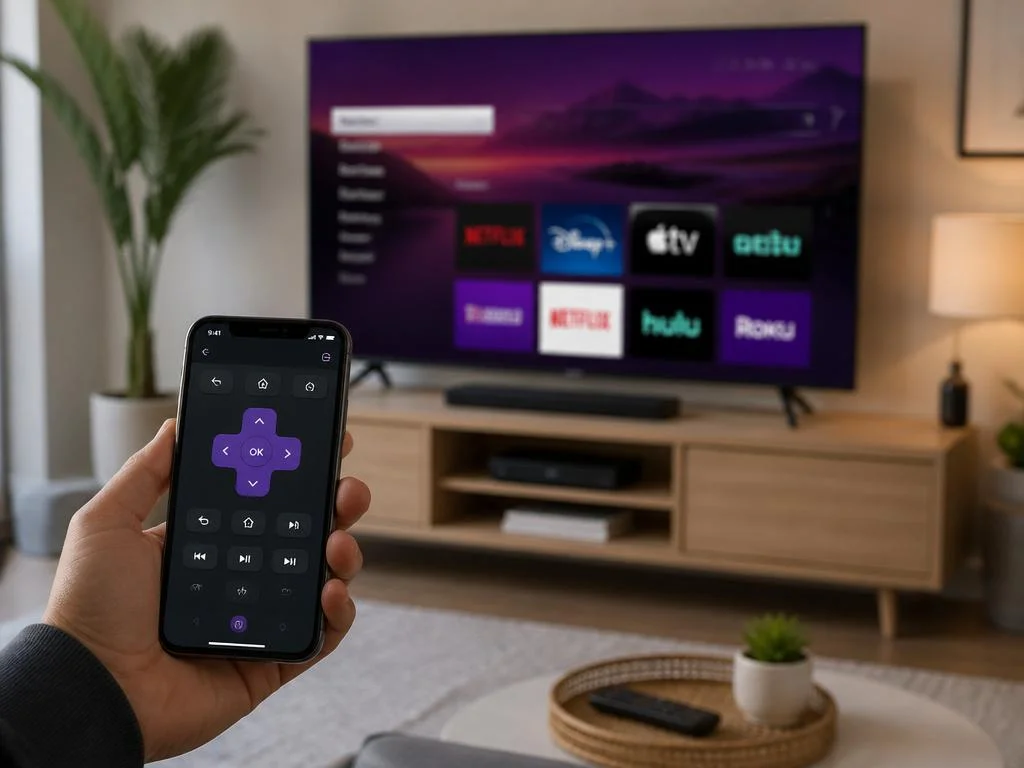
Losing or breaking your standard controller can be incredibly frustrating when you want to enjoy your favorite streaming content. Fortunately, learning how to manage your Roku TV without a physical remote is a straightforward process that leverages modern technology. Whether you have misplaced the original hardware or it simply stopped functioning, you can quickly regain full command of your interface using your existing smartphone. By connecting your mobile device to your home network, you unlock powerful navigation tools that often surpass the capabilities of the standard plastic accessory that came in the box.
This comprehensive guide explores the most effective techniques to ensure your entertainment experience remains uninterrupted. From utilizing official mobile applications to exploring hardware alternatives, these solutions provide immediate access to your channels and settings. Many users find that relying on software-based controllers offers a more intuitive typing experience and faster search functionality when browsing vast libraries of movies. Discover how to navigate your home screen, adjust volume levels, and manage complex system configurations with just a few taps on your phone, ensuring you never miss a moment of your preferred programs again.
💡 Quick Troubleshooting Tip
Before searching for external hardware, verify that your television is still connected to the same Wi-Fi network as your smartphone. If the connection dropped during a power cycle, you may need to use a temporary mouse or keyboard to reconfigure your network settings through the standard interface menu.
Using the Official Roku Mobile Application
The most reliable method to regain control is by downloading the official application directly from your device’s app store. This powerful utility turns your smartphone into a fully functional command center, mimicking every button found on the original hardware. Once installed, the application automatically scans your local wireless network to identify any active devices. Upon selecting your specific model, you gain instant access to a virtual navigation pad, playback controls, and a dedicated keyboard for faster text entry during search queries.
This software solution is particularly useful for users who frequently misplace physical components, as it centralizes management within a device you already carry everywhere. In addition to standard navigation, the app allows you to launch channels, adjust volume, and even use voice search commands. It is truly an essential tool for any modern smart home enthusiast who values efficiency and simplicity. Many professionals integrate these digital solutions into their broader setups, similar to how they might deploy digital signage in commercial environments to streamline information flow.
Hardware Alternatives for Navigation
If you prefer a physical interface over a touchscreen, you can connect a standard USB mouse or a wireless keyboard directly to the television. Most smart models include at least one USB port designed for media playback or peripheral support. By plugging in a mouse, you can navigate the user interface with a cursor, providing a tactile feel that many users find more comfortable than mobile applications during extended browsing sessions.
This physical connection acts as a reliable backup when wireless networks are experiencing interference or authentication issues. It ensures that your entertainment remains accessible regardless of software glitches. Just as businesses must carefully select efficient systems for their communication needs, choosing the right input peripheral for your television requires considering ease of use and compatibility with your specific model’s input ports for the best performance results.
📋 Key Takeaways
- Mobile App: Provides voice search and a virtual keyboard.
- USB Peripherals: Allows for direct, physical mouse interaction.
- Network Sync: Ensure devices share the same frequency band.
- Universal Options: Many third-party infrared devices remain compatible.
Managing Settings and Network Configuration
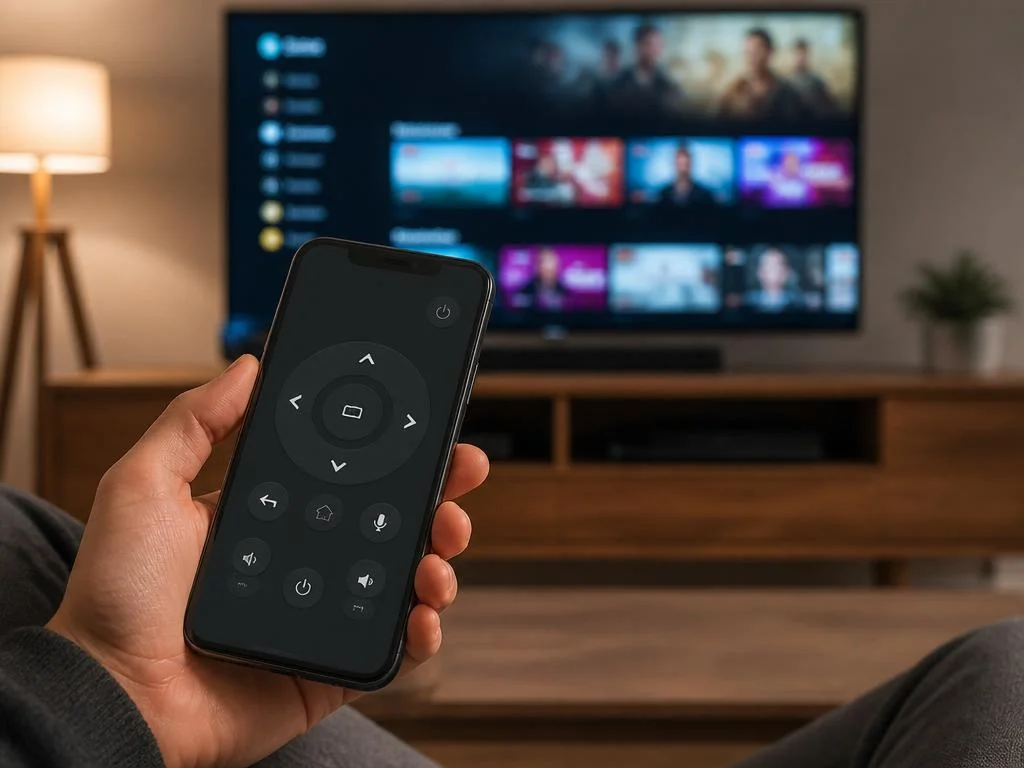
Reconfiguring your device settings can sometimes be tricky without a native controller, but it is entirely manageable with patience. If you have lost internet connectivity, consider using the mobile app’s advanced features to reset the wireless credentials. If the app fails to find the device, you may need to use a wired ethernet connection to temporarily restore a bridge to your network, which allows the mobile application to detect the unit once more.
System maintenance is a recurring requirement for modern electronics. Just as one might need to research or evaluate specialized service agencies for niche professional tasks, managing your entertainment hardware requires a proactive approach to updates. By keeping your software firmware current, you ensure that mobile application features remain compatible with the latest interface changes, preventing connectivity gaps that often plague older, unpatched systems in a household or office.
Advanced Control via Screen Mirroring
Another clever method involves using screen mirroring technology from a laptop or desktop computer. Many modern operating systems allow you to send media directly to the television without needing the standard remote menu. By casting your screen, you bypass the need for traditional navigation altogether, effectively turning your computer into the primary interface. This method is perfect for streaming high-quality content that is not natively supported by the television’s internal app ecosystem.
This strategy is highly effective for power users who demand total control over their media playback. It minimizes dependency on proprietary hardware and leverages the computational power of your PC. Whether you are presenting a slideshow or enjoying a cinematic experience, mirroring provides a robust fallback. It is a highly versatile, dynamic solution that ensures you remain connected to your favorite entertainment regardless of any physical hardware failures that might occur with your standard handheld clicker.
✅ Pro Tips for Long-term Success
To avoid future frustration, consider pairing a universal infrared controller as a secondary backup. Keep it stored in a safe, designated location to ensure that even if your primary network goes down or your mobile battery dies, you maintain the ability to adjust your volume and input sources without needing any external digital authentication or complex troubleshooting steps.
Common Challenges and Solutions
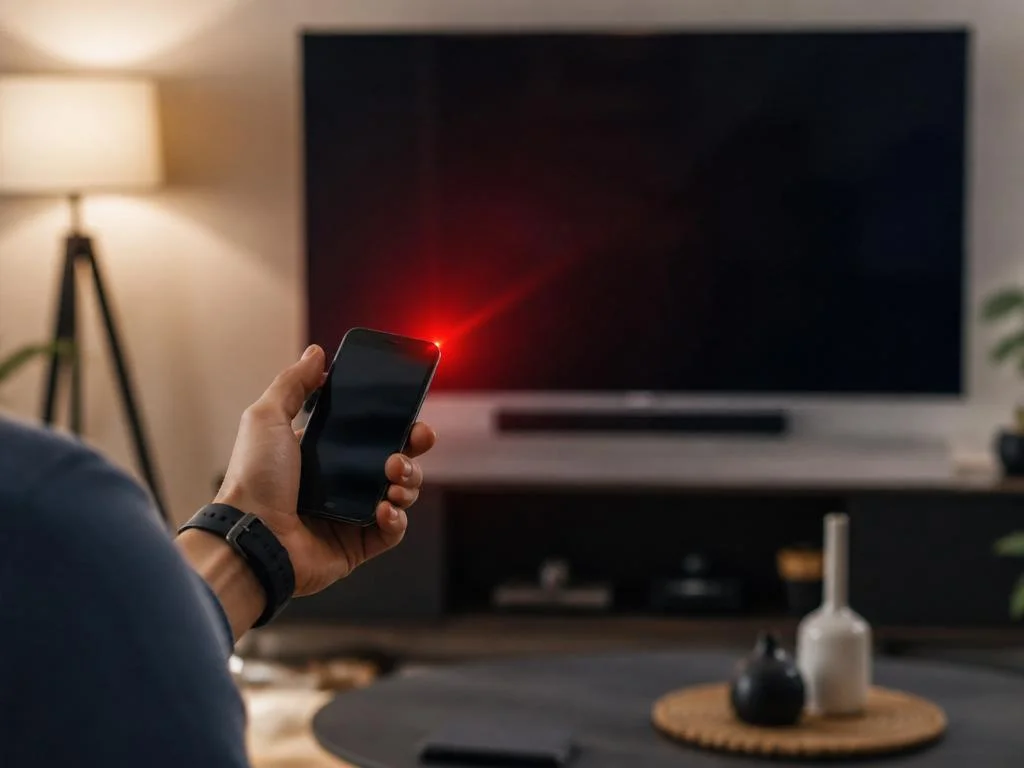
Users occasionally report issues where the mobile application cannot find the television on the network. This is usually due to guest network isolation or router settings that prevent device discovery. Ensure both your phone and television are on the same subnet to resolve this. If the problem persists, restarting your router often clears cache files that might be interfering with the device pairing process, allowing your mobile command center to function correctly once more.
Some models also support limited control via HDMI-CEC, which allows your other connected devices—like a gaming console or a Blu-ray player—to send commands to the television. By using the controller from your secondary device, you might be able to navigate the menu effectively. It is a convenient feature that turns your gaming pad into a multi-purpose tool, further demonstrating that modern smart environments are designed with interconnected flexibility at their core for every user.
| Method | Best For | Difficulty |
|---|---|---|
| Official App | Daily use | Low |
| USB Mouse | Navigation | Medium |
| HDMI-CEC | Quick input | Low |
Final Thoughts on Remote Management
Successfully managing your television environment without a traditional remote is entirely achievable with the right strategy. By utilizing the official software, secondary hardware peripherals, or advanced connectivity features like HDMI-CEC, you ensure that your viewing habits are never hindered by hardware mishaps. These methods provide a reliable safety net, often improving upon the original experience with faster search capabilities and more intuitive interfaces. Embracing these digital workarounds is the mark of a savvy user who understands how to maximize the utility of their home entertainment systems in our increasingly connected and technology-driven daily lives.
