
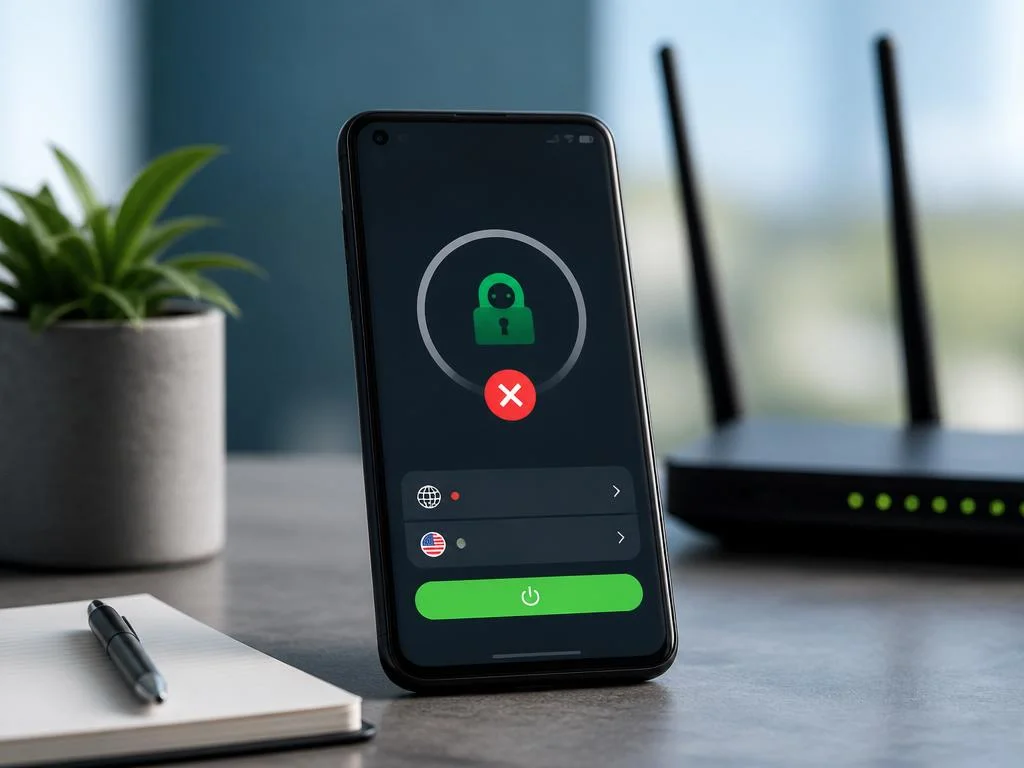
Having a secure connection on your mobile device is essential for protecting your personal data. However, many users face frustrating situations with private internet access not connecting android phones correctly during daily usage. This sudden connection failure can leave your device completely vulnerable while browsing public networks without proper encryption protection.
Understanding the core reasons behind these system errors helps you restore your private tunnel quickly. Fortunately, resolving this issue does not require deep technical knowledge. This comprehensive guide will show you exactly how to configure your settings, optimize your network parameters, and secure your mobile traffic without any further annoying interruptions.
Why private internet access not connecting android issues occur
Mobile operating systems manage network sockets strictly to preserve battery life and memory. When your security application fails to establish a secure tunnel, it often points to mismatched protocol configurations. Understanding these underlying mechanics is the first step toward diagnosing why your encrypted traffic cannot flow through your mobile carrier or home router.
Another common culprit is conflicting security software installed on your handset. Antivirus tools or local firewalls often block virtual network adapters from initializing. When these applications compete for control over your internet traffic, your primary encryption tool fails to secure the connection, leaving your device in a completely offline state.
Network conflicts and mobile data blocks
Mobile network operators sometimes restrict specific ports used by standard encryption protocols. If you are browsing on cellular data, your provider might block the default ports used by OpenVPN or WireGuard. Switching to a different port or protocol within your application settings usually bypasses these carrier-imposed blockades instantly.
Public wireless connections also impose restrictive firewall rules that prevent secure tunnels. These hotspots require you to complete a login page before allowing any web traffic. Your encryption app will fail to connect until you successfully authenticate through the local portal, which requires temporary disconnection from your security application.
App cache buildup and software glitches
Over time, software accumulates temporary files that can cause unexpected stability issues. Corrupted local configuration files prevent the application from verifying your credentials with the remote server. Clearing these temporary files forces the software to rebuild its configuration parameters, resolving minor operational errors that disrupt your connection.
Additionally, outdated application versions may contain compatibility issues with newer system updates. Operating systems evolve rapidly, requiring constant software adjustments from security developers. Keeping your application updated ensures that you benefit from the latest security patches and performance optimizations designed for your specific mobile device version.
Basic troubleshooting steps for a stable connection
Resolving connection issues often starts with simple adjustments to your device settings. Before diving into complex network modifications, you should perform a clean restart of your smartphone. This action flushes your temporary system memory and restarts all background network services, giving your security application a fresh state to operate.
Next, verify that your login credentials are correct and active. If your subscription has expired, the application will refuse to establish a secure connection without displaying a clear error. Accessing your account portal via a standard web browser helps you verify your membership status before continuing with deeper troubleshooting.
Toggling airplane mode on and off is a rapid way to reset your device’s radio antennas. This action forces your cellular and wireless connections to reconnect, often resolving minor signal routing glitches instantly.
Resetting your network settings on mobile
If basic restarts fail, resetting your global network configurations can resolve deeper connection issues. This process erases saved wireless networks, paired bluetooth devices, and custom cellular configurations. It provides a clean slate for your operating system, eliminating any lingering configuration conflicts that prevent secure tunnels from establishing.
After performing this reset, you must reconnect to your home wireless network. This step is highly effective if you recently changed your router configuration or updated your device firmware. It ensures that your mobile operating system handles all incoming and outgoing data packets without any legacy configuration interference.
While adjusting these configurations, some users prefer to personalize their mobile interface completely. You can explore exciting wallpaper android customization ideas to refresh your device’s visual appearance. Keeping your phone visually appealing makes troubleshooting these technical connection issues a much more pleasant experience overall.
Changing protocols within the android application
Your security software utilizes different encryption protocols to transmit data securely. If your current protocol is blocked by your network provider, switching to an alternative option can restore connectivity. WireGuard offers incredible speeds, while OpenVPN provides robust stability when navigating highly restrictive networks and local firewalls.
« Choosing the right security protocol is the bridge between fast data transfer and bulletproof privacy on modern mobile networks. »
To change your protocol, navigate to the connection settings within your application interface. Experimenting with both UDP and TCP configurations can yield different results depending on your current network environment. TCP is slower but highly reliable, making it ideal for bypassing tricky security filters on public networks.
Advanced configurations to resolve connection issues
Sometimes, standard troubleshooting steps are not enough to resolve persistent network blocks. Advanced users can modify deep application settings to bypass sophisticated censorship or carrier restrictions. These adjustments require a basic understanding of how data routing works but offer the highest success rates for maintaining stable connections.
One highly effective method is utilizing port forwarding options within your software. This feature allows your data to travel through non-standard channels that are rarely monitored or blocked by local networks. Configuring these options ensures your traffic remains completely hidden while maintaining optimal performance on your device.
While port forwarding can bypass restrictive network firewalls, it can occasionally expose certain local services if not configured correctly. Only enable this feature within your trusted VPN client settings and avoid manually opening random ports on your home router.
Bypassing local restrictions with multi-hop
Multi-hop configuration routes your internet traffic through two distinct security servers instead of one. This double encryption layer makes it incredibly difficult for network administrators to detect your actual destination. While this method slightly reduces connection speeds, it provides unparalleled security when navigating extremely restrictive network environments.
To enable multi-hop, access the proxy settings within your mobile security application. You can choose to route your traffic through a Shadowsocks proxy before it reaches the main security server. This configuration effectively disguises your encrypted traffic as standard web traffic, bypassing deep packet inspection filters.
Optimizing these security configurations is particularly important if you use high-performance devices. Reading about advanced mobile hardware performance metrics helps you understand how encryption processes impact system resources. Modern processors handle heavy cryptographic calculations with ease, ensuring your device remains fast and secure.
Configuring custom dns servers for privacy
Domain Name System leaks can occasionally cause connection failures on mobile platforms. If your security application struggles to resolve web addresses, switching to custom DNS servers can solve the problem. Using private servers ensures that your internet service provider cannot monitor the websites you attempt to visit online.
You can configure custom DNS settings directly within the application’s network options. Selecting a reliable, privacy-focused DNS provider improves connection stability and speeds up page loading times. This adjustment prevents your device from relying on default carrier servers, which are often slow and highly monitored.
How battery optimization affects your android client
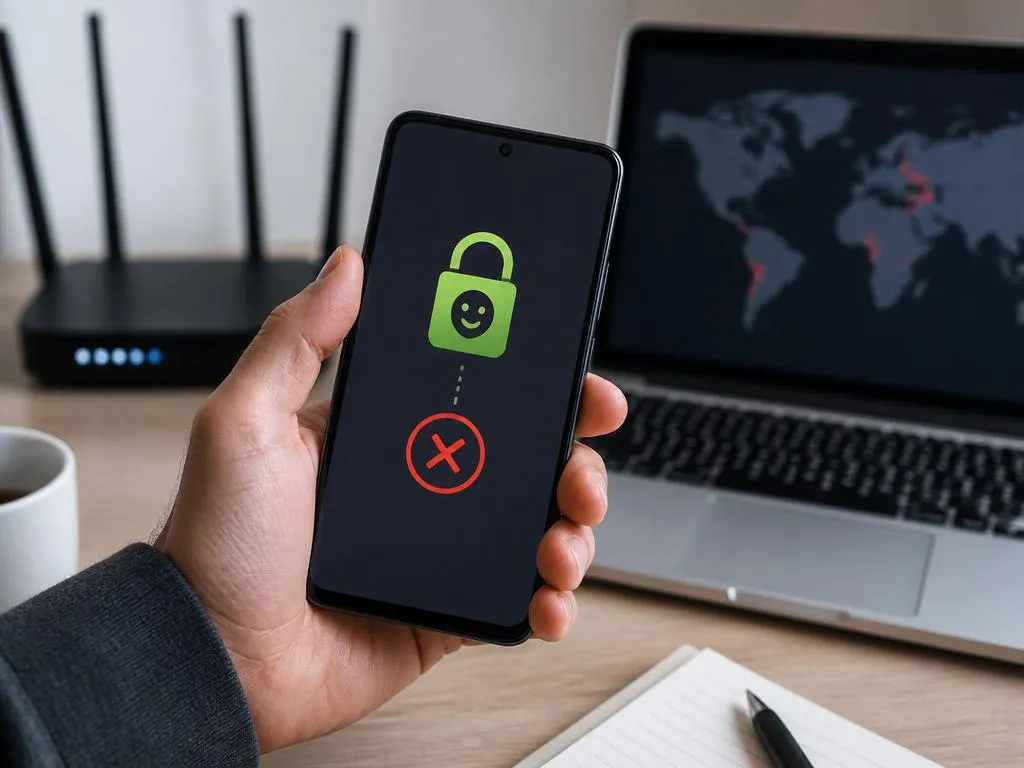
Android operating systems feature aggressive battery management tools designed to maximize hardware efficiency. These tools frequently terminate background processes that consume significant power over extended periods. Because your encryption application must run continuously in the background, battery optimization features can unexpectedly terminate your secure connection.
When this termination occurs, your device might fail to reconnect automatically. This leaves your connection status in a suspended state, making it appear as though the software is broken. Adjusting your system settings to exclude your security app from battery optimization is crucial for maintaining a reliable connection.
- Open your system settings and navigate to the apps section.
- Find your security application and select battery options.
- Change the optimization setting from optimized to unrestricted.
- Restart your device to apply the new power management rules.
Disabling battery saver for continuous access
Global battery saver modes impose even stricter limitations on background data transfers. When your battery level drops below a certain percentage, your device restricts wireless activity to conserve power. This restriction directly impacts your security client, preventing it from maintaining a stable, encrypted tunnel with the remote server.
To ensure uninterrupted protection, consider disabling automatic battery saver modes entirely. Alternatively, configure your system to allow background data usage even when battery saver is active. This ensures that your critical privacy applications continue to shield your personal data, regardless of your remaining battery percentage.
Keeping your android system fully compatible
Persistent system compatibility issues are a common root cause of connection failures on mobile platforms. Operating system updates sometimes introduce security policy changes that affect how virtual private networks function. Ensuring your software is always compatible with these system modifications prevents unexpected service disruptions and keeps your data secure.
In addition to system compatibility, clearing cache files regularly keeps the application running smoothly. Overloaded system directories can slow down connection initiation sequences, causing the client to timeout. Maintaining a clean system environment ensures that all security protocols execute quickly without facing artificial system delays.
When your connection is stable, you can enjoy high-bandwidth activities like streaming media. If you are interested in enhancing media quality on your mobile device, having a fast connection is absolutely critical. A reliable secure tunnel allows you to download large files and stream high-definition content without experiencing buffering.
Updating the application and system software
Keeping your mobile applications updated is the easiest way to prevent unexpected technical glitches. Security developers release updates frequently to resolve bugs reported by users worldwide. Enabling automatic updates within your application store ensures that you always have the most stable and secure version installed.
Similarly, checking for pending system updates on your smartphone is highly recommended. System updates often resolve deep-seated network adapter issues that affect third-party security clients. A fully updated operating system provides a much more stable foundation for managing encrypted data tunnels and preserving your online privacy.
Final recommendations for seamless mobile browsing
Maintaining a secure digital presence requires consistent attention to your device settings. By implementing the troubleshooting strategies outlined in this guide, you can easily resolve most connection failures. Remember to monitor your network environment and adjust your application settings accordingly to achieve the best possible performance.
To keep your connection stable, remember to select the WireGuard protocol, disable battery saver optimizations, use port forwarding when necessary, and keep both your system and security application updated regularly.
With your secure connection restored, you can safely explore advanced online platforms. For instance, testing an advanced video processing tool becomes seamless when your data flows without interruption. Secure browsing gives you the confidence to explore modern software innovations without risking your personal data.
Finally, if issues persist despite your best efforts, contacting technical support is a wise decision. Experienced technicians can analyze your connection logs to identify complex routing errors. Having these detailed diagnostic logs ready will speed up the resolution process, allowing you to regain full online protection quickly.
Developing a habit of checking your connection status before submitting sensitive information online is highly beneficial. Many users assume their security application is running when it has actually terminated in the background. A quick glance at your status bar ensures that your data remains continuously encrypted and protected.
Additionally, using secure public networks whenever possible reduces the strain on your security client. While encryption shields your data on unencrypted networks, combining software security with good network habits yields the best results. Staying proactive about your mobile security ensures that your personal information remains completely inaccessible to malicious actors.
