
If you are encountering persistent system errors or struggling with malicious software, learning how to restart Windows 8 in safe mode is a vital skill. This diagnostic environment loads only the most basic drivers and services required to run the operating system. By limiting background processes, you can identify if third-party applications are the root cause of your instability or display issues. Successfully accessing this mode allows you to uninstall problematic software, update corrupted drivers, or remove viruses that might otherwise be locked by the system while operating in a normal desktop environment.
Modern versions of this OS changed how users trigger low-level recovery options compared to previous editions. While older systems relied on tapping keyboard keys during the boot process, current iterations utilize a graphical menu architecture. This shift ensures that even non-technical users can navigate complex troubleshooting scenarios without needing advanced command-line expertise. Whether your computer is currently booting to the desktop or is stuck in a loop of errors, there are several pathways available to restore functionality. Following the correct steps will help you regain control over your hardware and restore your digital productivity effectively.
Understanding the boot options for troubleshooting
The core advantage of booting into a restricted diagnostic state is the ability to bypass active software conflicts. When you initiate this process, your machine ignores startup programs and peripheral hardware that may conflict with system files. This provides a clean slate where you can isolate hardware failures from software bugs efficiently.
Many users often ask why their system behaves differently when they restart Windows 8 in safe mode. The answer lies in the hardware abstraction layer and the minimal driver set being loaded. This is particularly useful when analyzing digital marketing data or fixing system performance bottlenecks caused by heavy background tasks. By disabling non-essential services, you gain a clear view of your OS health.
💡 Quick diagnostic tip
If you are struggling with system stability, safe mode for windows 8 is the primary tool to determine if your issues are caused by installed software or deep OS corruption. Always keep your essential recovery files stored externally before attempting deep system repairs or registry modifications.
The environment operates with a reduced set of visual features, which means your resolution will look significantly lower than usual. Do not be alarmed by this change in appearance, as it is a standard behavior indicating that the system is not utilizing your dedicated graphics driver, but rather a universal display adapter.
Once you are inside this specialized menu, you can execute standard cleanup utilities, run virus scans, or revert system configurations to an earlier, stable state. This approach prevents third-party tools from interfering with your repair operations, ensuring that the system files remain accessible throughout the duration of your technical maintenance task or software update.
Using the shift plus restart keyboard shortcut
If you can still reach your desktop or the login screen, the most reliable way to access these settings involves the shift key. By holding this key while clicking the restart button on your screen, you force the machine to display the advanced startup options menu instead of performing a standard reboot.
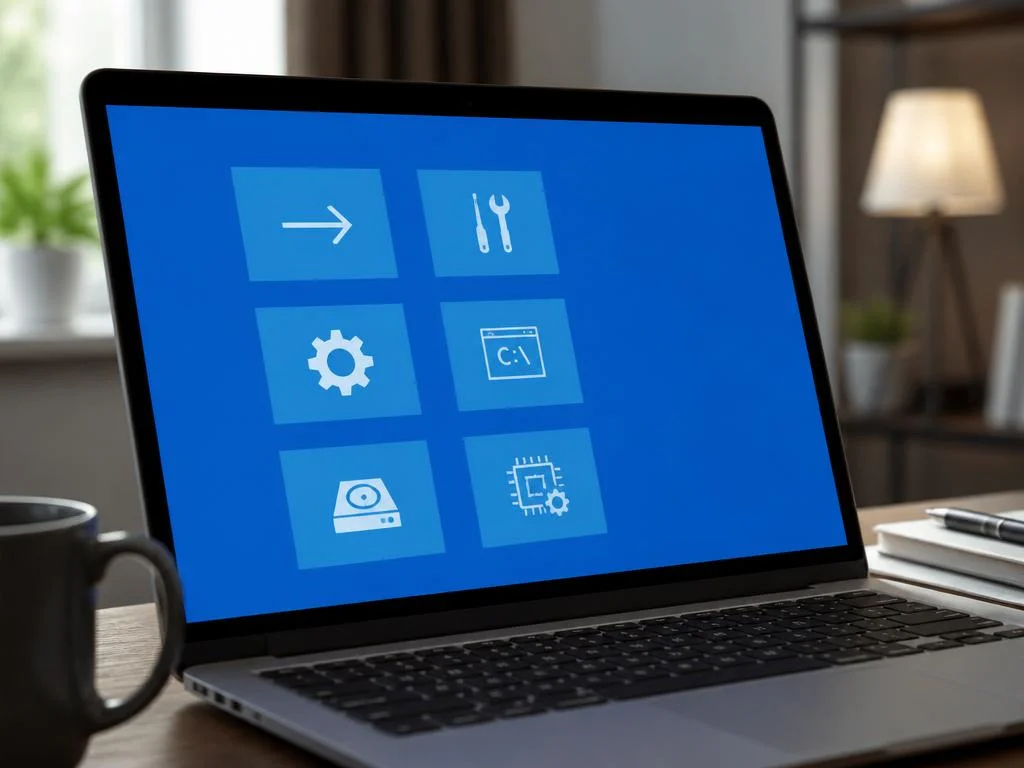
This method is highly effective because it triggers the firmware-level recovery environment. Once the screen changes to a blue interface, you should select troubleshoot, followed by advanced options, and finally startup settings. This sequence of actions is the most straightforward pathway to reach the advanced boot configuration menu for your specific machine.
⚠️ Critical warning
Never force a physical shutdown by pulling the power cable while the system is attempting to repair itself. This can lead to severe disk corruption. Use the software-based methods described here to ensure your file system remains intact while you troubleshoot pc maintenance procedures during your recovery process.
After navigating these menus, you will see a list of numbered options. Pressing the corresponding number or the associated function key will reboot the machine into the desired state. Whether you choose the standard version or the one with networking capabilities depends on whether you need to download drivers or patches.
Sometimes, users find that specific marketing strategies might clash with system software if they are running heavy analytical tools. If this occurs, using the network-enabled diagnostic mode allows you to connect to the internet to fetch essential support files or communicate with help desks while still maintaining a stable and protected operating environment for your computer.
Accessing recovery from the system settings menu

If you have already navigated to your desktop, you can enter the configuration panel to force a reboot into the recovery menu. By opening the settings charm and selecting change PC settings, you will find the update and recovery tab. This is where you manage core system behavior and installation protocols.
Within this menu, choose the recovery option and look for the advanced startup heading. Clicking the restart now button will immediately exit your current session and transition the hardware into the repair interface. This is a very clean and professional way to handle maintenance without needing to use physical hardware tricks.
« Maintaining a stable computing environment requires regular updates and an understanding of how to recover from critical software failures. Mastering these simple diagnostic pathways saves time and prevents unnecessary data loss during unexpected system crashes. »
This method is particularly useful for administrators who manage multiple machines and want to ensure that they are following standard operating procedures. By utilizing the built-in system menus, you maintain consistency in how you approach troubleshooting techniques, which is essential for preserving the long-term health and efficiency of your workstation setup.
Even if you are investigating sensitive topics like hi-tech pharmaceutical compliance or complex software development, keeping your local system environment stable is paramount. The ability to switch into this restricted mode provides the necessary security buffer to perform delicate administrative tasks without worrying about malicious background processes interrupting your critical workflow or damaging your ongoing data analysis projects.
Managing your startup behavior efficiently
Once you are in the diagnostic environment, consider what specific changes you need to apply. If the issue is related to a faulty driver, opening the device manager is your first step. Disable the suspected hardware component and perform a normal reboot to test if the OS returns to full stability.
If the error persists, you might need to use the system configuration utility to perform a clean boot. This allows you to selectively enable services and startup items one by one until you find the exact culprit. This iterative process is the gold standard for fixing persistent performance issues on older operating systems.
✅ Success checklist
- Back up your personal documents to a cloud or external drive.
- Identify the specific error message occurring during boot.
- Use the shift-restart method for the fastest access.
- Test hardware drivers one by one to isolate conflicts.
Remember that the diagnostic state is only for short-term repairs. Once you have identified and resolved the underlying conflict, reboot your machine normally to restore full performance. Staying in the restricted mode for too long can limit your ability to use essential peripherals, such as high-performance sound cards or specialized input devices.
Finally, always ensure that your system is fully patched. After resolving the immediate boot conflict, run your standard update client to download the latest security definitions. Keeping the OS current is the best way to prevent future issues, reducing the frequency with which you will need to utilize these advanced recovery menus.
