
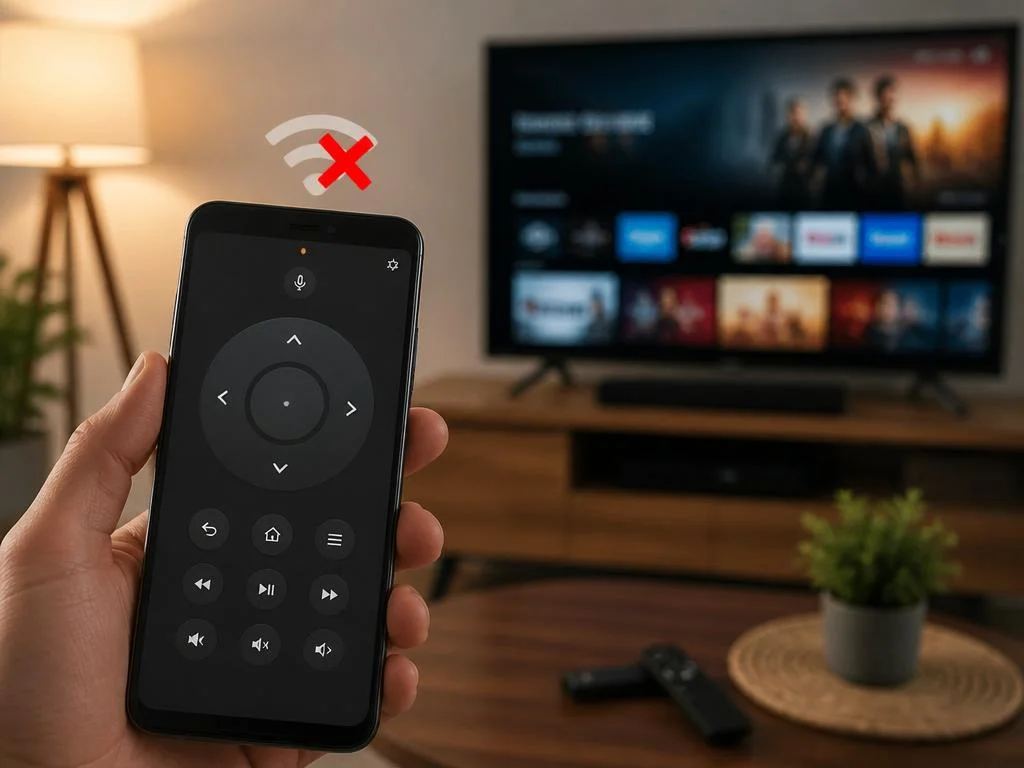
Losing control of your media system is frustrating when you want to watch a show. Many streaming device owners experience issues with their virtual controller, leading to the amazon fire tv remote app not connecting to their smart television. This annoying disruption usually stems from simple communication breakdowns between the devices on your network.
Understanding the underlying technical causes helps you resolve this pairing issue within just a few minutes of troubleshooting. Following a structured diagnostic approach restores seamless navigation. Let us explore the most effective steps to quickly fix this inconvenient wireless application failure and significantly improve your daily smart streaming experience.
Why your smart fire tv application fails to pair successfully
Wireless applications rely on precise communication protocols to establish a secure link with your television screen. When these protocols fail, your smartphone cannot locate the streaming hardware. This problem often occurs due to mismatched network configurations, isolation settings, or minor software glitches within the mobile operating system.
Temporary data corruption in your phone memory can also prevent a successful link from forming. Over time, applications accumulate temporary files that can interfere with normal operations. Clearing these internal files regularly ensures that your mobile controller remains highly responsive and avoids pairing failures during your entertainment sessions.
Understanding the network connection setup
Both of your devices must reside on the exact same local network frequency to communicate. Many modern routers broadcast separate bands, which can split your equipment into isolated pathways. If your mobile device joins one frequency while your television uses another, they will remain invisible to each other indefinitely.
Network configuration issues can also arise when utilizing complex office setups or public shared connections. In these environments, security features often block direct peer-to-peer communication between connected devices. Understanding how these pathways interact is essential for establishing a reliable link between your control application and television hardware.
ℹ️ Quick Discovery Check: If your smartphone is connected to a VPN, it will block local device scans. Always disable any active VPN services on your mobile device before attempting to pair your virtual remote application.
Software glitches and app synchronization
Operating systems regularly update to improve security and performance, but updates can occasionally introduce compatibility bugs. When either your mobile phone or your streaming device receives a system patch, the wireless controller software might lose its authorization tokens. This sudden loss of credentials requires a complete synchronization reset.
Background processes on modern smartphones often terminate inactive services to preserve battery life. If your mobile controller application gets closed in the background, it may fail to re-establish a handshake when reopened. Restoring this connection requires restarting the software or adjusting your phone battery optimization settings manually.
Steps to solve amazon fire tv remote app not connecting
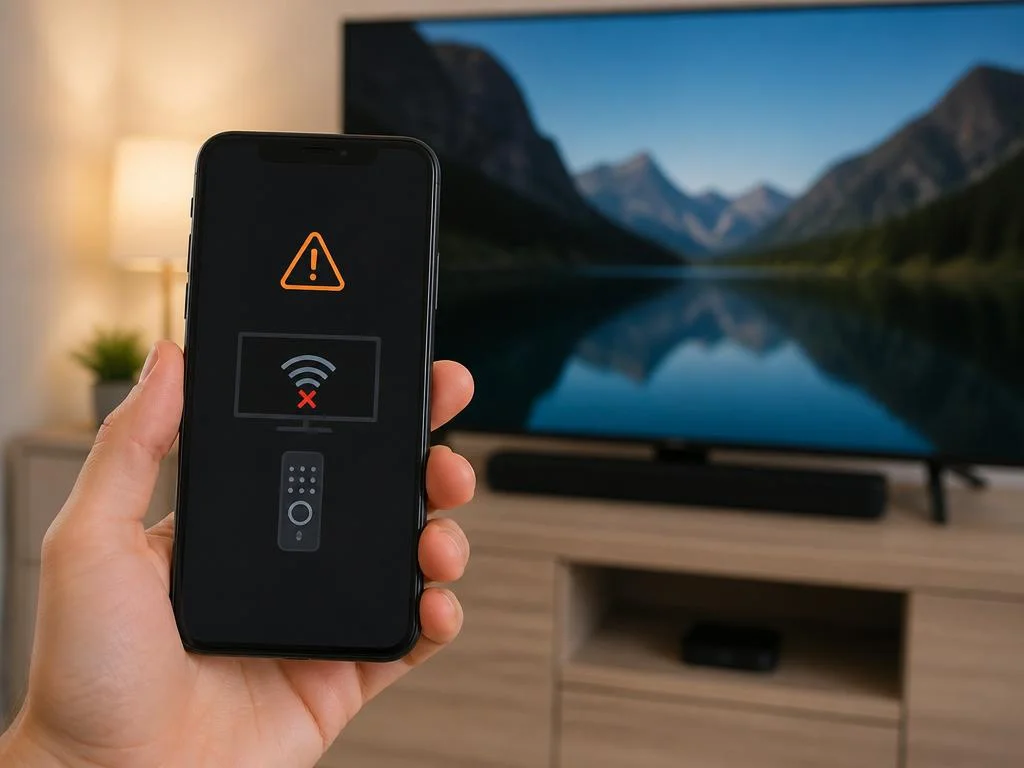
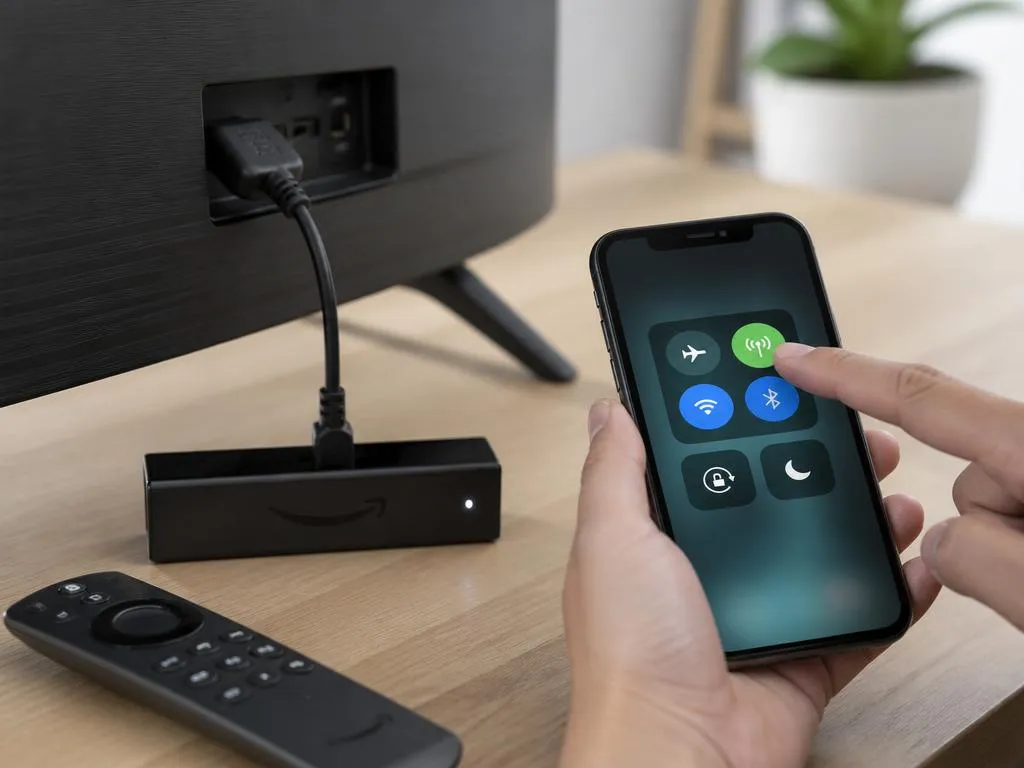
The first diagnostic step involves verifying your physical equipment is powered on and functioning. Disconnect the power cable from your streaming device for thirty seconds before plugging it back in. This simple power cycle forces the system to boot fresh, often resolving minor software hangs that prevent external applications from establishing connections.
Next, verify that your smartphone has active wireless communication enabled in its system settings. Sometimes, toggling the airplane mode off and on refreshes the mobile network chips. This quick reset forces your phone to search for local devices again, frequently fixing instances of the amazon fire tv remote app not connecting immediately.
Verifying the local area network configuration
Open your television network settings screen to check the active service set identifier. Compare this name with the wireless network currently selected on your mobile device. They must match exactly, including any indicators for secondary frequencies, to ensure that the two devices can discover each other without obstacles.
If you operate a dual-band wireless router, consider disabling the automatic band steering feature temporarily. This prevents your router from automatically shifting your smartphone to a different frequency while you watch. Ensuring both devices remain locked to the same band dramatically improves the stability of your mobile controller application.
✅ Pre-pairing Verification Steps
- Verify that both devices share the identical Wi-Fi SSID name.
- Confirm local network access permission is granted on iOS or Android.
- Verify that the streaming console is not installing system updates.
- Disable active cellular data to force local Wi-Fi routing.
Clearing cache when amazon fire tv remote app not connecting
Navigate to the application management settings on your mobile operating system. Locate your remote control application, select storage options, and click on the clear cache button. This process deletes corrupted temporary files without removing your saved preferences, allowing the program to initiate a clean connection search.
If clearing cache does not resolve the issue, you may need to clear all application data. This action resets the software to its factory state, removing any corrupted configuration profiles. After doing this, you will need to perform the initial pairing process again to link your device successfully.
Advanced troubleshooting for wireless connections in your home
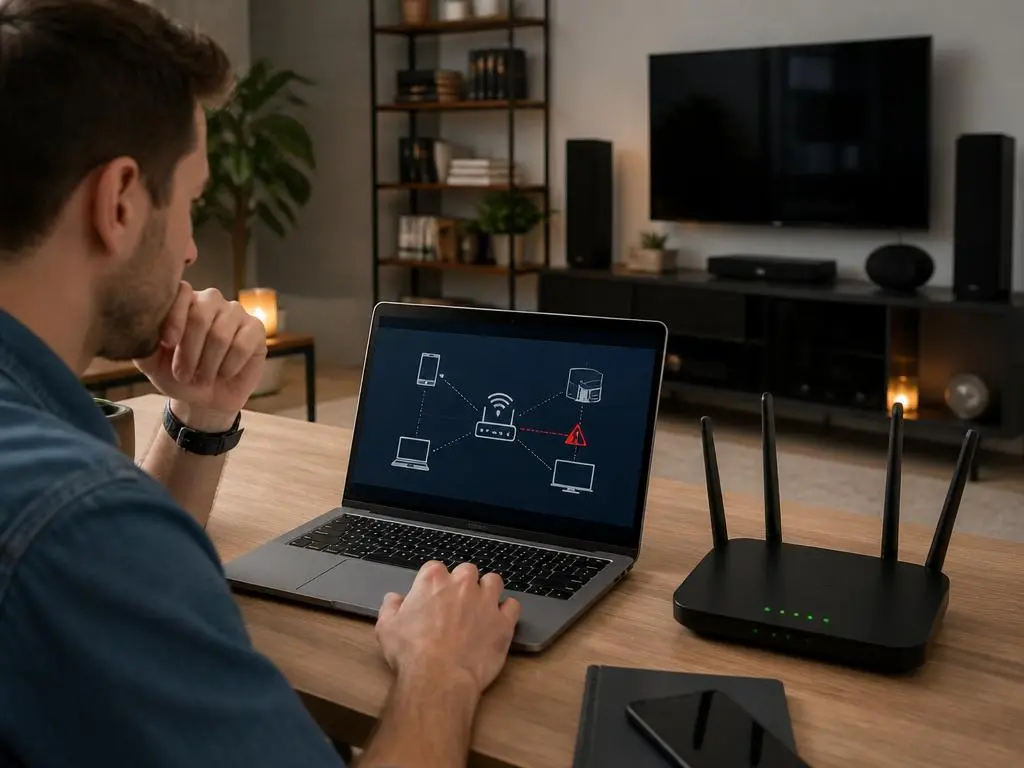
When standard troubleshooting fails to resolve the issue, you must examine deeper network properties. IP address conflicts can prevent smart devices from communicating properly over a local network. If multiple devices claim the same address, data packets will get misdirected, leaving your remote control software unable to reach its destination.
Sometimes, you must configure your network hardware to allow local casting protocols. Many modern routers feature security settings that block multicast traffic by default to protect user data. Enabling these protocols in your router admin panel allows smart devices to broadcast their presence and connect to other local hardware.
Assigning a static IP address to your streaming device
Assigning a permanent address to your television console prevents future connection drops. You can configure this setting within your router administration console or directly inside the television system settings. A fixed address ensures your smartphone always knows exactly where to send control signals on your local network.
This approach is highly comparable to organizing physical connectivity in corporate systems. Just as IT professionals require a guide to a device to map hardware locations, smart homes need organized address structures. Establishing static addresses eliminates search delays and keeps your virtual controllers working reliably.
Power cycling the network router and firestick
Routers can become overloaded with data over time, leading to degraded local traffic performance. Unplugging your routing hardware for one minute clears its internal memory and restores optimal routing tables. Once the internet connection is fully restored, restart your streaming console to establish fresh handshakes across all connected smart devices.
This simple reboot cycle solves the vast majority of local communication errors. It flushes out obsolete IP assignments and renews connection leases for every device in your household. Regularly rebooting your network hardware maintains a high level of operational efficiency and reduces latency when using wireless controllers.
⚠️ Important Warning: Avoid performing a factory reset on your media player unless you have a functional physical controller nearby. Without a hardware remote, you cannot pass the initial startup screens.
Alternative solutions for a disconnected remote app
If software troubleshooting does not restore your connection, you might need to explore alternative control options. Third-party controller applications are available on most app stores and can serve as excellent temporary backups. These alternatives often use different discovery protocols that might bypass the issues affecting the official software.
Modern businesses frequently face similar challenges when transitions fail during digital system upgrades. They often rely on specialized partners for professional document digitization to keep operations running smoothly during transitions. Similarly, having a backup control method prevents complete entertainment downtime when your primary system experiences unexpected technical failures.
Utilizing physical remotes as temporary backups
A physical hardware remote remains the most dependable backup when mobile software fails. If you have lost your original controller, cheap replacement models are widely available online and pair instantly. Keeping a basic physical remote in your drawer ensures you can always access system settings to repair wireless issues.
You can also use compatible television controllers if your display supports consumer electronics control over HDMI. This feature allows your television remote to send navigation commands directly to the streaming console. Enabling this option in your system settings provides an immediate backup without purchasing additional accessories.
Upgrading your home infrastructure for smart devices
If you own many wireless devices, your home network may be reaching its physical limits. Standard routers provided by internet service providers often struggle to manage dozens of simultaneous smart home connections. Upgrading to a modern mesh network system distributes the traffic load evenly, ensuring consistent performance for control applications.
Enterprise systems solve similar distribution challenges by implementing highly sophisticated structural designs. Companies constantly look for strategies for scaling data center architectures to manage high volumes of incoming traffic. Applying these scaled network principles to your home environment prevents smart devices from dropping offline during peak usage times.
📱 Virtual Remote vs. 🔋 Physical Controller
The virtual application offers convenience, keyboard input, and voice search features directly from your mobile screen. However, physical controllers operate via stable infrared or direct Bluetooth channels, making them much less vulnerable to local wireless network disruptions.
How to maintain a stable smart home network environment
Maintaining a healthy local network requires consistent attention to configuration and hardware placement. Keep your wireless router central to your living space, away from large metal objects and thick concrete walls. This placement ensures strong, uninterrupted signals reach both your smartphone and your streaming console at all times to maintain a stable wireless network connection.
Ensure that you do not overload a single wireless band with too many high-bandwidth activities. If multiple family members are downloading large files, your remote control signals may experience severe latency. Distributing devices across different frequencies preserves the fast response times needed for comfortable television navigation.
Managing bandwidth and local network traffic
Bandwidth congestion is a common cause of intermittent wireless application drops. Quality of service settings on your router can prioritize control traffic over standard downloads. This configuration guarantees that your navigation commands always receive immediate processing, even when the rest of your household is heavily utilizing the internet.
Implementing these traffic prioritization techniques reflects the methods used by modern cloud facilities. Large operations focus heavily on optimizing data center connectivity to prevent signal degradation across critical communication channels. Managing your home bandwidth ensures your media equipment always receives the dedicated resources required for flawless performance.
Regular firmware updates for maximum compatibility
Consistently updating your smartphone operating system ensures compatibility with the latest application versions. Developers frequently release updates that address connection bugs and security protocols. Enabling automatic updates on your phone and streaming console keeps your entire entertainment system synchronized and functioning without unexpected interruptions.
If you notice your control application becomes unstable after a system update, check online forums for known issues. Developers often release hotfixes shortly after major updates to resolve these emerging connectivity problems. Staying informed about software cycles helps you anticipate and quickly resolve potential wireless communication conflicts.
Optimizing your streaming device network architecture
For the ultimate stable connection, consider utilizing a wired connection for your streaming hardware. Many media players support ethernet adapters that connect directly to your home router. A physical wired connection eliminates wireless interference entirely, ensuring your console is always perfectly accessible to your wireless mobile applications.
A wired foundation provides a rock-solid anchor for your smart home ecosystem. While your phone must remain on wireless, having the television console wired reduces the wireless load on your router by half. This hybrid network design offers the best of both worlds: convenient mobile control and reliable data delivery.
💡 Pro Tip: If connection issues persist, use your smartphone as a temporary wireless hotspot. Connect your media player to the hotspot to verify if your home network router settings are causing the communication block.
Minimizing signal interference in your living room
Household appliances like microwaves, cordless phones, and baby monitors can disrupt wireless signals. Placing your router away from these common sources of interference prevents packet loss. If your streaming console sits inside a closed wooden cabinet, consider moving it to an open shelf to improve wireless reception.
Interference can also come from neighboring networks if you live in a crowded apartment building. Changing your router wireless channel to a less congested one can instantly boost performance. Most modern routers can scan for the clearest channel automatically, providing a cleaner pathway for your smart home devices.
Creating a dedicated network for smart devices
Many modern routers allow you to configure a secondary guest network. Setting up a dedicated network solely for your smart home accessories keeps them isolated from your primary computers and phones. This division protects your personal data while ensuring your streaming devices have a clean, uncluttered space to operate.
However, if you choose this setup, remember that your smartphone must switch to this dedicated network whenever you want to use the controller. Keeping both on the same secondary network maintains the required discovery link. This structured approach ensures a secure, fast, and highly reliable control experience.
