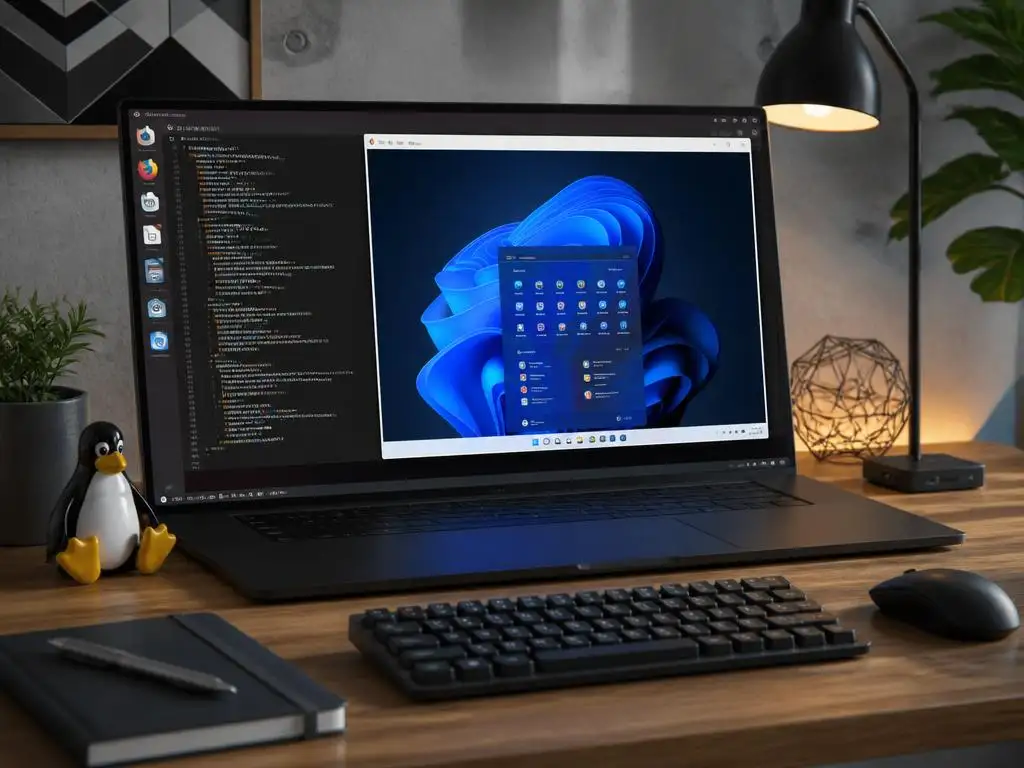
Modern professionals and software engineers frequently need to run windows virtual machine on linux to access proprietary corporate applications without dual-booting their computers. This flexible environment successfully combines the robust security of an open-source host operating system with the extensive software ecosystem of Microsoft.
However, achieving near-native operating speeds requires selecting the correct hypervisor tool and carefully fine-tuning your underlying hardware settings. By optimizing virtual graphics acceleration, memory allocation, and processor cores, you can eliminate annoying system lag. Read on to discover the advanced setup techniques that will transform your daily virtual experience.
Analyzing the benefits of system virtualization
Running multiple operating systems on a single physical computer provides immense flexibility for developers and administrators. It eliminates the need to maintain separate physical devices, saving workspace, electricity, and hardware maintenance costs. This setup allows you to test code across different platform configurations seamlessly without leaving your primary, highly secure working environment.
Furthermore, virtual systems offer superior security benefits through complete sandboxing and easy isolated snapshots. If a guest system is compromised by malware or system failure, you can easily restore a working state within seconds. This rapid recovery capability makes virtualization an invaluable asset for safe testing of untrusted code and applications.
Understanding virtualization technologies for linux hosts
Virtualization allows users to run multiple operating systems simultaneously on a single physical machine by abstraction. By leveraging a hypervisor, you can segment your physical hardware resources, such as processor cores, system memory, and storage, to create isolated environments. This architecture ensures that software running inside the guest system remains completely separated from your main host workspace.
Hypervisors generally fall into two distinct categories, namely bare-metal systems and hosted applications. While bare-metal hypervisors run directly on the physical hardware, hosted hypervisors operate as applications on top of an existing system. Understanding this fundamental distinction helps you choose the most efficient path for running guest software on your computer.
Choosing the right hypervisor for your workload
Selecting the correct software platform depends entirely on your specific productivity requirements and technical expertise. For basic application testing, lightweight tools offer simple installation wizards and straightforward configurations that require minimal technical knowledge. However, demanding enterprise workloads or heavy software development tasks demand more robust, low-latency virtualization systems that integrate deeply with your system kernel.
Many administrators rely on Oracle VirtualBox due to its user-friendly interface and cross-platform compatibility. It represents an excellent choice for beginners who need to test software occasionally without altering deep system settings. Despite its simplicity, VirtualBox may not deliver the raw graphical performance required for intense rendering tasks or highly demanding database applications.
Alternatively, VMware Workstation Player provides professional-grade virtualization with excellent virtual hardware support and stable execution. It bridges the gap between basic desktop tools and complex enterprise solutions, offering reliable performance for commercial use. However, some advanced features are locked behind commercial licenses, which might not suit casual users or open-source advocates.
Why kvm is the ultimate choice to run windows virtual machine on linux
For users seeking unmatched performance, the kernel-based virtual machine technology integrated into the Linux kernel is the absolute gold standard. By turning your operating system into a Type 1 hypervisor, this solution allows guest systems to access physical hardware components directly. This direct pathway dramatically reduces virtualization overhead and optimizes overall system responsiveness.
When you choose to run windows virtual machine on linux using this native technology, you achieve near-native execution speeds. The system efficiently schedules tasks directly on your physical CPU cores, eliminating translation delays that usually slow down guest applications. Consequently, heavy software programs run as smoothly as if they were installed on physical hardware.
Preparing your linux system for virtual machines
Before installing any virtualization software, you must ensure your system hardware supports hardware virtualization. This feature is typically labeled as Intel VT-x or AMD-V within your system BIOS or UEFI settings menu. Enabling this hardware-assisted technology is absolutely mandatory, as modern hypervisors cannot function efficiently or launch 64-bit guest systems without it.
Once enabled, you must install the necessary software packages through your distribution package manager. On Debian-based systems, this involves installing QEMU, Virt-Manager, and various system bridge utilities for networking. These tools provide both the emulation backend and an intuitive graphical user interface to manage your virtual environments effortlessly without utilizing complex command lines.
💡 Hardware Verification Steps:
- Restart computer and enter the BIOS/UEFI utility menu.
- Locate Intel Virtualization Technology or AMD SVM Mode options.
- Toggle the option status to Enabled, then save and restart.
- Verify support in the terminal using the
lscpuutility.
Step-by-step setup using Virt-Manager
Launching your virtual manager tool allows you to begin creating a new desktop guest wizard. The configuration interface will prompt you to select your installation media, which is typically a local ISO image file. Ensuring you have downloaded an official, clean Windows ISO file is critical to avoiding installation errors or security vulnerabilities.
Next, the wizard will guide you through dedicating memory resources and processing cores to your new environment. It is crucial to leave enough resources for your host operating system to prevent total system instability. Allocating half of your physical CPU cores and memory is generally a safe and balanced starting point for most modern computers.
Finally, you must create a virtual storage drive to hold the operating system files and your personal applications. Choosing the appropriate storage format can have a profound impact on future performance and storage flexibility. The system will ask you to specify the maximum disk size, which should accommodate both the system and future software updates.
| Storage Format | Primary Advantage | Best Suited For |
|---|---|---|
| QCOW2 (Dynamic) | Saves disk space by expanding on demand | Standard desktop users with limited space |
| RAW (Pre-allocated) | Slightly faster read and write speeds | Heavy database management and disk-heavy tasks |
Optimizing storage using advanced storage protocols
Selecting the correct driver for your virtual storage controller can make a significant difference in disk access speeds. By default, many hypervisors emulate standard IDE controllers, which introduces a heavy performance penalty during massive read and write operations. Upgrading to a specialized storage protocol ensures that your virtual disk acts like a high-speed system device.
Implementing the VirtIO SCSI controller allows the virtual guest to communicate directly with your physical solid-state drives without translation layers. This configuration supports advanced features like multi-queue support and SCSI unmap commands, which keep your storage running optimally. Consequently, large database operations and file search requests complete much faster within your virtual environment.
Additionally, pre-allocating the virtual disk space instead of utilizing dynamically expanding files prevents file fragmentation on the host file system. While this method requires more initial disk space, it guarantees consistent write performance during heavy workloads. This performance stability is particularly critical when running continuous software builds or handling highly demanding application logs.
Advanced performance optimization techniques
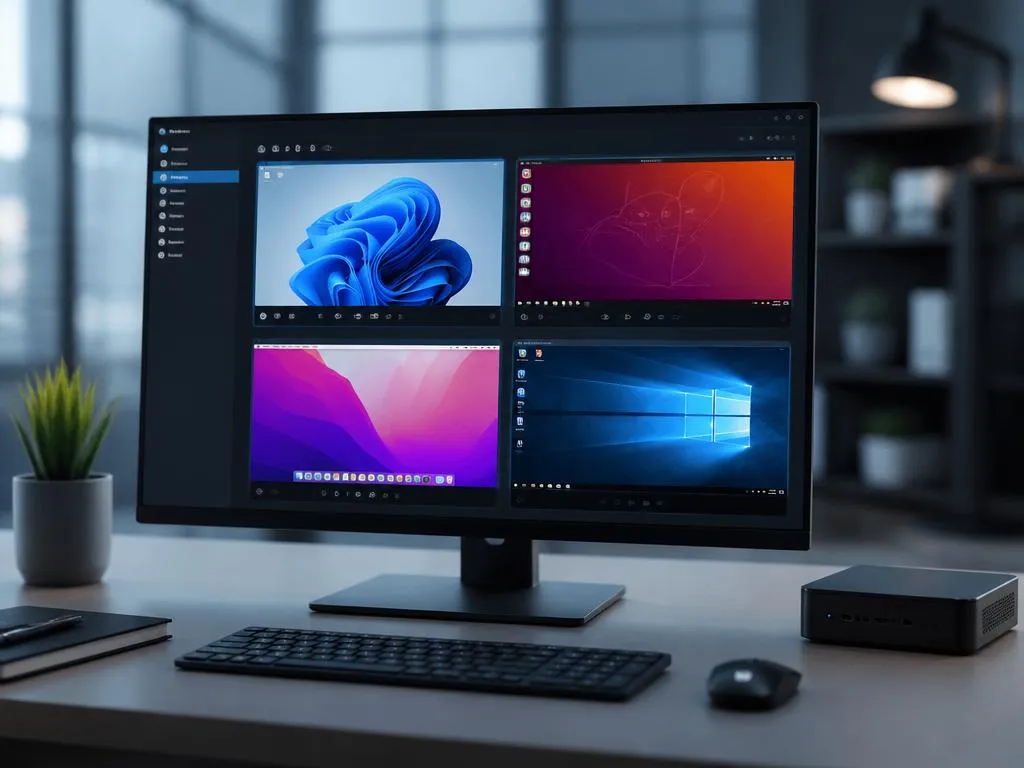
To achieve professional speeds, you must install specialized VirtIO drivers within your Windows guest system. These open-source drivers replace standard emulated hardware controllers with highly optimized virtual interfaces designed specifically for virtualized environments. This crucial step drastically improves network throughput, storage speed, and system interface responsiveness during daily use.
Another highly effective optimization involves setting your virtual CPU topology to match your physical hardware. By using the host-passthrough configuration mode, the virtual system can utilize advanced instruction sets directly. This feature is particularly useful when running complex computational simulations or optimizing industrial workflow within your enterprise software.
Additionally, configuring hugepages on your host system allocates large, contiguous blocks of system memory directly to your virtual machine. This reduces translation lookaside buffer misses, allowing the guest system to access memory addresses much faster. Combined with pinning specific CPU cores to the virtual machine, you can achieve near-native hardware execution.
Configuring gpu passthrough for seamless graphics
Standard virtual graphics cards often struggle with intensive tasks like video rendering, three-dimensional modeling, or gaming. To overcome this limitation, advanced users implement a dedicated graphics card passthrough configuration. This process binds a secondary physical graphics card directly to the guest system, giving it exclusive control over the graphics hardware.
Setting up this configuration requires your motherboard and processor to support IOMMU grouping technologies. This system allows safe isolation of hardware components so they can be assigned to different virtual systems without interference. While setting up this feature can be technically challenging, the resulting graphics performance is truly outstanding.
To ensure a smooth installation of these specialized hardware configurations, using a unified extensible firmware interface setup for your guest machine is highly recommended. This modern bios replacement provides better compatibility with modern graphics cards and virtual hardware components. It also allows you to enjoy advanced security features like secure boot.
⚠️ GPU Passthrough Hardware Warning:
Ensure your computer has two separate graphics processing units (such as an integrated CPU graphics chip and a dedicated PCIe card) before attempting physical GPU passthrough. Attempting this with a single active GPU will disable your main Linux desktop display.
Managing software updates and virtual disk health
Maintaining your guest system is just as important as configuring it correctly during the initial setup phase. Regularly installing Windows updates ensures your virtual workspace remains secure against evolving digital threats and system exploits. Furthermore, keeping your host system virtualization packages updated prevents compatibility issues and introduces valuable performance updates over time.
Managing virtual storage drives also requires regular maintenance to prevent performance degradation on your physical storage drives. Running disk optimization utilities inside the virtual environment helps reclaim unused space and reorganizes fragmented sectors. This practice is essential for keeping read and write operations running at maximum speed.
While managing system files, developers can also benefit from modern virtual solutions when organizing complex documentation or organizing administrative forms. Keeping files structured ensures that administrative overhead remains low across both platforms. Creating scheduled snapshot backups of your virtual storage files provides an instant recovery point if updates fail.
Understanding virtual network configurations
Network performance in a virtual system depends entirely on how the virtual network interface card is configured. By default, most hypervisors set up a Network Address Translation interface, which acts as a private network router. While this setup is highly secure, it can restrict external communication and limit your network bandwidth significantly.
Transitioning to a bridged network connection attaches your virtual machine directly to your local home or office network. This enables the guest operating system to receive its own distinct IP address from your local router. Consequently, other devices on the network can easily communicate with your virtual services without complex port forwarding.
For absolute maximum throughput, implementing a virtual network interface card with specialized VirtIO drivers is highly recommended. These drivers bypass traditional network card emulation, allowing direct, high-speed packets transmission between guest and host. This configuration is essential for high-bandwidth tasks like transferring large local files or streaming high-definition media.
Integrating the guest and host operating systems
A truly productive virtual environment requires seamless integration between your host and guest user interfaces. Enabling shared clipboards allows you to copy text and images directly between Linux and your Windows desktop. This simple feature drastically reduces the friction of moving data back and forth when working on complex projects.
Furthermore, configuring shared directories allows both operating systems to access the same local storage folders directly. This eliminates the need to use slow network transfers or external drives to move files around. By mounting a host directory inside the virtual environment, file access becomes instant and completely transparent to all applications.
Finally, setting up bridged networking gives your virtual system its own unique IP address on your local network. This makes it easier to run local servers, share printers, or test network applications directly. For web development, this setup allows seamless testing of local web pages across different operating systems simultaneously.
✅ Essential Integration Tools
| SPICE Protocol: Delivers smooth display scaling, audio synchronization, and USB redirection. |
| Samba Shares: Provides fast network-based folder sharing across guest and host. |
| VirtIO-Balloon: Dynamically adjusts memory allocation based on guest requirements. |
Common troubleshooting and performance fixes
Users occasionally encounter audio latency or distorted sound output when using basic emulated sound controllers. Switching your audio backend to PulseAudio or PipeWire in your hypervisor settings usually resolves these frustrating issues completely. This adjustment ensures that audio signals are processed smoothly with minimal latency during online calls or playback.
If you experience sluggish disk performance, check if your virtual controller is utilizing the virtio-scsi driver. This driver is significantly faster than standard IDE or SATA emulation layers and supports native command queuing. Upgrading to this controller style will instantly boost application launch times and overall responsiveness.
Network connectivity issues can usually be resolved by switching from a NAT network setup to a bridged interface configuration. This change allows the guest operating system to communicate directly with your physical router, bypassing potential host firewall blockages. It also simplifies configuring external access for local web development servers you may be hosting.
Final considerations for a smooth workflow
Achieving a balance between performance, stability, and resource management is the ultimate goal of virtualization. By carefully dedicating system resources, you can enjoy a highly responsive experience on both operating systems simultaneously. This level of control makes running specialized tools on open-source distributions highly practical for everyday professional tasks.
For businesses looking to scale their operations or developers trying to maximize their online visibility, proper technical infrastructure is key. Consulting with external experts can provide deep insights into building robust digital environments while improving digital presence. Implementing these modern systems ensures your virtual infrastructure supports long-term growth.
Ultimately, setting up hardware-accelerated environments requires patience and careful configuration of system settings. Once optimized, this powerful arrangement offers the absolute best of both software worlds without compromise. By following standard best practices, you can enjoy an incredibly efficient and robust computing workspace for many years to come.
🚀 Quick Maintenance Checklist:
- Run disk cleanup inside Windows regularly to remove temporary update caches.
- Backup your main VM virtual disk file (QCOW2 or RAW) once a month.
- Monitor host RAM usage using terminal tools like
htop. - Ensure VirtIO driver ISO is updated to the latest stable release.
