
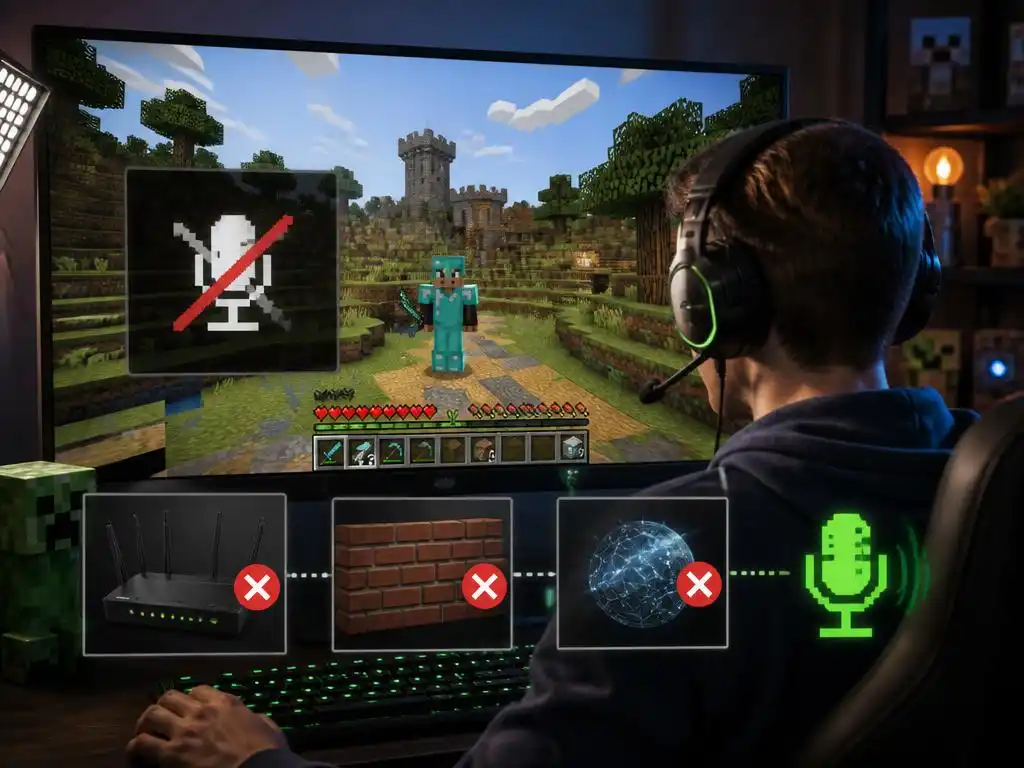
Maintaining a seamless communication experience while exploring vast blocky landscapes is essential for collaborative gameplay. When you encounter a Minecraft simple voice chat not connected status, it often indicates a configuration mismatch rather than a hardware malfunction. Players frequently face these interruptions during multiplayer sessions, which can disrupt the immersion of shared survival builds or competitive minigames. Understanding the underlying network architecture is the first step toward restoring your audio functionality. By systematically checking your local client settings and server-side permissions, you can effectively resolve these common connectivity hurdles and return to coordinating your team activities efficiently.
Proactive maintenance of your gaming environment is a key aspect of maintaining stable interactions within virtual spaces. If your audio remains disconnected, it is highly likely that your firewall or port forwarding rules are blocking the necessary traffic flow. This guide focuses on identifying those specific bottlenecks and applying robust solutions to keep your voice communication online. We will walk through the critical configuration parameters that govern how the plugin interacts with your specific network setup, ensuring that you can communicate clearly with friends regardless of the server complexity or your current location.
💡 Quick Verification Checklist
Before diving into complex network settings, perform these initial steps:
- Confirm the mod version matches exactly between client and server.
- Check if the voice chat port is open on your router settings.
- Verify that the correct microphone device is selected in the mod menu.
- Ensure your firewall allows incoming connections for the game application.
Resolving common connectivity issues
Many users report that their connection attempts time out due to incorrect port mapping in their home network infrastructure. When your modem or router does not recognize the voice data packets, it drops them instantly, leaving you with a silent HUD. This is comparable to the process of stabilizing connections for high-speed internet usage. You must ensure that the UDP port assigned by the server is explicitly opened. Without this specific configuration, the plugin cannot establish the peer-to-peer or server-mediated handshake required for voice transmission, rendering the chat feature completely non-functional for all participating players.
Another frequent cause involves security software that aggressively filters outgoing and incoming traffic without user notification. Antivirus suites and enterprise-grade firewalls often perceive the mod’s broadcast data as potential threats. You should navigate to your security settings and create an explicit exception for the Java executable running the game. By defining this rule, you grant the voice communication module the necessary clearance to transmit audio data seamlessly. This adjustment often resolves the issue immediately, as it clears the path for the plugin to handshake properly with the remote host and authenticate your current session credentials.
⚠️ Identifying Port Conflicts
If you play on multiple servers, a port conflict might arise. Ensure your local configuration files specify the correct remote address and port combination. Incorrectly mapped addresses prevent the client from finding the voice server, leading to that persistent error message. Always double-check that your server provider supports the required protocols for voice chat stability by reviewing their documentation or service agreement files.
Advanced configuration and server settings
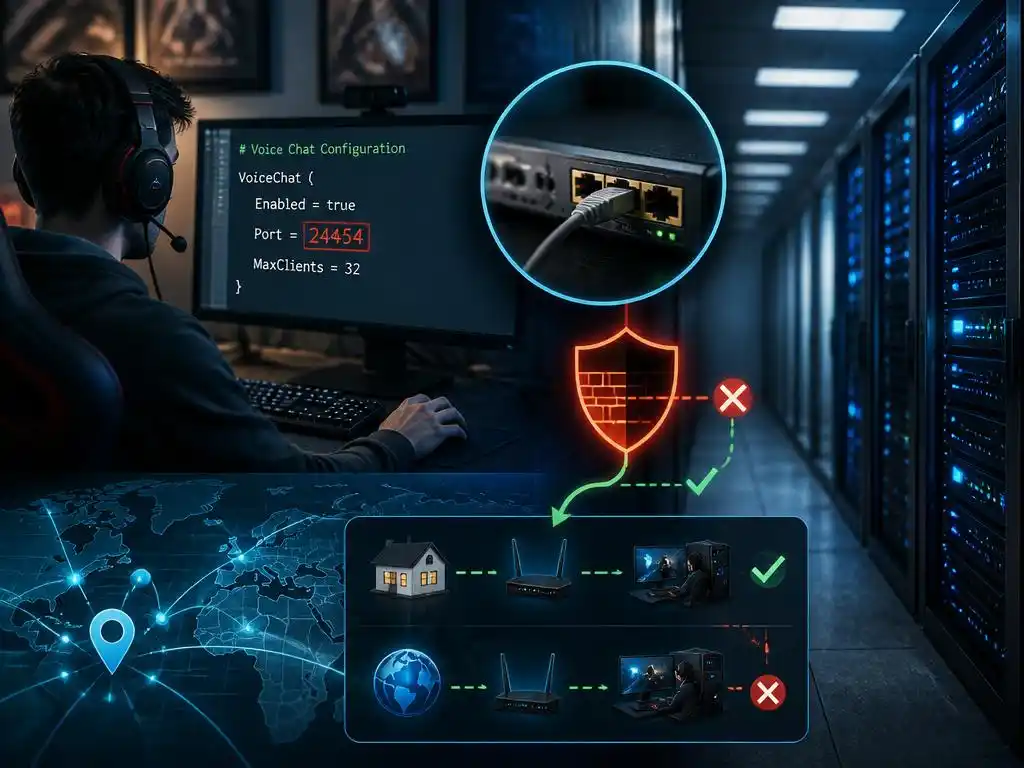
In addition to client-side checks, the server host must verify that the voice port is correctly forwarded to the machine hosting the game instance. If the server operates on a VPS or a dedicated hosting service, the provider might have specific limitations or NAT restrictions that prevent direct voice traffic. Sometimes, looking into diverse digital platforms can provide insights into how similar server-based technologies handle audio stream synchronization. Consulting the server console logs is vital here, as it frequently reveals the exact reason for the rejected handshake between your client and the main server.
Players often overlook the importance of the internal plugin settings, such as the voice host address field found within the mod’s configuration menu. If this field is left empty or set to the wrong internal IP, your connection will consistently fail to initialize. By manually specifying your public IP or the specific address provided by the host, you force the client to route traffic correctly. This manual intervention is often the definitive fix for persistent connection errors that occur even when ports appear to be open and firewalls are correctly configured for game traffic.
✅ Pro Tip: Protocol Synchronization
Always verify the mod protocol version before upgrading. When the server uses a different plugin iteration than the client, the handshake fails at the identification stage. Keeping your mods updated via a consistent launcher profile helps maintain compatibility across all your servers. This proactive approach prevents the need to troubleshoot network connectivity every time a new version is released for your favorite modpack, ensuring you stay focused on your building projects rather than fixing software issues.
Best practices for long term reliability
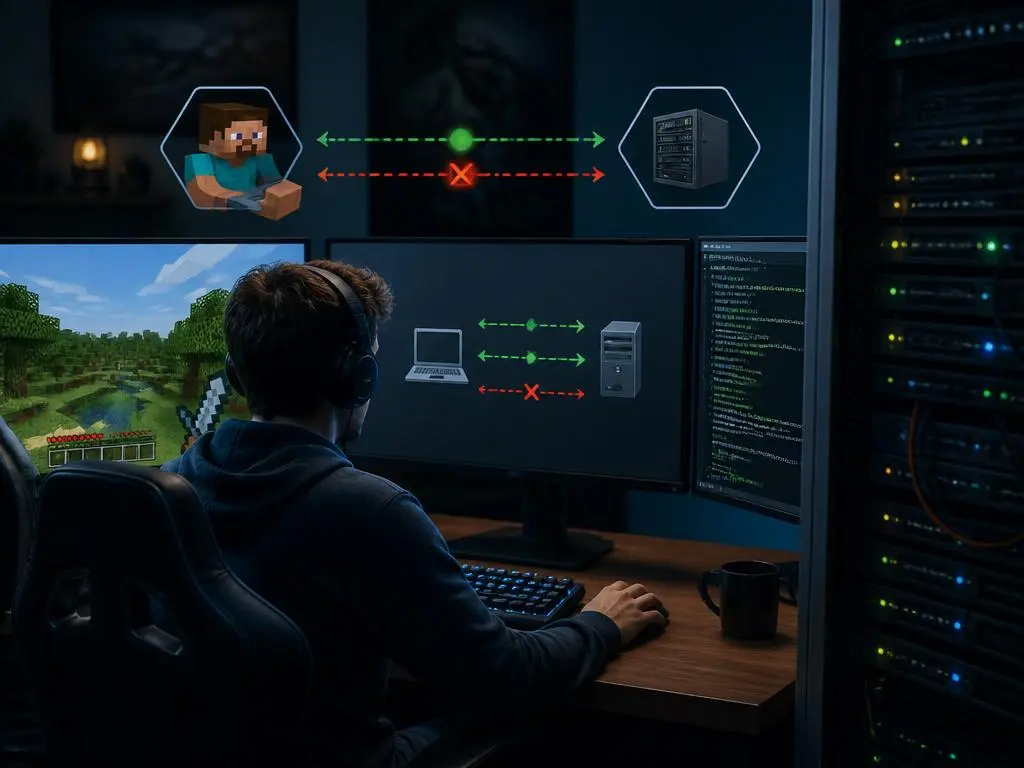
Establishing a permanent and reliable voice setup requires ongoing vigilance regarding your network environment. Avoid relying on unstable Wi-Fi signals for voice-heavy sessions, as packet loss can cause the mod to drop the connection intermittently. A wired Ethernet connection provides the consistent latency required for smooth, real-time voice transmission. Much like the logistics of hardware procurement requires careful planning, ensuring your network hardware can handle persistent UDP streams is crucial for a frustration-free experience. Investing in a solid network setup pays dividends in the form of crystal-clear communication during your longest Minecraft play sessions.
If you still experience issues after applying these fixes, consider reinstalling the mod entirely or checking for conflicts with other audio-related mods. Sometimes, shaders or optimization mods can interfere with the audio library’s hooks. By testing your game with only the voice plugin active, you can isolate the specific variable causing the disruption. This systematic approach is the hallmark of a skilled player who values a perfect gaming setup. With these steps completed, your voice chat should remain robust and ready for every adventure, allowing you to focus on the game and enjoy the seamless interaction with your teammates.
| Error Type | Most Likely Cause | Recommended Action |
|---|---|---|
| Time Out | Closed UDP Port | Forward ports in router |
| Handshake Fail | Version Mismatch | Update server and client |
| No Audio Data | Wrong Microphone | Configure device in menu |
