
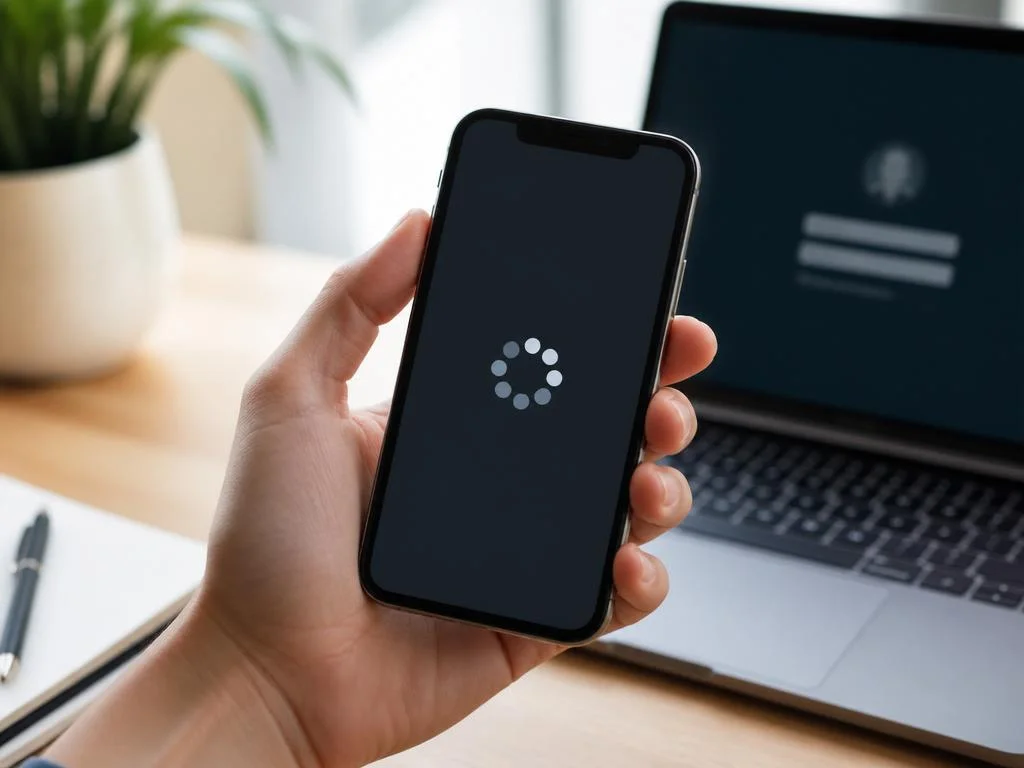
Seeing your device stuck on the connecting to segw server prompt is incredibly frustrating when you need immediate network access. This issue typically occurs when a smartphone or enterprise system attempts to establish a secure link with a remote network gateway. Resolving this loop is the first step toward restoring reliable connection parameters.
Many users experience this persistent loading screen due to minor authentication failures or temporary cellular network outages. Fortunately, fixing these annoying system blocks is highly straightforward if you follow structured troubleshooting methods. Let us explore the practical solutions that will get your mobile device online again.
📌 Quick summary of solutions
- Toggle Airplane Mode to force immediate network reconnection.
- Reset network configurations to clean outdated credentials.
- Verify your security certificates and carrier profile updates.
Understanding what a security gateway actually does
A security gateway functions as a highly protected entry portal between your private device and a larger infrastructure. This node inspects incoming data to prevent security threats from entering sensitive cellular or corporate databases. Without this barrier, modern communication channels would be vulnerable to sophisticated interception attempts during daily remote transmissions.
In mobile technology, these systems translate radio signals into encrypted digital protocols suitable for transit over public internet systems. Your cellular carrier relies on these nodes to ensure voice calls and cellular data packages remain fully isolated from other subscribers. Consequently, any malfunction along this route completely stalls your mobile data loading sequence.
Enterprise systems utilize identical principles to safeguard proprietary files when workers access local files from off-site environments. By creating a secure pathway, organizations prevent intellectual property leakage while allowing workers to remain highly productive. When this system fails to authorize your handshake, the entire remote working bridge collapses.
Ultimately, these gateways rely on strict rules to verify that only authorized devices gain entry to the system. This validation process involves checking specialized cryptographic keys, specific hardware signatures, and pre-allocated network access tokens. If any single parameter fails validation, the gateway refuses connection, causing the processing screens to stall completely.
Why your device gets stuck on the connecting screen
When your smartphone initiates a handshake with a network tower, it sends critical authentication credentials forward. If the system becomes unresponsive or drops packets, the loop of connecting to segw server remains active indefinitely on your interface. This leaves your device in a state of suspended animation while waiting for an acknowledgment.
IP address allocation errors frequently represent a major cause of these persistent interface freezes on consumer hardware. When your device switches between cellular towers, the local DHCP server might fail to assign a unique dynamic address. Without a valid routing point, the secure gateway cannot establish a dedicated tunneling protocol.
SIM card corruption and outdated subscriber information can also trigger authorization blocks during the initial system check. If your profile data is old, the cellular core cannot confirm that you possess an active, paid subscription. This causes the validation server to ignore your access requests without sending back an explicit error.
Local cellular congestion plays a massive role in connection dropouts, especially in highly populated urban districts. When too many users access the same tower, bandwidth limits prevent authentication packets from reaching the secure node. Under these crowded conditions, your phone simply waits for a gateway response that never arrives.
⚠️ Important warning
Do not attempt to repeatedly restart your system manually while critical carrier configurations are updating. Interrupting this process can permanently corrupt your local security credentials, requiring a physical SIM replacement.
Common network configuration problems
Access Point Name settings represent the primary bridge configuration directing your device toward the correct network pathway. If these settings contain typographical errors or outdated gateway addresses, your data traffic will fail to reach the server. Carriers update these fields automatically, but manual network switches can sometimes disrupt this delicate balance.
Weak network coverage also forces the device to endlessly attempt connection retries under extremely poor signal states. If your phone transitions between cellular bands constantly, the secure gateway loses track of your device session. This loss of continuity drops the active connection sequence, forcing a restart of the encryption handshake.
Domain Name System resolution failures represent another hidden cause behind these loading loops on mobile systems. If the system cannot translate the gateway name into a numerical address, no traffic can leave your antenna. Checking default DNS configurations can bypass these local bottlenecks and restore clear paths to security servers.
In addition, temporary regional outages on the carrier side can render the gateway entirely unreachable for several hours. When server-side updates go wrong, thousands of devices suffer from the exact same network loading issues simultaneously. In such cases, local troubleshooting remains ineffective until engineering teams resolve the main platform issues.
Misconfigured device security policies
Corrupted security certificates on your device will block any communication with authenticated remote servers. Gateways expect current, unexpired credentials to verify that your smartphone has not been compromised by malicious software actors. When these local files degrade over time, the authentication process rejects your handshake sequence before it can start.
Active third-party applications focused on privacy protection can also introduce major conflicts with default cellular configurations. These tools alter local packet routing to shield your identity, but they often block carrier ports inadvertently. Disabling these helper applications temporarily helps isolate whether external software is causing the connection to fail.
Mobile Device Management profiles applied by corporate IT administrators often enforce rigid network routing instructions on hardware. These settings restrict access to unknown nodes, which can occasionally clash with public tower security gateway systems. If you use a business device, consulting your technical support desk is highly recommended.
Furthermore, parental control software and localized web filters can block necessary security handshake ports without your knowledge. These applications monitor traffic trends and might flag server communication routines as suspicious behavior, cutting off access. Adjusting safety filters to whitelist carrier connection processes resolves this annoying issue quickly.
Step-by-step solutions to fix the connection loop

The quickest way to resolve minor glitches is to toggle your mobile device into airplane mode immediately. This simple action completely severs your connection to nearby cell towers, clearing the local network caching systems. After waiting ten seconds, turning airplane mode off forces your phone to establish a brand-new, clean cellular registration.
If toggling network states fails, performing a complete system reboot is the next logical troubleshooting action. A hard restart clears volatile device memory and shuts down background tasks that might block communications. Once the operating system loads fresh, the background network drivers start with a clean configuration profile.
Removing and cleaning your physical SIM card can resolve mechanical contact issues that degrade connection quality over time. Dust and small particles easily build up in the card slot, leading to intermittent power drops. Re-inserting the cleaned card forces the system to re-read your profile data directly from the carrier network.
When dealing with computer connections, ensuring your network adapters are working optimally is absolutely essential for performance. When experiencing hardware-related errors on operating systems, sometimes you need to install custom drivers to resolve communication issues between the physical components and local software stacks. This step keeps desktop devices operating smoothly.
For devices using digital SIM alternatives, toggling the cellular profile off and on within settings achieves similar results. This action restarts the secure virtual credentials container without requiring any manual hardware manipulation on your part. These digital profiles require stable internet connections to download, so perform this procedure under active Wi-Fi coverage.
✅ Recommended resolution path
- Activate flight mode for approximately ten seconds.
- Verify that roaming options are enabled if traveling.
- Conduct a system cache wipe via recovery menus.
- Contact carrier support to verify profile status.
Resetting your local network settings safely
Performing a complete network reset is a highly effective way to clear corrupt cellular system databases. This troubleshooting step resets your active cellular network profile to the original manufacturer defaults, removing bad routing tables. Be aware that this process also deletes saved Wi-Fi networks, requiring you to re-enter those credentials later.
On mobile platforms, you can access this option within the system or general management settings menus. Select the reset option carefully to ensure you do not wipe personal files, photos, or contact directories. Once confirmed, the device will restart automatically and rebuild its wireless network communication files from scratch.
After the reboot completes, allow your device several minutes to search for nearby cellular towers and register. The system will download default parameters from your carrier to restore standard calls and messaging services. Once cellular bars appear, check if the gateway connection screen has successfully resolved itself.
This reset procedure is also excellent for solving stubborn Bluetooth pairing errors and local sharing glitches simultaneously. By purging the local communications stack, you remove invalid pairing keys that could interfere with network traffic. It provides a clean canvas for all wireless antennas to operate without outdated configurations.
Updating carrier configuration profiles
Carriers regularly release small configuration updates containing modified gateway addresses, security patches, and network routing rules. If your system misses these updates, your device might try to connect to decommissioned gateway addresses. Keeping these carrier settings updated ensures your phone always knows the exact virtual path to take.
To check for these updates manually, navigate to the system information screen while connected to a stable Wi-Fi network. If an update is available, a prompt will appear on your display asking for your permission to install. These installations take only a few seconds and do not require a full system reboot.
Just like using digital assistants to customize your personal appearance or analyze body characteristics online, modern mobile systems use specialized carrier profiles to automatically fine-tune network rules and connection frequencies. Staying current with these system adjustments prevents routing mismatch issues.
If automatic updates fail, you can request manual provisioning files directly from your carrier support platform. These configuration packages are sent via text message and apply instantly upon opening the message on your phone. This approach bypasses local system delivery delays and ensures your settings are completely current.
Advanced diagnostic tools for enterprise networks
Corporate systems and remote worker networks often require deep analysis to resolve complex connection failures. These secure corporate infrastructures rely heavily on complex security gateway authentication protocols to permit remote employee access to local networks. Identifying where the handshake fails requires specialized diagnostic tools and log analysis software.
Network administrators use packet analyzers to capture raw traffic data flowing between the client and server. These captures reveal whether the client device is sending incorrect key configurations or if the server is dropping packets. Analyzing these precise interaction steps helps narrow down the root cause to a specific hardware device.
In severe troubleshooting cases, booting system software into isolated configurations is highly effective for diagnostics. For older systems, you might need to boot in safe mode to disable third-party security agents blocking local ports. This diagnostic step helps engineers identify software conflicts without risking corporate network security.
Once isolated, administrators can run customized ping scripts to check latency levels to the primary gateway node. High latency or packet drop rates indicate physical cabling issues or failing switches along the path. Resolving these upstream issues is critical before attempting to configure device-level authentication policies.
⚙️ Enterprise configuration tip
When working on corporate mobile configurations, always ensure that UDP ports 500 and 4500 are fully open on the perimeter firewall. Blocking these ports prevents the IPSec tunnel from establishing, causing persistent loop states on client devices.
Analyzing firewall logs and port access
Perimeter firewalls are programmed to block suspicious traffic patterns to shield local corporate servers from outside attacks. However, strict filtering rules can accidentally block the specialized ports used during security gateway handshakes. Checking firewall event logs will show if incoming client requests are being rejected by automated security filters.
To establish a reliable secure connection, specific communication channels must remain unobstructed across all network layers. If network routers block these required ports, your device will remain in a permanent waiting loop. Administrators must create explicit rules allowing traffic from approved cellular IP pools to bypass general filters.
Additionally, using an active virtual private network application on the same device can cause severe routing conflicts with carrier-level gateways. These tools change your local routing tables, confusing the system as it tries to direct traffic through multiple secure tunnels simultaneously. Disabling active VPN profiles helps isolate and fix these routing clashes.
Once you confirm that routing paths are clear, test the ports using network diagnostics tools like Telnet. Successful tests prove that the physical gateway is listening for requests and accepting connections from outside networks. This moves the troubleshooting focus away from hardware paths and onto security profile parameters.
Verifying digital certificates and credentials
Digital certificates provide the secure foundation for trust between your mobile hardware and remote authentication servers. If these certificates expire or use old encryption standards, the server will immediately drop your connection requests. Regularly auditing certificate expiration calendars prevents unexpected system-wide connection dropouts for mobile users.
When configuring these certificates, ensuring precise matching between client files and server requirements is critical for security. Just as a professional photographer relies on a high-quality portrait lens to capture extremely sharp visual details, secure server algorithms require perfectly matched cryptographic keys to establish high-level security associations. Any mismatch breaks the validation chain.
Administrators should also verify that the certificate authority root files are installed correctly on the client device. Without these root configurations, the system cannot verify the identity of the gateway, triggering safety blocks. Updating local system certificates regularly keeps these critical verification chains working smoothly.
Lastly, verify that the user accounts tied to these security profiles remain active and fully authorized. If an employee account is disabled in the corporate database, the gateway will reject their device handshake instantly. Quick database checks can prevent wasting hours troubleshooting hardware when simple account status is the cause.
Preventive measures for stable server connections
Proactive maintenance of your hardware and software profiles is the best defense against frustrating connection errors. Enabling automatic operating system updates ensures your device always possesses the latest security updates and carrier configurations. This simple practice stops bugs from turning into system-wide communication blocks.
Regularly reviewing your local network hardware settings can also prevent configuration errors from degrading connection performance over time. Clearing out saved Wi-Fi networks you no longer use stops your device from searching for old signals. This focus allows your antenna to dedicate its full power to stable cellular connections.
Finally, always maintain a backup connection method, such as a secondary secure Wi-Fi option or roaming profile. Having multiple access pathways ensures you can remain productive even when your primary cellular gateway experiences local technical issues. Preparation is key to staying online in our highly connected digital landscape.
| Common Cause | Primary Indicator | Recommended Fix |
|---|---|---|
| IP Allocation Error | Stuck loading screen | Toggle Airplane Mode |
| Outdated APN Profile | No data connection | Reset Network Settings |
| Expired Certificates | Handshake rejection | Update System Credentials |
