
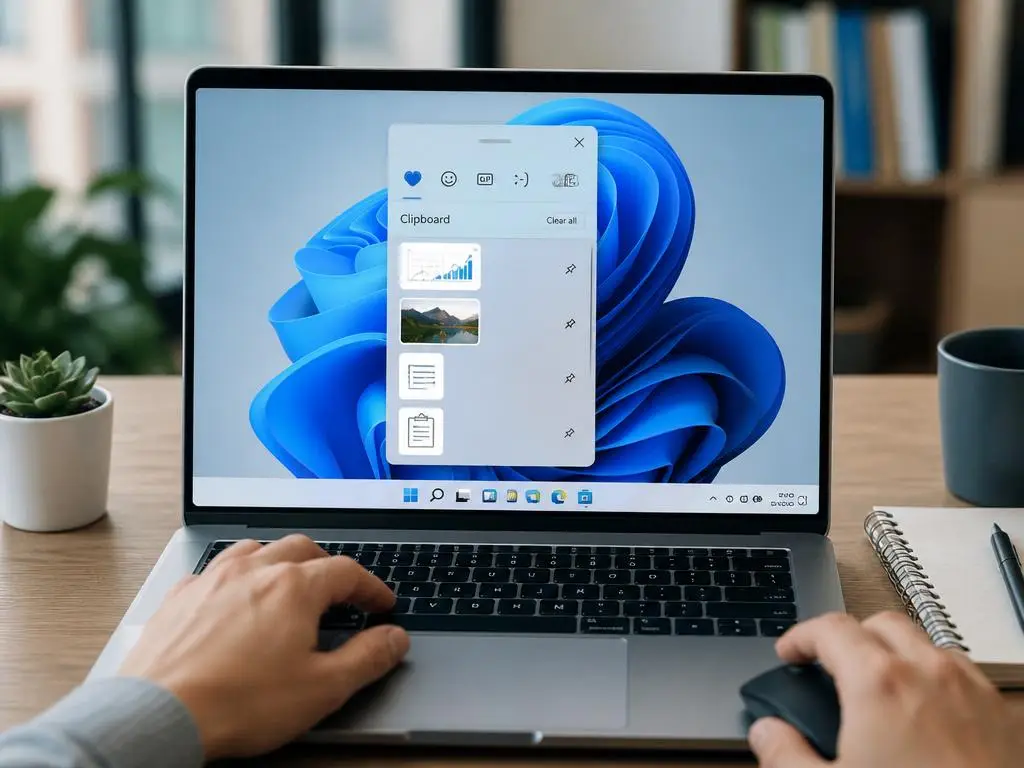
If you have recently noticed that your windows 11 clipboard not working correctly, you are certainly not alone. Many users encounter frustrating moments where copied text simply refuses to paste into their target documents or browser fields. This essential feature, which allows for temporary storage of data, often glitches due to background process conflicts or outdated system components. Understanding the root cause of these technical errors is the first step toward restoring your productivity. By following a structured approach to system diagnostics, you can quickly identify whether the issue is related to software settings or underlying cache corruption.
Modern operating systems rely heavily on synchronization services to manage data transfers between various applications. When these services become unresponsive, the entire mechanism fails, leaving users stranded without their essential copy and paste functions. Fortunately, most of these interruptions are temporary and easily fixable through standard administrative commands or user interface adjustments. Whether you are managing complex workflows or simply trying to move a snippet of text, addressing this malfunction effectively requires patience. Before resorting to drastic measures like a full system reset, explore the following troubleshooting techniques designed to revive your clipboard history and functionality.
⚠️ Critical diagnostic phase
Before applying advanced fixes, ensure your system is fully updated. Often, a minor patch resolves deep-seated bugs that hinder the clipboard service. Verify your Windows update status in the settings menu to eliminate potential compatibility conflicts affecting your interface responsiveness.
Restarting the primary clipboard process
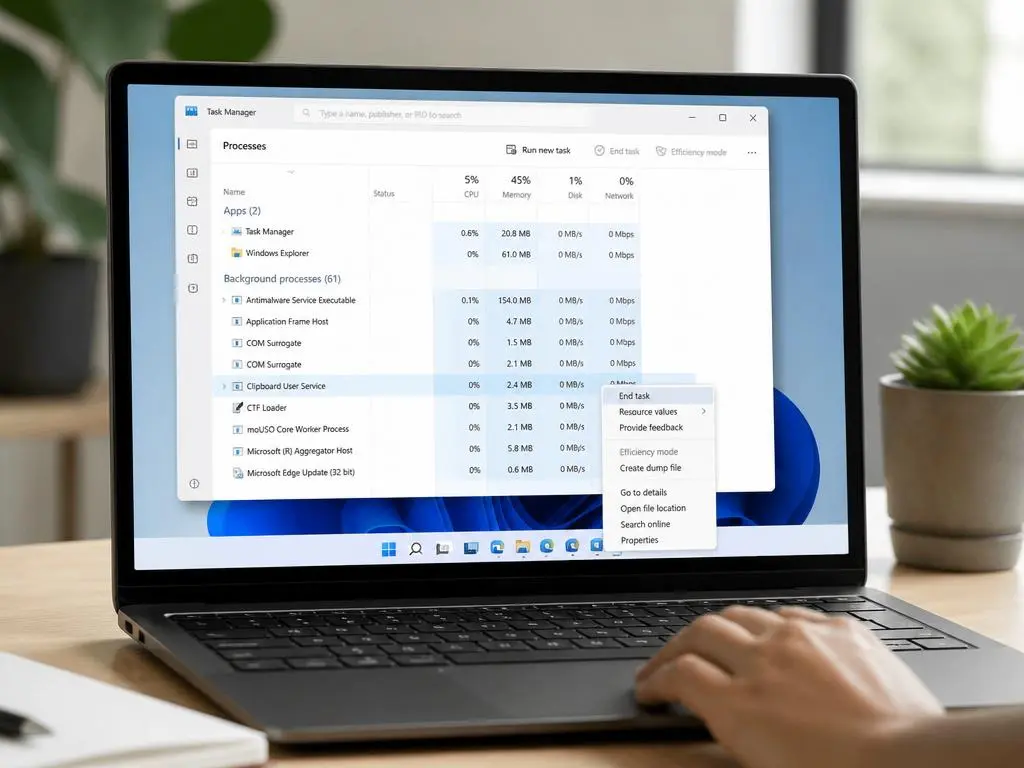
The most effective way to address the windows 11 clipboard not working problem involves manually restarting the background task responsible for the function. Open the Task Manager by pressing the keyboard combination of Control, Shift, and Escape keys. Search for the process labeled Clipboard User Service within the list of active applications and background services.
Once you locate the specific service, perform a right-click and select the option to end the task. Windows will automatically attempt to restart this process in the background. If it fails to trigger, you may need to navigate to the services console to manually initiate the start command to restore connectivity and clipboard performance.
Regular maintenance of your digital infrastructure is vital, much like how businesses often need hospitality digital signage to maintain communication flows. If your clipboard is still failing, check if third-party software is interfering with the service. Some security applications or clipboard managers can override default settings, leading to persistent errors that require disabling or updating those specific tools to regain full access to your standard copy functions.
Clearing the system cache and memory
Data accumulation within the clipboard history can occasionally lead to corruption, causing the feature to stop responding entirely. To resolve this, navigate to the system settings and locate the clipboard menu. From there, you can clear the current history, which effectively flushes out any problematic data entries that might be stalling the system process.
After clearing the cache, toggling the history switch off and on again forces the operating system to refresh its internal configuration. This simple reset often clears the hurdles that prevent successful text capture. If you find yourself frequently dealing with technical bottlenecks, it is helpful to adopt crypto marketing agency insights or similar strategic planning to optimize your hardware and software environment for better performance and efficiency across all your daily digital operations.
✅ Proactive maintenance tips
- Periodically clear your clipboard history to prevent bloat.
- Ensure your keyboard drivers are updated via device manager.
- Disable experimental features that might interfere with standard OS functions.
- Perform a clean boot to identify conflicting startup applications.
Advanced command line troubleshooting
If the user interface methods fail, you can utilize the PowerShell utility to perform a deeper repair. Open the terminal with administrator privileges and execute the system file checker command. This tool scans your OS for corrupted system files that might be causing the windows 11 clipboard not working behavior to persist throughout your sessions.
Wait for the scan to complete and follow any instructions provided by the system regarding repair logs. Often, this process replaces damaged components with healthy versions from the cached Windows image. It is a robust solution that addresses internal architecture issues without requiring you to reinstall your applications or delete your personal user data.
Effective management of your desktop environment is essential for productivity. Just as administrators must select phone systems for seamless connectivity in professional settings, maintaining your OS components ensures your workflow remains uninterrupted. Should the command line scan not produce results, consider creating a new local user account to test if the glitch is localized to your specific profile configuration or if it is a system-wide hardware problem.
💡 Quick performance insights
Did you know that some hardware-based macros can accidentally overwrite clipboard shortcuts? Always check your peripheral configuration software if you use gaming keyboards or specialized input devices, as these often have customizable keys that map directly to copy commands, creating conflicts with the default operating system behavior.
Managing user permissions and groups
Sometimes, registry settings or group policy restrictions prevent the clipboard from functioning as intended. Check if your account has the necessary permissions to execute background tasks. If you are part of a domain, your administrator might have restricted certain features for security reasons, which can manifest as the clipboard service being disabled or blocked by default system policies.
You can verify these settings within the Group Policy Editor if you are using the Pro or Enterprise editions of the OS. Ensure that the Allow Clipboard History policy is set to Enabled. Modifying these configurations requires a restart to take effect, but it frequently resolves issues where the service appears active but fails to process any incoming data strings.
If you encounter persistent errors despite these changes, document the exact scenarios under which the feature fails. Does it happen across all applications, or only in specific programs? Isolating the failure to a single piece of software suggests that the issue lies with application compatibility rather than a fundamental failure of the Windows core clipboard service itself.
ℹ️ Understanding system logs
Reviewing the Event Viewer can provide clues regarding why your services fail to initialize. Look for critical errors related to user-mode drivers or service crashes around the time your clipboard stopped working. These logs often pinpoint the exact file or process causing the recurring malfunction, allowing for a surgical fix.
Final thoughts on system stability
Maintaining a stable computing environment is a continuous task that requires vigilance. When you face issues like the windows 11 clipboard not working, viewing the situation as a learning opportunity can help you better manage your machine in the future. By utilizing standard diagnostic tools, keeping software current, and monitoring background processes, you significantly reduce the likelihood of repeating these common technical hurdles. Remember that most software problems are solvable through logical deduction, allowing you to get back to your tasks quickly without losing precious time or worrying about data integrity across your diverse professional digital projects.
