
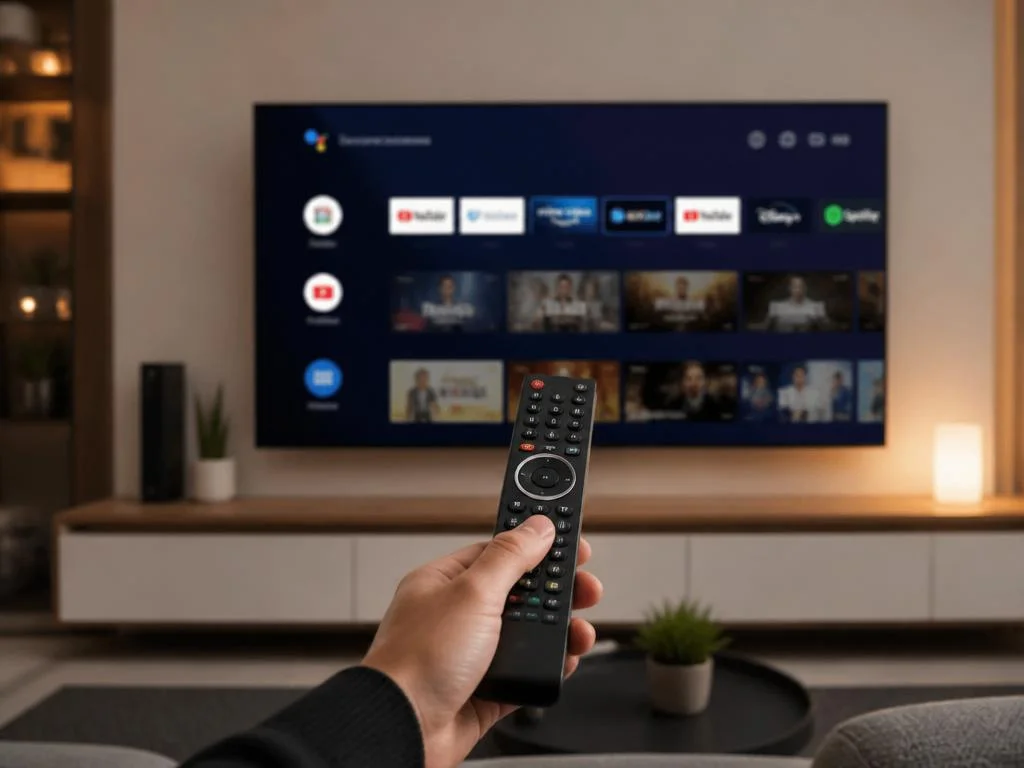
Experiencing a modern smart television that refuses to access local wireless internet can be highly frustrating. Having a tcl google tv not connecting to wifi network disrupts your home entertainment and cuts off access to favorite streaming platforms. Understanding the root causes of this common conflict is essential to restore continuous online performance.
Many users misdiagnose the issue, assuming their network card is broken when simple configuration adjustments resolve the bug easily. This guide details strategic maintenance methods to prevent future connectivity drops. Let us explore the system options and router adjustments that guarantee a stable viewing experience.
Understanding wireless signal behavior on smart televisions
Smart televisions require stable bandwidth to decode high-definition video streams without buffering or pixelation. When signal quality drops below a certain threshold, the device might drop the connection entirely to prevent hardware overheating. This automatic response often makes it look like the television wireless system is failing when it is actually protecting its internal processor.
Various factors influence wireless transmission quality inside a typical household, including wall thickness and router placement. Devices located too far from the broadcasting point struggle to maintain a continuous handshake protocol. This causes intermittent drops that ruin your media streaming experience and require frequent manual reconnects through the system menu.
Crucial network settings for a stable screen connection
Router configurations often dictate how well modern smart entertainment systems interact with the local gateway. Security protocols like WPA3 can sometimes cause handshake issues with older television firmware versions. Changing your router security protocol to WPA2-PSK often fixes persistent connection drops and ensures a much wider range of compatibility with older devices.
Additionally, the router lease time for IP addresses can expire, causing unexpected disconnections during active usage. If the television cannot automatically renew its address, it displays a network disconnected alert. Ensuring your home network router is configured with a longer IP lease duration prevents these sudden system drops from happening.
The role of dual-band router configuration
Modern routers broadcast on both 2.4 GHz and 5 GHz bands to maximize range and performance. While the higher frequency band offers faster speeds, it has a shorter physical range and struggles with solid walls. Setting your streaming devices to connect exclusively to the lower frequency band often improves signal stability over longer distances.
Alternatively, combining both bands under a single network name can confuse some television chipsets during automatic switching. Creating separate names for each frequency allows you to manually lock your television to the most reliable signal. This prevents the system from constantly hunting for better bands and dropping the active connection.
Addressing IP address conflicts manually
When multiple smart home gadgets connect to a single router, IP conflicts occasionally occur. Assigning a static IP address to your television ensures it has a dedicated channel that never conflicts with other devices. This configuration is done via the network settings menu of the operating system and stabilizes the local handshake.
You should also manually configure the Domain Name System settings on your display to bypass local provider bottlenecks. Switching to public servers like Google DNS or Cloudflare often resolves slow loading times and domain resolution errors. These stable servers ensure your television can reach the internet even when regional servers experience high traffic.
💡 Key Router Optimization Checklist
- Prefer WPA2-PSK security to maximize compatibility.
- Separate 2.4 GHz and 5 GHz networks for precise control.
- Assign a manual static IP to avoid local IP address conflicts.
- Configure custom DNS servers like 8.8.8.8 for faster resolution.
Physical obstacles affecting television signal strength
Many users overlook physical environmental factors when placing their home entertainment centers. Large metal objects, heavy furniture, and concrete walls can significantly degrade the quality of wireless transmissions. This physical barrier blocks the radio frequencies, leading to a weak signal that prevents your media center from functioning correctly.
Furthermore, electromagnetic waves from household appliances like microwave ovens and baby monitors can disrupt wireless communication. Placing your router too close to these appliances creates intense wireless signal interference that drops your connection. Moving these devices away from the signal path ensures a clean channel and stronger reception for your television.
If relocating your router is not an option, investing in a mesh network system is highly beneficial. Mesh nodes distribute the wireless signal evenly throughout your living space, bypassing physical walls and dead zones. This modern solution ensures every room receives a robust, high-speed connection suitable for heavy streaming activities.
Software updates and system-level wireless glitches
Outdated operating systems can contain unresolved software bugs that affect the internal wireless driver. Manufacturers regularly release patches to fix known hardware incompatibilities and improve system performance. Running the latest firmware version ensures your television operates efficiently and maintains a secure connection with your modern home network router.
However, if your television is currently disconnected, you cannot download these updates directly from the user interface. In this scenario, you must download the firmware file onto a flash drive using a computer. You can then install the update manually through the system recovery menu on your smart screen.
Sometimes, an automatic update can install incorrectly, leaving the system in an unstable state. This corruption can prevent the network card from initializing properly when the screen boots up. Performing a system reboot after every major firmware update helps prevent these unexpected software conflicts from ruining your settings.
⚠️ Firmware Update Warning
Never turn off your smart television during a firmware installation. A sudden power loss can permanently corrupt the system storage, requiring professional hardware repair to restore function.
Resolving a TCL Google TV wireless connectivity issue
When standard troubleshooting steps fail, resetting the system network settings is a logical step. This process erases all saved wireless profiles, passwords, and custom DNS configurations from the memory. It forces the system to rebuild the connection databases, resolving any underlying software glitches that prevent successful authentication.
To perform this reset, navigate to the system settings and look for the connection options. Select the network reset feature and confirm your choice before letting the television restart completely. Once the system boots back up, scan for your home network and enter your password to establish a clean connection.
Clearing system cache for smoother performance
Over time, temporary system files can accumulate and corrupt the memory partitions of your device. This accumulation slows down operations and causes errors in background network services. Clearing the system cache partition removes these corrupted temporary files without deleting your personal apps or primary user configurations.
You can access the cache settings through the application manager in your settings menu. Select system apps, find the network manager, and clear both the cache and temporary storage data. Restarting your television after this procedure ensures a clean boot and restores normal operation to the wireless receiver.
Advanced diagnostic tools for a TCL Google TV network
The Google operating system includes integrated diagnostic utilities designed to analyze your local network performance. These utilities check signal strength, gateway ping times, and DNS status to identify exact failure points. Utilizing these internal tools saves time by pin-pointing whether the issue lies with the router or the screen.
To run these tests, open the system status menu and select the network diagnostics option. The television will run a series of automated checks and display a comprehensive report on-screen. This detailed report helps you understand if your connection is blocked by local firewall rules or physical distance.
🔍 Analyzing Network Diagnostic Reports
If your diagnostic test shows an IP address starting with 169.254, your television is not receiving a valid address from the router. Reboot your modem to restore normal DHCP assignments.
How to secure your local smart home infrastructure
Maintaining a secure network is vital when connecting multiple smart appliances to your home system. Cyber threats can exploit weak connection protocols on smart displays to access other devices. Just like securing valuable assets online, protecting your home local area network keeps unauthorized third parties from accessing your private data.
Make sure to change the default administration password of your home router immediately. Hackers often use automated scripts to search for default manufacturer credentials across local networks. Implementing a strong password and disabling remote management tools ensures your smart home network remains private and completely protected against digital intrusions.
Managing local bandwidth allocations for streaming
High-definition streaming consumes a significant amount of local bandwidth, especially when multiple users are online. If other family members are downloading large files or gaming, your television signal might drop due to congestion. Configuring Quality of Service settings on your router prioritizes streaming traffic to prevent this common problem.
This prioritization allocates a dedicated portion of your bandwidth directly to the entertainment system. Even during heavy household internet usage, your television maintains a stable, buffer-free stream. This smart management prevents performance degradation and keeps your smart devices connected even during peak usage hours.
| Connection Type | Max Speed | Stability | Ideal Use Case |
|---|---|---|---|
| Wi-Fi 2.4 GHz | Up to 450 Mbps | Moderate | Long-range connection |
| Wi-Fi 5 GHz | Up to 1300 Mbps | High | Close-range 4K streaming |
| Ethernet Cable | Up to 1000 Mbps | Excellent | Lag-free, ultimate stability |
Alternative connection methods for persistent errors
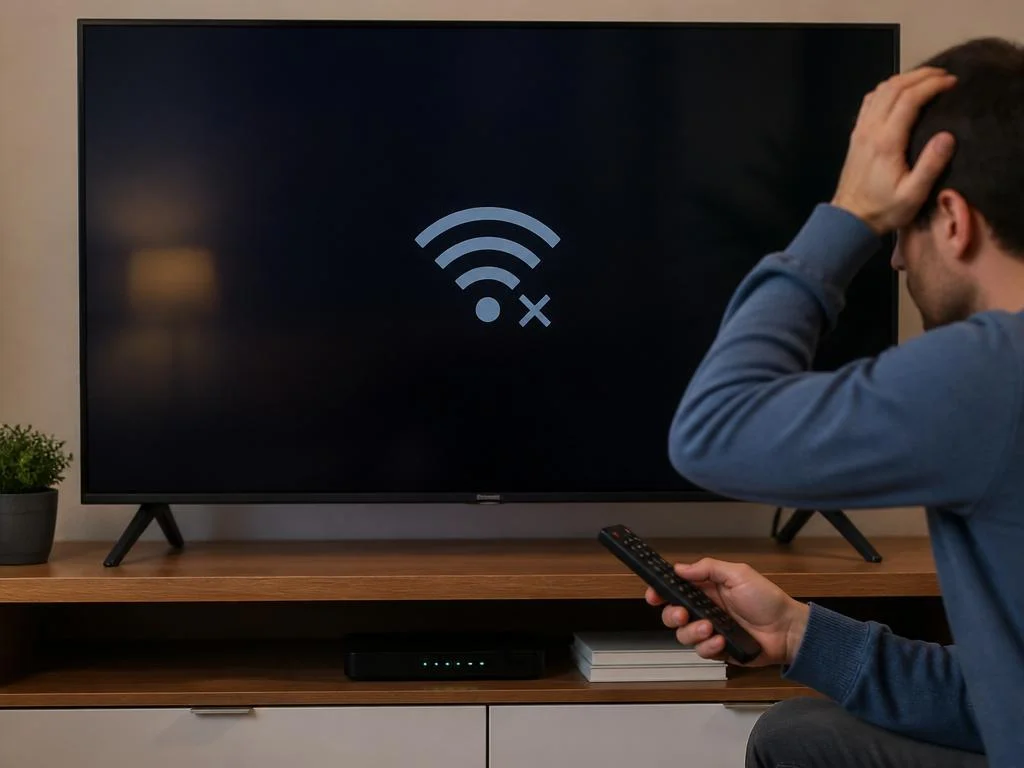
When you experience a tcl google tv not connecting to wifi network, seeking temporary alternatives can keep you connected. If the internal wireless card has failed physically, you can bypass it entirely by using a direct Ethernet connection. Running a physical network cable from your router to the display establishes an instant, interference-free link.
If running a physical cable is impractical due to distance, powerline adapters offer a brilliant alternative. These clever devices use your home existing electrical wiring to transmit high-speed internet data between outlets. Plugging one adapter near the router and another near your screen delivers a stable wired connection without messy cables.
Another quick alternative is setting up a temporary mobile hotspot on your smartphone to test connectivity. If your television connects to the hotspot but not your home router, the issue is certainly network-specific. This diagnostic step helps rule out hardware damage on the television internal wireless card.
Troubleshooting external hardware and modem faults
Sometimes, the issue is not your television but a slow or unresponsive home router. Routers can become overloaded with data over weeks of continuous operation, causing random connection drops. Performing a periodic network hardware reset clears out the router temporary memory and restores full broadcasting power to all devices.
To reset your network gear, disconnect the power cable from both your modem and router. Wait for about sixty seconds to ensure all internal capacitors have fully discharged their stored electrical energy. Plug the devices back in and wait for the status lights to stabilize before testing your television connection.
⚙️ Quick Network Hardware Reset Guide
- Unplug modem and router power supplies completely.
- Leave disconnected for at least 60 seconds.
- Reconnect the modem first, then the router.
- Wait for online lights to steady before connecting devices.
Selecting specialized technical support services
If your system continues to drop its connection despite trying all available settings, expert assistance is required. Navigating complex home network hardware issues can be challenging without the proper tools or technical training. Much like finding a specialized service for professional digitization assistance, hiring certified technicians ensures the job is done right.
Certified repair technicians have access to specialized testing tools that analyze the internal hardware components of your television. They can quickly determine if the physical wireless card needs to be replaced or repaired. Trusting experts saves you time and prevents you from accidentally causing further damage to delicate electronic components.
Enhancing digital entertainment stability long-term
Optimizing your entertainment setup requires a proactive approach to managing your local network resources. Implementing smart scheduling, updating configurations regularly, and using advanced trading tools to secure your household budget can help you fund premium hardware upgrades. A reliable network environment is the foundation of any modern high-definition smart home experience.
Furthermore, understanding local ecosystems of connected devices helps you prevent bandwidth bottlenecks and performance lag. Managing how many devices share the same wireless frequency preserves essential signal capacity for your main screen. This careful planning ensures your system has the dedicated speed required for uninterrupted 4K video playback.
By taking these preventative steps, you can enjoy a flawless streaming experience without sudden connection drops. Regular router maintenance, system cache cleaning, and strategic hardware placement keep your digital entertainment running smoothly. Protect your home network today and secure a highly reliable, high-speed connection for all your smart devices.
