

Operating systems often run various background tasks that can slow down your daily computing. By utilizing specific windows 11 registry tweaks for performance, you can easily unlock hidden capabilities and eliminate system latency. Taking control of these database settings allows your personal computer to process instructions much faster than before.
Adjusting these deep configurations can significantly streamline resource distribution across your hardware components. These structural changes eliminate heavy animations and unnecessary tasks that waste active cycles. Let us explore how custom modifications can safely transform your standard operating system into a highly responsive virtual work environment today.
Understanding the database structure in Windows 11
Windows 11 stores all its configuration data in a centralized hierarchical registry. This complex repository contains keys and values that dictate how hardware, system software, and active applications behave. Understanding this architecture is crucial before attempting any direct modifications, as incorrect changes can disrupt stable background system processes easily.
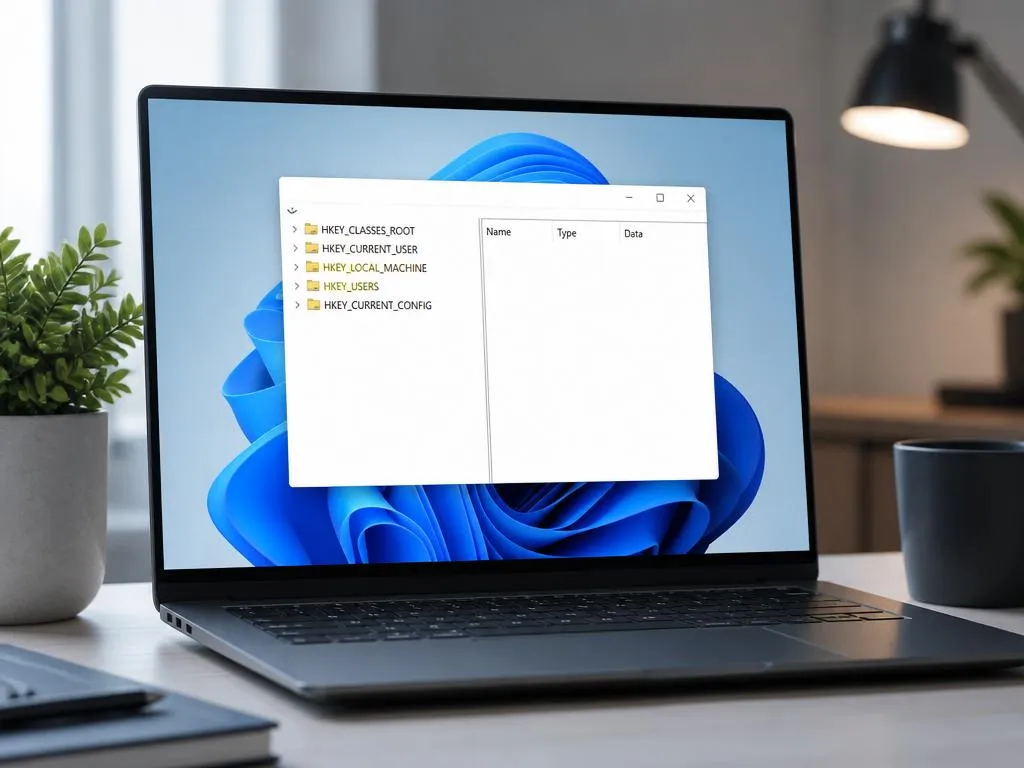
Navigating this massive database requires using the integrated Registry Editor system tool. Users can easily access this application by typing the appropriate command into their default run dialogue box. Once inside, you will find five primary keys that categorize every user configuration profile on your personal computer.
Preparing for your Windows 11 registry tweaks for performance
Safety should always remain your top priority when editing deep configuration files. Because minor mistakes can cause boot errors, you must create a comprehensive restoration point beforehand. This protective measure ensures you can revert your operating system to a fully functional state if anything goes wrong during manual adjustments.
In addition to system restore points, exporting individual branches is highly recommended. To do this, select the folder you plan to modify, choose the export option, and save it. Having a dedicated backup of these specific branches saves valuable recovery time if an applied setting causes unexpected behavior.
- Always establish a complete restore point before making database adjustments.
- Back up specific keys by exporting individual registry branches to an external drive.
- Avoid third-party software applications promising automatic registry cleaner shortcuts.
Optimizing the desktop menu and response times
Standard desktop navigation often suffers from built-in delay timers designed to prevent accidental hover selections. You can significantly accelerate your daily workflow by reducing these default delay values in the registry. This modification makes your mouse movement feel incredibly responsive when browsing through nested system menus.
To execute this adjustment, navigate to the main control panel folder within your user registry directory. Locate the active menu show delay string and decrease its numerical value to a lower setting. This simple shift forces your graphical user interface to display nested context directories almost instantly without any perceptible lagging.
Speeding up taskbar previews and responses
The system taskbar utilizes hover previews that display active application windows when your cursor hovers over them. While visually appealing, the default delay can make your desktop feel sluggish during intense multitasking sessions. Reducing this hover interval creates a much more agile environment for managing open applications.
Users can insert a new double-word value named extended hover delay to control this behavior. Setting this parameter to a minimal value ensures that thumbnail previews pop up immediately. This minor adjustment saves precious seconds when switching between diverse active projects throughout your busy workday.
Just as managing database efficiency speeds up local computer operations, optimizing digital platforms accelerates business success. If you want to expand your online store, applying proven e-commerce growth strategies is absolutely vital. Similarly, clean registry structures ensure that your hardware resources are utilized to their absolute maximum capacity.
Disabling startup delays and background services
When your computer boots, the operating system deliberately waits several seconds before launching startup applications. This intentional pause is meant to ensure that critical background operations load completely without resource conflicts. However, modern solid-state drives can easily handle simultaneous application launches without experiencing any noticeable physical slowdowns.
You can eliminate this startup delay by creating a dedicated key within your system explorer configuration. Adding a serialize delay setting set to zero forces your startup programs to initialize immediately. This reduction in wait times significantly decreases the total duration required to reach a fully usable desktop.
To navigate instantly inside the Registry Editor, copy the full path of the key you want to modify and paste it directly into the search bar at the very top of the window.
Reducing application launch wait times
Background services often consume valuable processing power even when they are not actively required by the user. By modifying keys associated with application responsiveness, you can prioritize active software over passive services. This allocation ensures your current task receives maximum power from your central processing unit.
You can adjust the default application timeout settings to force unresponsive programs to close much faster. Modifying the wait to kill app timeout value prevents the system from hanging indefinitely during shutdown processes. This ensures your computer turns off cleanly without getting stuck on stubborn background tasks.
Selecting the right technical settings can make an enormous difference in overall system performance. The decision-making process is highly comparable to hiring a digital specialist for complex promotional campaigns. In both scenarios, choosing precise, expert configurations guarantees that your long-term objectives are met efficiently.
Enhancing network performance and bandwidth allocation
Your operating system reserves a specific percentage of available network bandwidth for background system maintenance activities. While this ensures automatic updates install smoothly, it can sometimes limit your active internet speed during gaming or streaming. Modifying specific network keys can release this reserved bandwidth for your personal use.
By editing the packet scheduler configuration, you can adjust the default non-best-effort limit to zero. This change allows your browser and online applications to utilize the entire capacity of your internet connection. You will notice more stable downloads and improved ping times during online activities.
Optimizing network adapters for lower latency
The system uses a specific acknowledgment frequency to confirm received packets during online data transmissions. By modifying this frequency value within your active network interface registry key, you can reduce latency. This optimization is highly beneficial for real-time applications that require instant communication with servers.
Adding specific registry keys like TCP Ack Frequency directly alters how your network adapter handles incoming packets. Decreasing the wait time for packet acknowledgment prevents unnecessary delays in data flow. This tweak results in a much smoother browsing experience and reduced latency during multiplayer gaming sessions.
| Tweak Area | Registry Path Target | Performance Benefit |
|---|---|---|
| Menu Delay | Control Panel\Desktop | Instant hover responses |
| Startup Delays | Explorer\Serialize | Faster desktop boot times |
| Network Bandwidth | Psched\NonBestEffortLimit | Full internet throughput |
Managing system storage and disk efficiency
Modern solid-state drives are incredibly fast, but standard software configurations do not always utilize their full speed. You can apply specific windows 11 registry tweaks for performance to optimize disk read and write operations. These adjustments ensure that large files transfer quickly and local applications load without hesitation.
One effective adjustment involves disabling the creation of short file names for legacy compatibility purposes. This legacy feature consumes processing cycles every time a new file is generated on your main drive. Turning off this function streamlines your storage system and improves directory creation speeds on modern drives.
Maintaining a clean and fast storage system is essential for professionals working from various locations worldwide. When exploring remote work options globally, having an optimized, reliable computer ensures you can work productively from anywhere. A responsive local drive allows you to manage heavy workloads seamlessly without administrative slowdowns.
Increasing system memory cache limits
The operating system utilizes a secondary cache to store critical file system data for rapid access. By default, this cache size is relatively conservative to accommodate computers with limited random-access memory. On modern machines with abundant memory, increasing this limit keeps more essential files in your fast RAM.
Modifying the large system cache parameter in your memory management directory instructs the operating system to prioritize memory caching. This modification allows the system to retrieve critical files directly from memory instead of searching your storage drive. Consequently, background system operations feel significantly faster and more fluid overall.
Tuning graphical settings and visual effects
Windows 11 features beautiful visual effects, including drop shadows, translucent panels, and smooth window animations. However, rendering these cosmetic details constantly consumes valuable graphical processing resources on your hardware. If you prefer speed over visual style, you can disable these animations through specific database keys.
Navigating to the window metrics directory allows you to adjust animations directly at the core level. By toggling specific integer values to zero, you turn off resource-heavy transitions entirely. This action immediately frees up your graphic card to focus on demanding applications like video editors and modern games.
- ✅ Set MenuShowDelay string value to 50 for rapid list rendering.
- ✅ Change MinAnimate string value to 0 to bypass window scaling delays.
- ✅ Configure LargeSystemCache to 1 for improved file system speed.
Improving game performance with Windows 11 registry tweaks
The system includes dedicated gaming features designed to prioritize active game files over background operations. However, sometimes the default configuration does not engage these performance settings aggressively enough. Adjusting the hardware-accelerated GPU scheduling key ensures that your graphics card manages its memory directly for better frame rates.
You can force the operating system to prioritize CPU resources for gaming applications by modifying multimedia class scheduler keys. Setting the priority values of games to high guarantees that other processes do not steal performance. This tweak minimizes unexpected frame rate drops and stuttering during intense gaming sessions.
Disabling telemetry and system diagnostics
Standard installation settings include various diagnostics and telemetry features that constantly transmit performance data back to distant servers. While this data helps improve future software updates, the background processes consume system memory and network bandwidth. Disabling these diagnostic services can noticeably improve your overall system responsiveness today.
To disable telemetry, you can navigate to the data collection policies key in your registry directory. Creating a double-word value named allow telemetry and setting it to zero stops these background reports. This simple adjustment protects your privacy while freeing up valuable CPU cycles for your active programs.
Managing privacy and performance configurations is just as critical in professional industries like modern healthcare. Healthcare facilities rely on highly specialized software solutions to process high-resolution patient data safely. Similarly, optimizing your home workstation registry ensures that your professional applications run smoothly without telemetry interruptions.
Stopping cortana and search indexing bloat
The built-in search tool constantly indexes your local storage drives to provide instant file lookup results. Unfortunately, this constant indexing can cause high disk usage, especially on budget computers or older hardware. You can configure the system registry to limit this background search indexing to specific folders only.
Disabling integrated web results within the main search box is another excellent way to save processor cycles. By adding a simple registry key, you can easily prevent local searches from querying online databases. This optimization makes your local file searches feel incredibly fast and clean every time.
Never delete random binary codes or rename system paths unless you are absolutely sure of their functions. Incorrect edits can cause system failures or prevent your PC from booting normally.
Maintaining a healthy registry over time
Over time, installing and uninstalling diverse applications can leave behind orphaned registry entries and broken configuration paths. While these tiny remnants rarely impact system performance significantly, maintaining a clean database is still good digital practice. Avoiding excessive modifications prevents your overall registry database from becoming unnecessarily bloated over time.
You should actively avoid automatic cleanup tools that promise to speed up your computer by scanning your registry. Many of these program utilities are untrustworthy and may delete vital configuration keys by mistake. Instead, focus on safe manual optimizations and regular system maintenance to keep your computer running perfectly.
Optimizing context menus and file explorer layout
The redesigned context menu in Windows 11 requires an extra click to reveal classic desktop choices. This additional step can disrupt the daily workflow of users accustomed to the older classic design. Adjusting a simple layout key allows you to restore the classic context menu directly without installing software.
To return to the traditional layout look, you must create a new registry key under the CLSID directory. Setting this specific value correctly forces the operating system to bypass the modern layout. This simple modification restores your favorite right-click options immediately, making daily file management fast and highly efficient.
Disabling online search results in file explorer
When you search for local files, the system explorer often tries to suggest online web search results. This process can cause noticeable delays, especially when your local internet connection is unstable or loading slowly. Disabling this cloud query feature ensures that local search operations remain highly responsive and secure always.
You can implement this change by navigating to the main search directory in your policies configuration. Adding a dedicated double-word value allows you to shut down cloud searches completely. This ensures that your local computer only searches physical files, providing near-instant results for your desktop queries.
Tuning system processor priorities for background tasks
The operating system coordinates how your processor divides its time between background services and active desktop software. By default, the system balances these priorities to keep background tools running smoothly. However, manual priority adjustments can give your foreground games and heavy software absolute processing priority over active background services.
Within your system configuration, you can locate the priority control directory to adjust how resources are shared. Changing this integer value alters the priority ratio in favor of active applications. This simple configuration maximizes system performance when running single intensive tasks like rendering heavy videos or processing software.
Managing memory allocation for background services
Modern computers run numerous services that support connected devices, system diagnostics, and background software updates. If you primarily use your computer for gaming or design work, you might want to optimize memory allocation. Adjusting these settings ensures that system memory is not unnecessarily reserved for inactive background services.
To adjust this behavior, you can locate the memory management keys inside your local machine registry path. Decreasing priority limits for auxiliary services allows the operating system to reuse freed memory instantly. This custom configuration keeps your active system running quickly even during heavy multitasking sessions.
Securing your modifications through scheduled backups
Even after successfully applying performance configurations, scheduled backups remain a critical practice for overall system longevity. The operating system regularly installs updates that might overwrite custom settings or cause minor conflicts. Keeping your manual backup files organized allows you to restore customized performance profiles in just seconds.
You can schedule a regular task to export your optimized registry branches automatically. This automated routine ensures you always have a fresh copy of your custom keys saved securely. With these automated backups, you can fearlessly experiment with advanced system configurations without risking permanent data loss.
