
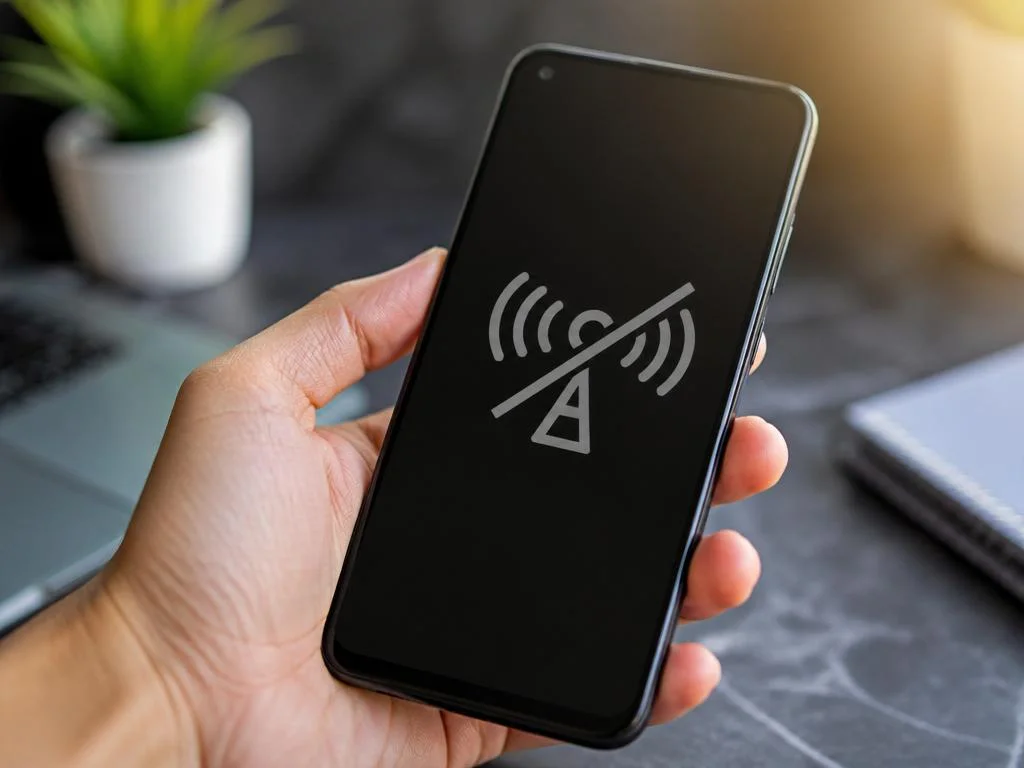
Understanding why your smartphone displays an android mobile network state disconnected error requires looking beyond simple signal bars. This persistent issue often stems from conflicting software configurations, outdated radio firmware, or underlying hardware fatigue. Users frequently encounter this obstacle during peak usage times, suggesting that network congestion or cellular tower handoff protocols play a major role in your device’s connectivity stability. Identifying the exact root cause helps in applying the correct resolution, ensuring that your communication remains fluid and reliable throughout the day while minimizing the frustration of sudden signal drops in critical moments.
While many assume that a dropped connection is strictly a carrier issue, your local system settings are usually the primary culprits. System cache corruption or incorrect Access Point Name settings can effectively prevent your device from maintaining a handshake with local cell towers. By systematically auditing your connection parameters, you can bypass the need for expensive hardware repairs. Whether you are using a professional device for efficient phone systems or a personal handset, the diagnostic process remains largely consistent across modern operating systems, focusing on deep-level software refreshing.
💡 Quick Diagnostic Checklist
- Verify your current SIM card physical integrity.
- Check for recent system software update failures.
- Audit your active roaming configuration settings.
- Perform a forced network hardware refresh cycle.
Deep dive into radio firmware instability
Radio firmware acts as the bridge between your hardware antennas and the carrier infrastructure. When this software layer becomes corrupted, your device struggles to maintain the mobile network state. Periodic updates from manufacturers typically contain patches for these specific connectivity drivers, yet they occasionally introduce new bugs that result in erratic performance during standard operation cycles.
To address this, users should navigate to their system update section to ensure the radio baseband is running the most recent version. In some instances, rolling back to a previous version is necessary if the latest patch triggered the disconnection. Staying updated is essential for both individual privacy and overall hardware efficiency.
The stability of your mobile signal is often tied to how well the modem interprets carrier signals. If the logic fails to translate data packets correctly, the system will mark the network state as disconnected to protect the device from potential data leakage or hardware damage.
Managing access point name configurations
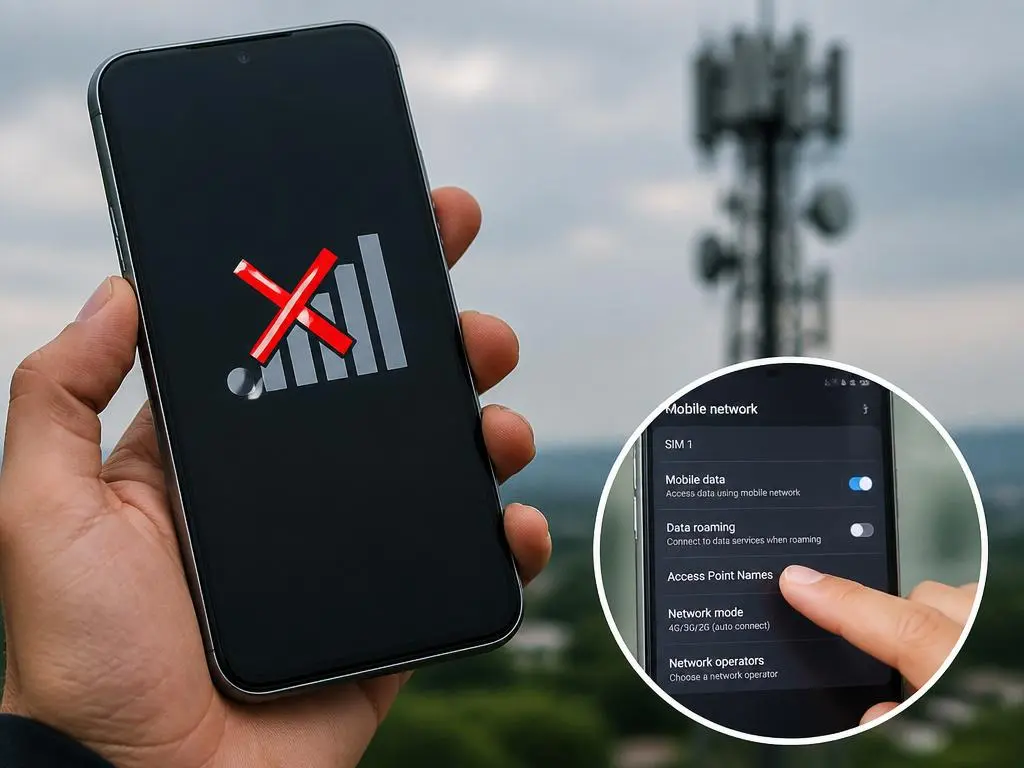
The Access Point Name (APN) is the gateway that allows your device to connect to the carrier’s mobile data network. If these settings are misconfigured, your phone might show full bars but remain effectively offline. Resetting these to default values is one of the most reliable ways to restore connectivity without affecting personal data.
Go into your cellular network settings and locate the APN menu. Often, simply selecting the default profile or manually re-entering the values provided by your carrier will resolve the state disconnected issue. This is particularly helpful when traveling, as network providers may update their gateway protocols, causing older settings to become obsolete and non-functional.
✅ Pro Tip: Resetting Network Layers
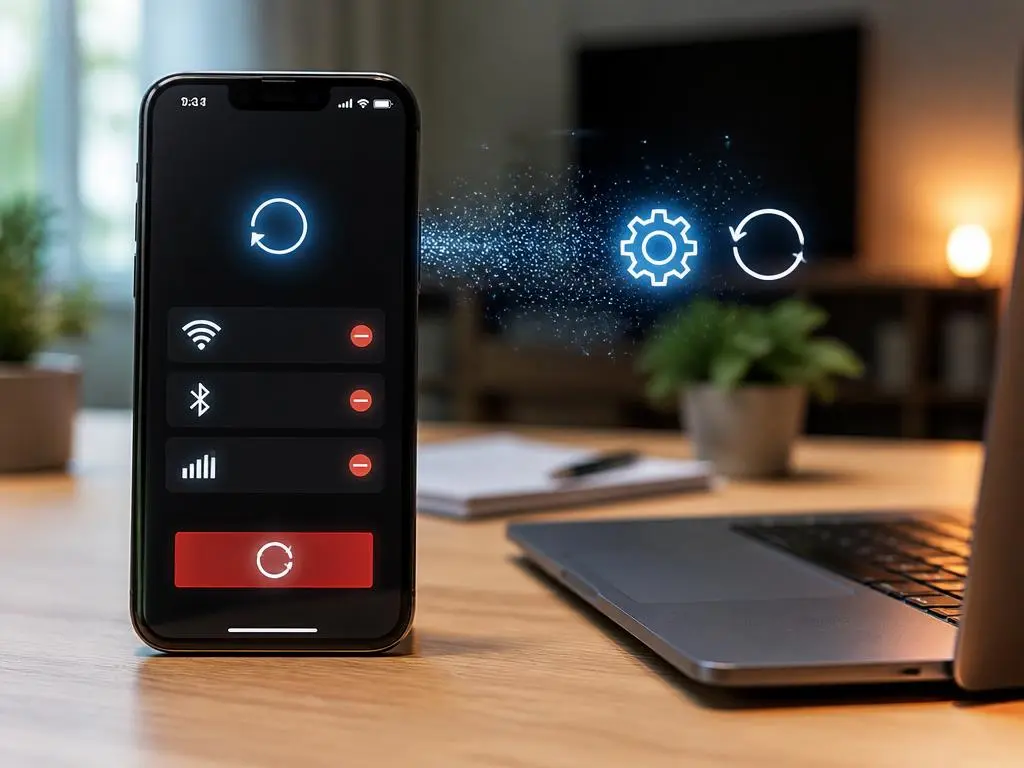
For those managing digital infrastructure, modern tools require stable links. If you find your connection failing, consider that hospitality digital signage setups also depend on high-speed mobile relays. A full network reset clears stored credentials, forcing the modem to re-authenticate with the carrier tower from scratch, which often fixes lingering authentication handshake errors that standard reboots cannot resolve.
Evaluating external hardware impacts
External interference can mimic software disconnections. Metallic cases, low-quality screen protectors, or even improperly inserted SIM cards can disrupt antenna reception. It is crucial to test your device without any accessories to rule out physical shielding. Sometimes, the issue is as simple as a layer of dust on the SIM card surface.
Cleaning your SIM card with a dry cloth and re-seating it firmly can prevent intermittent disconnects. If you are operating in a professional environment, such as when evaluating crypto marketing agency performance via mobile data, reliability is paramount. Physical maintenance ensures that your device maintains the high-frequency contacts required for modern LTE and 5G connections to remain active.
⚠️ Critical Warnings
Always ensure your device is backed up before performing a hard reset of network settings. While this action does not erase photos or messages, it will remove saved Wi-Fi passwords and paired Bluetooth devices. Exercise caution when dealing with regional carrier locks, as these can trigger permanent disconnection if the software state is tampered with incorrectly.
Advanced debugging of the system radio
When basic resets fail, developers use the radio interface layer to identify specific error codes. By dialing a special sequence, you can access hidden menus that display the exact signal-to-noise ratio. High noise levels indicate that your hardware is being flooded with interference, leading to the network state disconnected error as a protective measure.
Monitor these values in different locations. If the signal quality is high in one area but drops in others, the issue is likely your local carrier coverage rather than your phone. Adjusting your preferred network type from 5G to LTE can often stabilize a connection that is struggling with 5G signal handover failures in your specific neighborhood.
Summary of Troubleshooting Flow
- Perform a standard restart to clear temp files.
- Toggle Airplane Mode to force a fresh handshake.
- Reset APN settings to their original factory defaults.
- Update your device software to the latest radio driver.
- Consult your provider regarding local tower maintenance.
Ultimately, persistent connection issues require a logical diagnostic approach rather than blind frustration. Most users find that once the cellular radio interface is synchronized with the carrier, the mobile network remains stable for months. Ensure you keep your system operating system updated to prevent security vulnerabilities that might interfere with connectivity protocols. By following these structured steps, you eliminate the guesswork, ensuring that your device functions correctly in any environment. If the problem persists after these steps, it is time to contact your provider’s technical support team for a deeper look at your account provisioning status.
