
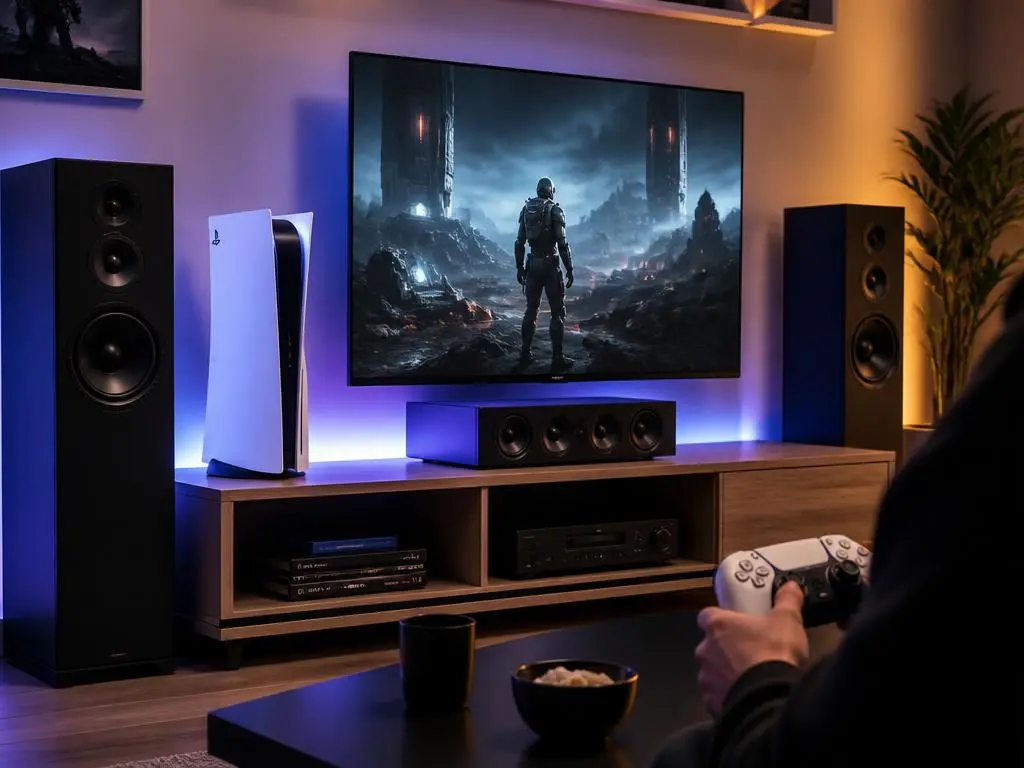
Setting up your next-generation console involves more than just plugging in the power cord. Many gamers wonder how to connect ps5 to speakers to unlock a truly immersive audio experience that built-in monitor systems simply cannot deliver. Elevating your gaming audio changes how you perceive virtual environments entirely.
Standard setups often limit the auditory potential of modern cinematic games. Finding the right connection method is crucial for seamless audio transmission without latency or distortion issues. Let us explore the best pathways to integrate external sound systems and transform your gaming space into an acoustic arena today.
Why external audio matters for your console
Modern video games rely heavily on three-dimensional audio design to guide player actions. Standard television speakers usually fail to reproduce deep bass or subtle directional cues accurately. Upgrading your sound setup ensures you never miss an opponent sneaking behind you during intense multiplayer matches, enhancing your overall reaction times.
High-fidelity soundscapes enrich the narrative depth of single-player masterpieces. Every rustle of leaves, distant rumble, and emotional orchestral swell becomes clearer and more impactful. Investing time in configuring external speakers pays off by delivering the cinematic experience game developers originally intended for players worldwide to enjoy.
Furthermore, the PlayStation console features a proprietary audio engine designed specifically for immersive experiences. This spatial processing technology shines brightest when paired with high-quality physical speaker arrays. Utilizing external hardware allows this advanced processing to project sound accurately across your entire physical entertainment room setup easily.
« Sound is half the experience in modern interactive media, creating emotional depth that visuals alone cannot replicate. »
How to connect ps5 to speakers using HDMI
The console does not feature a traditional optical audio output port. This design choice forces users to rely primarily on HDMI interfaces for high-definition audio routing. Understanding this layout is the first step toward building a clean, modern entertainment system without messy cables cluttering your desk space at home.
Setting up a direct connection to an audio receiver is highly recommended. You simply run an HDMI cable from the console directly into the receiver input port. Then, another cable goes from the receiver output to your television, completing a high-bandwidth loop easily and quickly for gaming.
This arrangement ensures uncompressed multi-channel sound signals reach your amplifier without delay. It is the most reliable method for preserving pristine Dolby Atmos or linear PCM tracks. Most modern home theater systems are built specifically to handle this passthrough configuration without losing visual fidelity at all during play.
However, many gaming monitors lack multiple HDMI ports or built-in audio processing units. In these scenarios, you must find creative workarounds to split the audio and video signals. Fortunately, several affordable accessories can solve this common bottleneck without requiring expensive hardware upgrades immediately in your setup.
HDMI audio extractor units are essential if your monitor lacks speakers. They split the digital signal perfectly, routing crystal-clear sound to your favorite sound system while sending video to the screen.
Using the HDMI audio extractor method
An extractor acts as an intermediary device between your console and display. It takes the incoming HDMI feed and splits it into separate video and audio channels. The video signal continues to your monitor, while the audio goes directly to your soundbar or desktop speakers smoothly without problems.
This accessory usually features an optical audio connection or classic red-and-white RCA outputs. This versatility allows you to connect older analog sound systems to modern digital consoles. It is a cost-effective solution that saves you from purchasing brand-new audio equipment for your updated gaming station this year.
When shopping for an extractor, verify that it supports your desired video refresh rates. Many cheap extractors limit your display output to sixty frames per second, which defeats the purpose of high-end gaming. Look for models certified for HDMI high-speed capabilities to ensure optimal visual output quality always on screen.
Setting up this hardware requires only a few minutes of configuration. Connect the console to the input port of the extractor using a certified high-speed cable. Then, run your optical or auxiliary cable from the output port directly to your speaker system receiver securely without any extra steps.
Ensuring correct port alignment prevents unnecessary signal loss during transmission. You can read an essential connection guide to see how ports manage various digital signals efficiently. Proper connection habits protect physical interfaces from wearing out over years of continuous gaming use today.
Connecting through a smart television port
If you play on a modern television, you can bypass direct console wiring. Most contemporary displays feature an Audio Return Channel port, commonly labeled as ARC or eARC. This interface allows the TV to send sound from all input sources directly to a connected soundbar automatically and cleanly.
Plug your console into any vacant HDMI input port on the television. Next, connect your soundbar to the specific eARC-enabled port on the back of your TV. The screen will automatically route the gaming audio feed straight down to the external sound system effortlessly without delays.
This configuration is highly convenient because it consolidates your media control. You can adjust the speaker volume using your standard television remote control instead of switching controllers. It simplifies your daily entertainment experience while maintaining excellent sound fidelity across all entertainment activities daily at home.
However, some televisions introduce minor processing delays when passing audio to external devices. If you notice a lag between action on screen and the corresponding sound, check your TV settings. Switching the digital output format to pass-through mode often resolves these synchronization issues immediately and easily.
Alternative wireless and USB audio solutions
When physical HDMI routing is not feasible, alternative methods come to the rescue. The system supports direct USB audio outputs, allowing you to bypass video connections entirely. This opening is perfect for desktop gaming setups where your speakers sit right next to your display screen monitor on desks.
Many computer speakers feature a standard USB input that the console recognizes instantly. Connecting this way provides a clean digital signal directly to the speaker’s internal digital-to-analog converter. This process bypasses cheap audio jacks, resulting in cleaner sound reproduction without background static hiss during silent scenes.
If your preferred audio equipment only supports analog jacks, do not worry. You can utilize a simple USB-to-auxiliary adapter to bridge the physical connection gap easily. This tiny accessory plugs directly into the console front ports, offering a standard headphone jack interface for older speakers to connect.
For those seeking clutter-free setups, wireless routing is another viable path to explore. While the console does not support third-party Bluetooth audio devices natively, simple solutions exist. Standard wireless adapters can bypass these system limitations, opening up a world of cable-free speaker placement options today for users.
Troubleshooting network or connectivity accessories often follows similar patterns across different platforms. If you encounter issues with accessory pairing, you can read how to fix your remote app connection to understand general bluetooth and wireless signal diagnostics. Keeping your accessory firmware updated prevents sudden disconnects during crucial gameplay moments.
Using a wireless bluetooth transmitter setup
A Bluetooth dongle connects directly to your console USB or headphone jack. This transmitter sends your game audio wirelessly to any compatible bluetooth speakers or soundbars. It is an excellent choice for casual gaming sessions where comfort and minimal wiring are prioritized over speed in competitive environments.
When using a wireless bluetooth transmitter, audio latency is the primary technical hurdle to overcome. Traditional Bluetooth protocols introduce noticeable delays between button presses and hearing the action. To minimize this effect, choose transmitters and speakers that support low-latency audio codecs specifically for gaming.
Place your transmitter in a clear line of sight to the speakers. Physical barriers like wooden cabinets or metal frames can disrupt the fragile wireless signal easily. Keeping the distance short ensures a stable connection with minimal audio dropouts during long gaming marathons every weekend with your friends.
Remember to disconnect other active Bluetooth devices in the room during setup. Phones, tablets, and smart devices can interfere with your new transmitter, causing audio stuttering. Clearing the local airwaves ensures your console audio stream remains prioritized and completely uninterrupted throughout your entire gaming session at home.
⚠️ Warning on Audio Lag: Bluetooth connections are not recommended for competitive shooter games. The slight delay in sound cues can negatively impact your reaction times during fast-paced multiplayer combat.
Direct USB connection to compatible speakers
Connecting speakers via USB is incredibly straightforward and highly reliable. Plug the speaker USB cable directly into one of the rear ports of the console. The system operating software will automatically detect the new hardware device and configure audio routing instantly without hassle on your end.
This method offers several key advantages over wireless alternatives. There is absolutely zero audio latency, ensuring visual actions match sound cues perfectly. Additionally, digital-to-analog conversion happens inside the speaker, preserving signal quality and removing annoying electrical hums from your console internal components during heavy play.
However, not all USB speakers are compatible with the console software. Some models require proprietary Windows drivers to function, which the console cannot install. It is wise to verify console compatibility on the manufacturer website before purchasing new desktop speakers for your room setup.
If your speakers require external power, ensure they are plugged into the wall. Relying solely on the console USB ports to power large speakers can cause instability. Proper power distribution keeps your audio hardware running safely and delivering consistent acoustic performance under heavy load during long sessions.
Optimizing your console audio settings
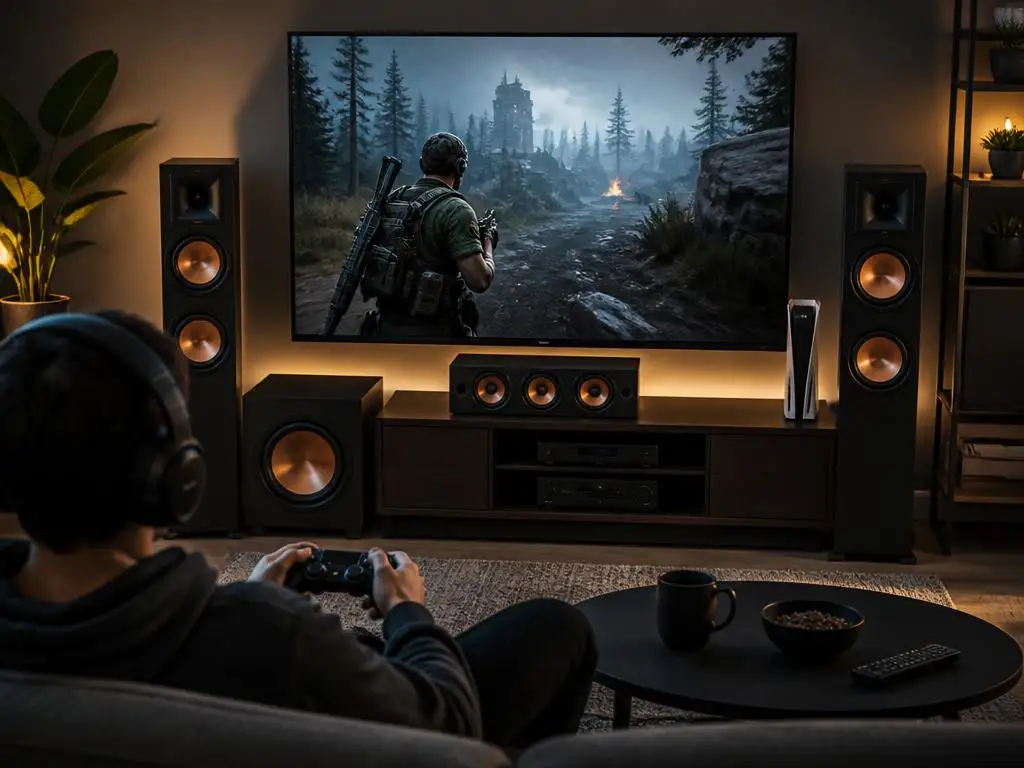
Physical connections are only half of the journey to premium gaming audio. You must configure the internal console software settings to match your speaker configuration. Navigate to the main settings menu and select the sound tab to begin your optimization process immediately.
Under the audio output section, you will find options for device type. Choose the correct category, whether you are using a soundbar, receiver, or TV speakers. Selecting the accurate device type allows the console to calibrate its spatial audio algorithms correctly for your room shape.
Next, adjust the speaker positioning settings if you are using multi-channel systems. The console allows you to customize the angle and height of your surround speakers. Fine-tuning these coordinates creates a more seamless acoustic bubble around your favorite gaming chair during play sessions.
Finally, select your preferred audio format under the general settings tab. Linear PCM is excellent for traditional setups, but modern surround sound formats provide a much deeper spatial field. If your system supports Dolby Atmos, selecting this format unlocks incredible height-based object audio tracking in supported games easily.
Advanced setups require robust data processing paths to handle massive streams of audio data. You can explore strategies for scaling data networks to see how professional systems manage massive signal bandwidth. While home audio is smaller, applying these data integrity principles ensures smooth performance throughout the system.
Troubleshooting common console audio issues
Even with careful setup, you may occasionally encounter annoying audio issues. If you experience complete silence after connecting, double-check your physical connections first. A loose cable in an HDMI splitter is often the culprit behind sudden signal loss during long gaming sessions today.
If the physical wires are secure, check the active output device settings. Sometimes the console defaults back to the television speakers after a system update. Manually forcing the output back to your external system resolves this issue in most cases within seconds of checking.
Distorted sound or crackling noises usually point to electrical interference or bad cables. Try routing your audio cables away from high-power power strips and console power supplies. Swapping out cheap cables for shielded alternatives can immediately clean up your overall sound quality without extra cost later.
If you experience low volume, check both the physical speaker dial and console settings. The system menu features a dedicated controller volume and master audio slider. Maxing out these software controls allows your physical amplifier to work efficiently without introducing noise or distortion into the dynamic speaker channels.
Choosing the right sound system for gaming
Selecting the perfect speakers depends heavily on your budget and physical space. For small desks, compact studio monitors offer incredible stereo imaging and clear near-field sound. They fit easily next to computer monitors without taking up valuable desk surface area during work or play.
Soundbars are excellent choices for living room setups where space is limited. Many modern soundbars feature virtual spatial audio processing, simulating a full surround setup. They sit neatly under your television, offering a massive acoustic upgrade with minimal physical footprint in your home entertainment room.
For the ultimate gaming experience, a dedicated multi-channel receiver setup is unbeatable. True physical surround sound speakers place you directly in the center of the virtual action. It requires more wiring effort but delivers unmatched acoustic immersion that no virtual technology can replicate today at home.
Upgrading your home systems parallels how businesses transition from analog to clean digital formats. Observing why modern business digitization is critical highlights the value of moving toward high-fidelity digital systems. Embracing modern technology ensures your gaming setups remain future-proof for years to come without obsolete hardware limitations.
📌 Key Setup Takeaways
- HDMI eARC is the optimal path for uncompressed surround sound formats.
- Use an optical audio connection extractor if your screen lacks dedicated outputs.
- Ensure Bluetooth adapters support low latency to avoid painful sound delay.
